
Disclaimer: ActBlue user roles and permissions dictate what users can do on our platform. If the tools or features mentioned in this article are unavailable to you, please speak to your Dashboard Admin(s) about updating your permissions.
In this article:
What are supporter forms?
Supporter forms are forms that donors can use to fundraise on behalf of your campaign or organization. Donors can create, customize, and manage their forms, as well as view basic data for donations received through them.
While donors retain direct editorial control over their supporter forms, all funds received through their forms will still go directly to your campaign or organization. You can learn more about how to access fundraising data for these forms here.
Supporter forms are an excellent way for donors to organize their friends, family, and personal networks and raise money for your campaign or organization.
How can I invite donor(s) to create a supporter form?
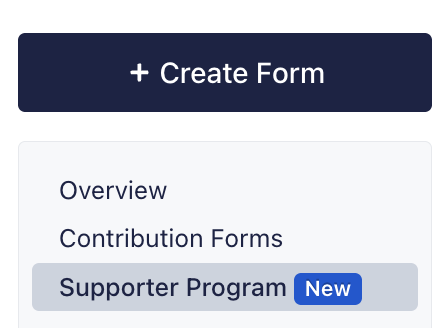
To invite your donor(s) to create a supporter form, start by logging onto your ActBlue Dashboard and navigating to the Supporter Program tab on the left-hand menu:
From the Supporter Program page, click the black Copy Invite button highlighted in blue:
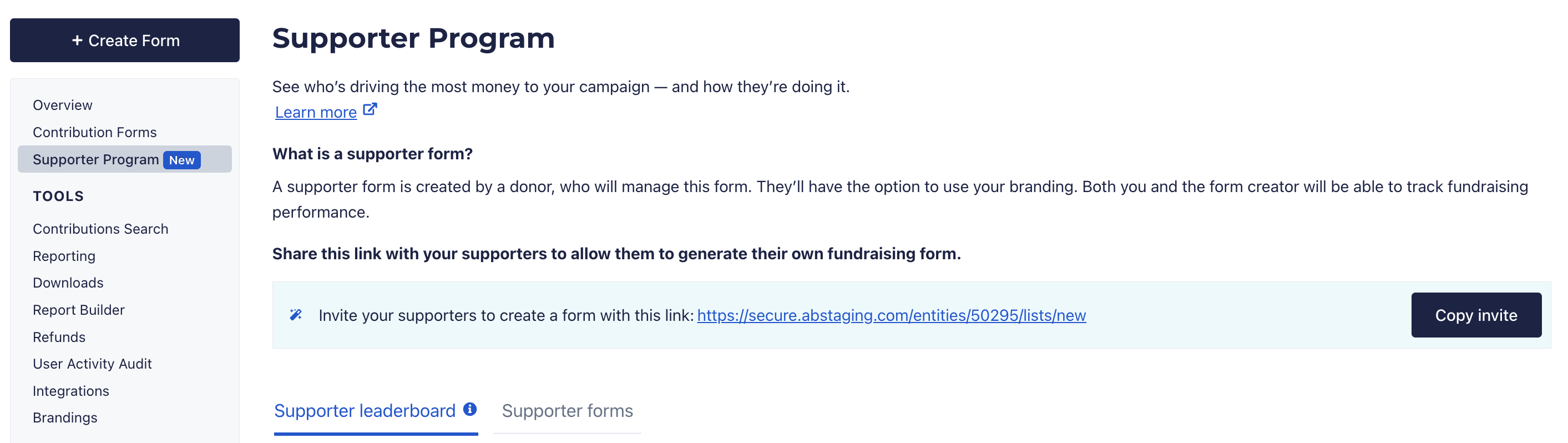
This will automatically copy a link to your clipboard that you can then paste into an email or text to your intended donors.
When your donor clicks this link, they will be prompted to create their own supporter form with a custom title, URL slug, and donation ask:
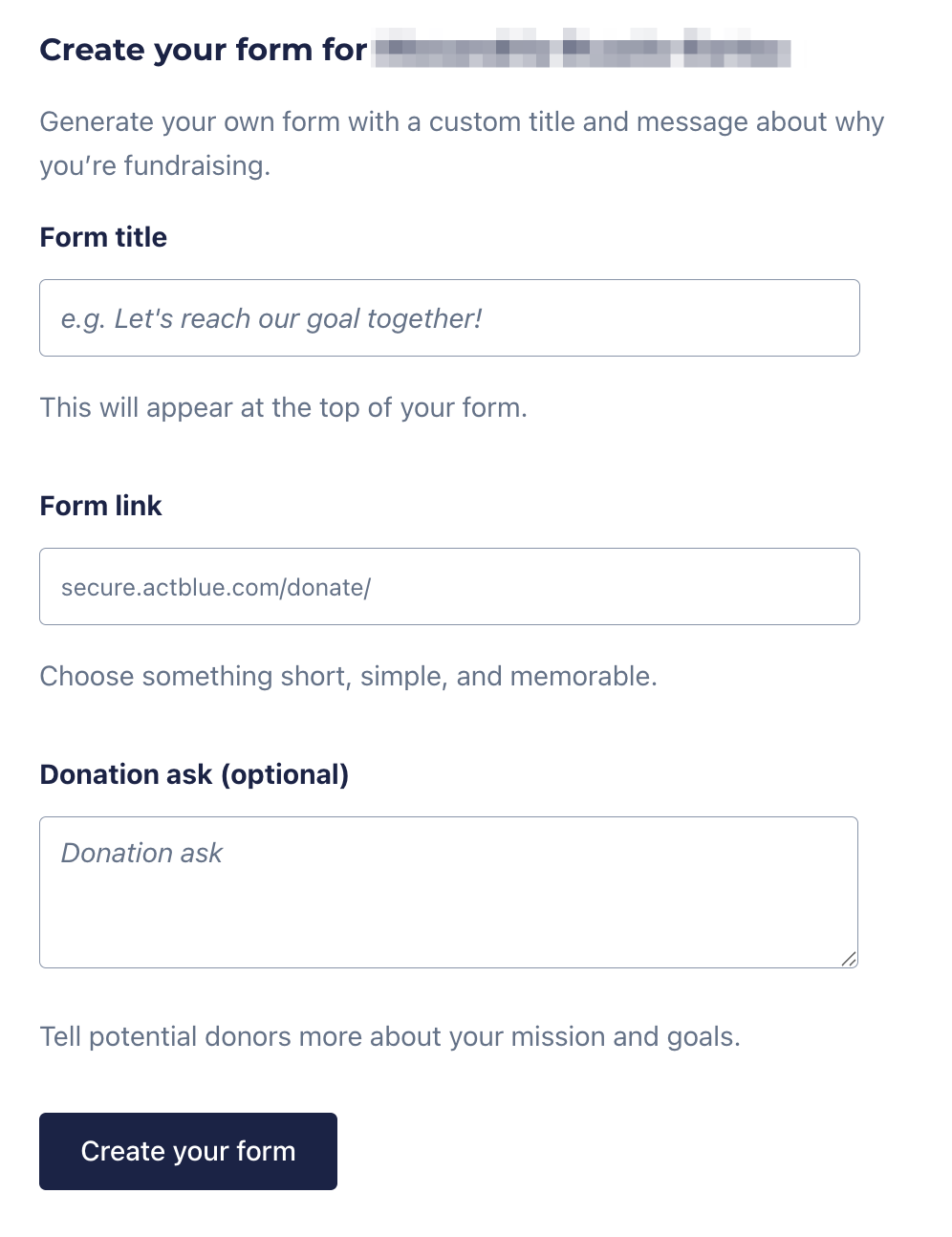
Once your donor has filled in this information, they'll need to click the black Create Your Form button to complete the process.
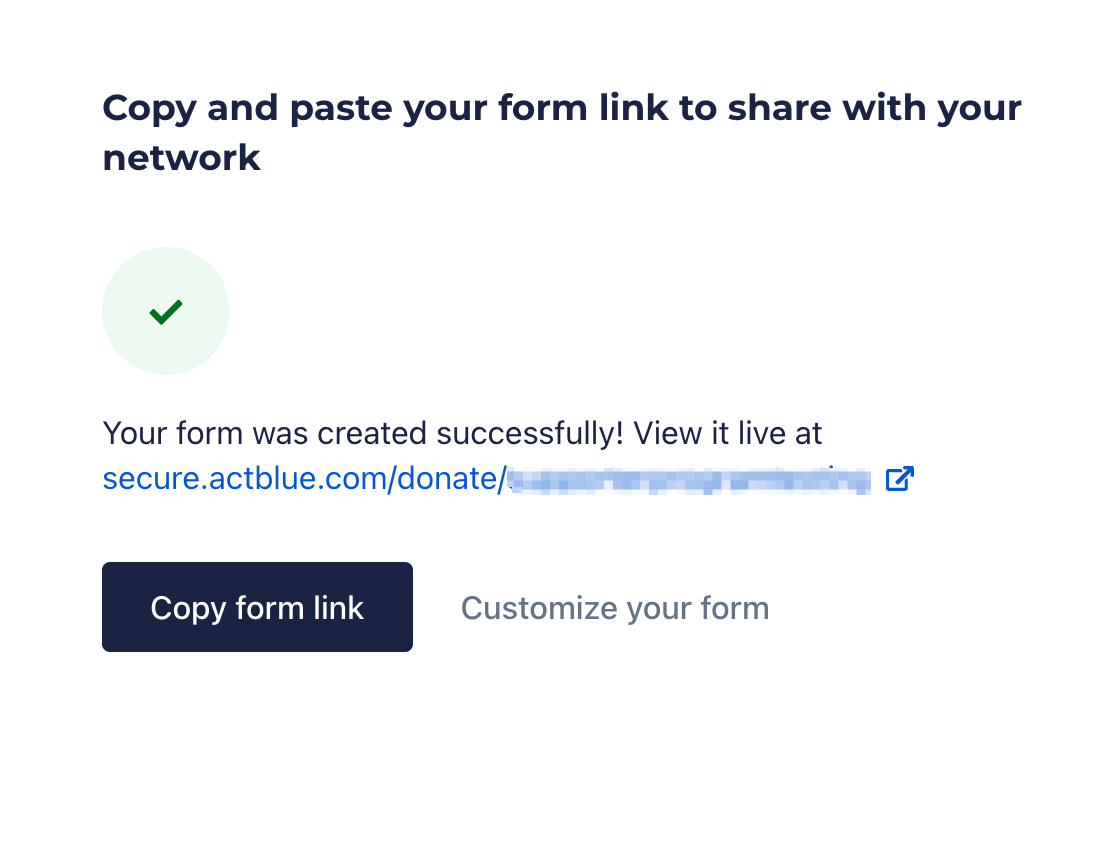
After they click this button, they'll automatically be redirected to a new page where they can either copy and paste their supporter form's link to share with others or opt to customize their form even further:
Can donors use our custom Brandings on their supporter forms?
Yes! To send out a supporter form invite link with your campaign or organization's custom Brandings automatically included, open up your Dashboard and navigate to the Brandings tab under the Tools heading:
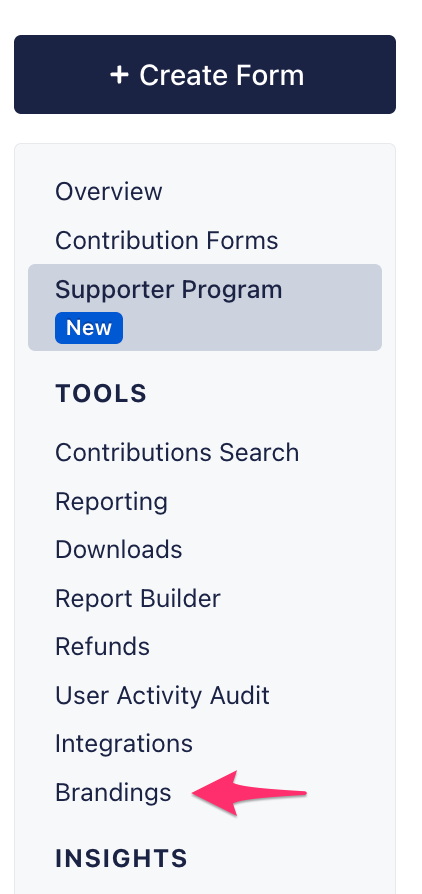
From the Brandings page, locate the Branding you'd like to use and click the blue Share Relational Fundraising Link to its right:

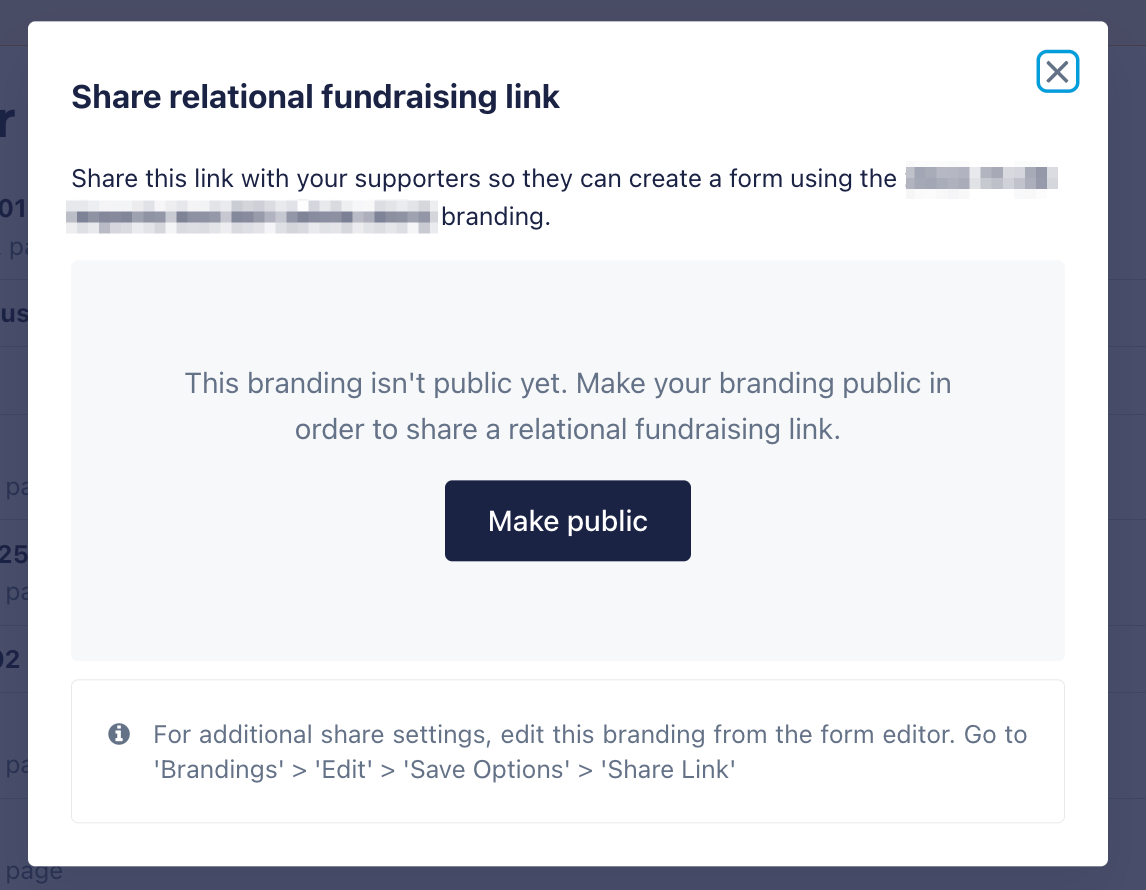
This will open up a new window with a copyable link to the supporter form with the Branding included. You will also be prompted to make the Branding public if you haven't already done so:
How can I view and manage my supporter forms?
Viewing Forms
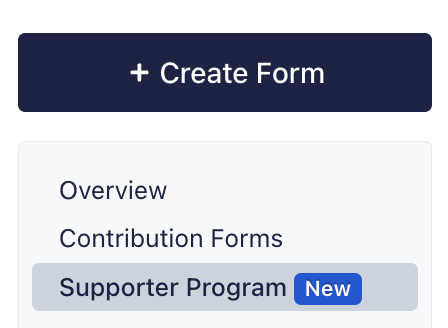
You can view a full list of your supporter forms by opening up your Dashboard and navigating to the Supporter Program tab on the left-hand menu:
On the Supporter Program page, you'll automatically be shown the Supporter Leaderboard which highlights supporters who've raised the most money on behalf of your campaign or organization:
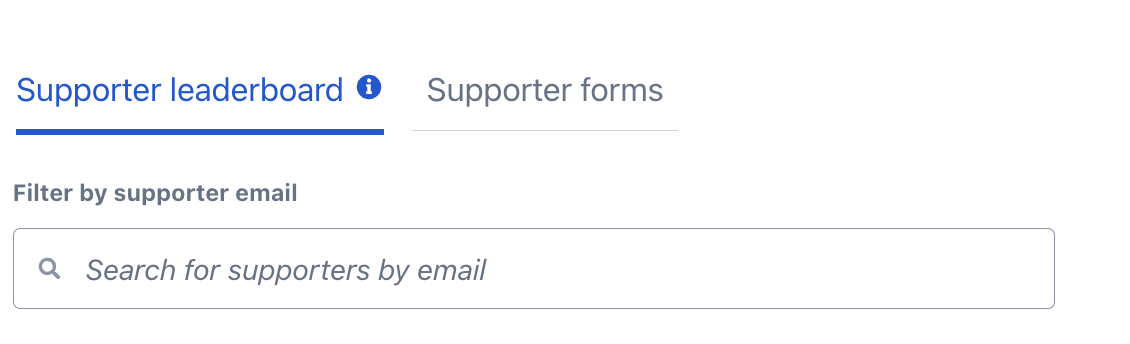
The Supporter Leaderboard makes it easy to spot and celebrate your most effective relational fundraisers - even if they aren’t personally giving large amounts. Use this tool to discover new donors, re-engage active supporters, and strengthen your fundraising community.
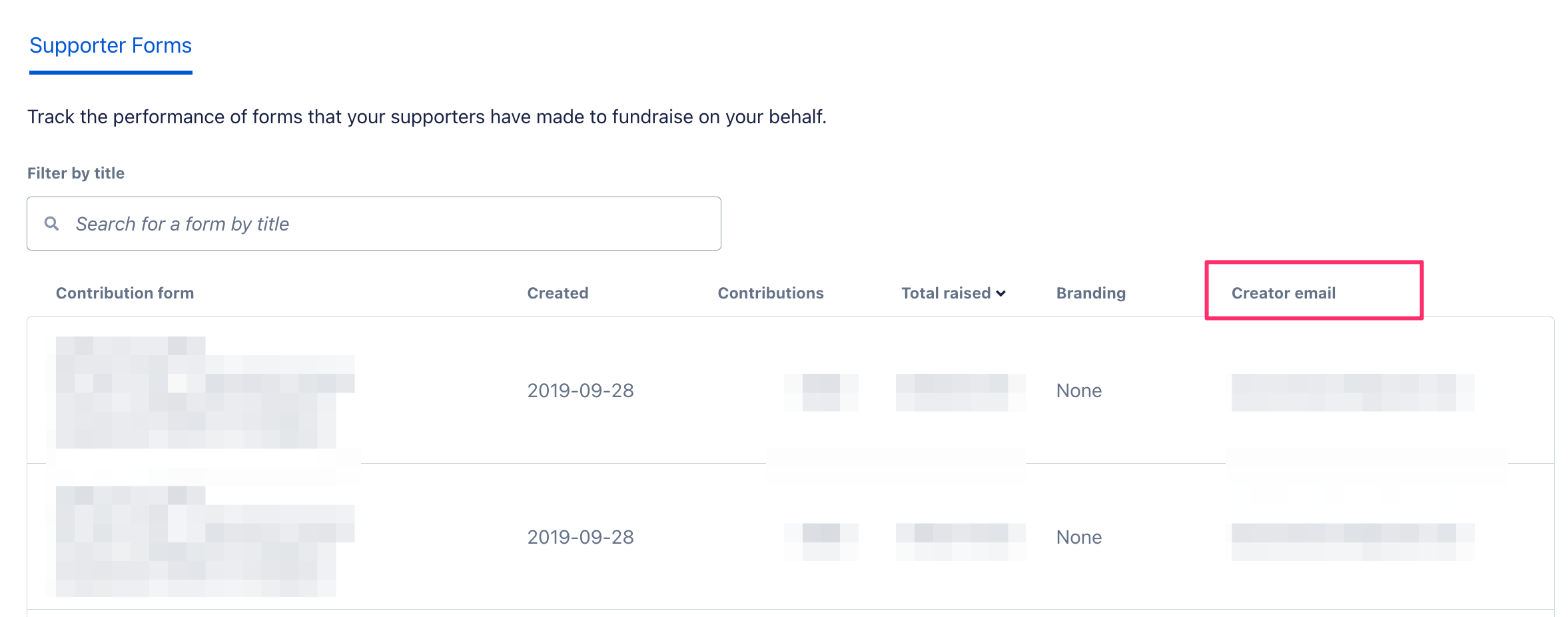
To view more data about your supporter forms specifically, simply click the Supporter Forms tab:

The Supporter Forms tab will display a full list of all of your active supporter forms along with the following information:
- Date of creation
- Number of contributions received
- Dollars raised
- Brandings used
- Creator’s email
You can use creator emails to send thank yous to the supporters organizing their networks on your behalf.
Managing Forms
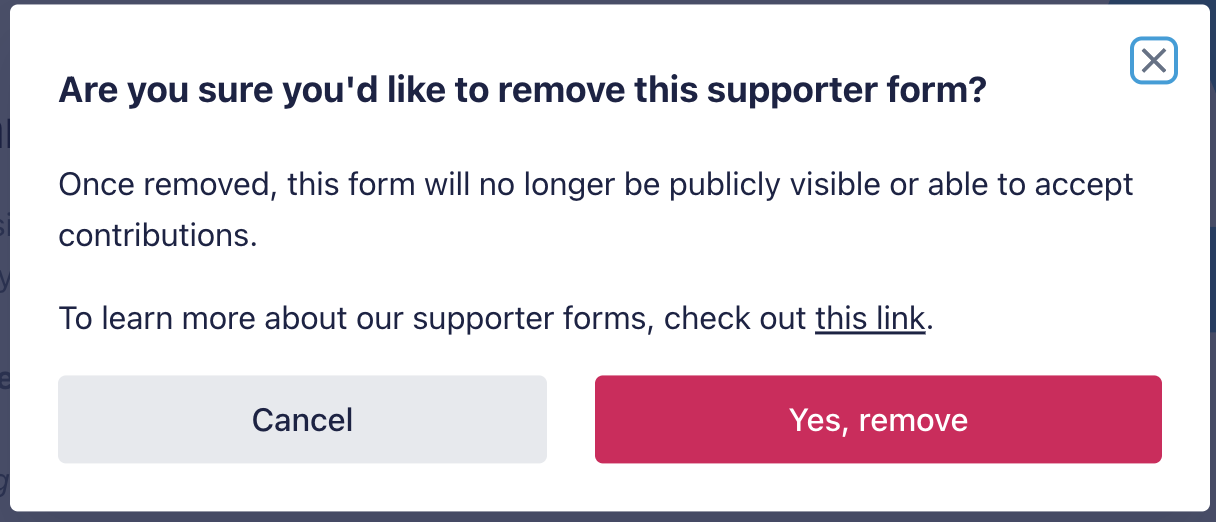
While creators maintain editorial control over their forms, you can opt to hide any supporter forms with inappropriate content from the public. Hiding a form will prevent the form from receiving any additional contributions.
To do this, simply open up the supporter form you'd like to hide and look for the See something inappropriate? Remove this form message at the top of the page:

Click the linked text and then select Yes, Remove in the confirmation pop-up:
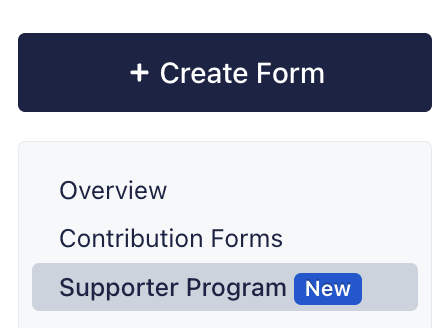
To reactivate a supporter form you've hidden in the past, open up your Dashboard and navigate to the Contribution Forms tab on the left-hand menu:
Next, click the Managed by Supporters tab at the top of the page. Scroll to the bottom of the list of forms provided until you see the form you hid. All deactivated forms should display in gray here.
Once you've located the hidden form, click its name to open it. The form should display a message confirming it was removed in orange. To undo this, simply click the hyperlinked Reactivate this Form text:

How can I view and download supporter form data?
For more information about how to view and download supporter form data, check out this guide!