
In this article:
- Do I have the right role and permissions?
- I'm an Admin - how do I add a new user to my Dashboard?
- I'm an Admin - how do I remove an existing user from my Dashboard?
- I'm an Admin - how do I remove MYSELF from my Dashboard?
- I'm an Admin - how do I change an existing user's role and permissions?
Do I have the right role and permissions?
User roles are varying levels of access and permissions available to users on an ActBlue Dashboard.
For security reasons, only Admin-level users can add or remove users from a Dashboard.
If you are not currently an Admin user, you will need to contact the existing Admin user(s) on your team to make any changes.
For more information on how user roles and permissions work on ActBlue, check out the following guide!
I'm an Admin - how do I add a new user to my Dashboard?
To add a new user to your Dashboard, start by navigating to the People tab under the Settings heading on the left-hand menu:
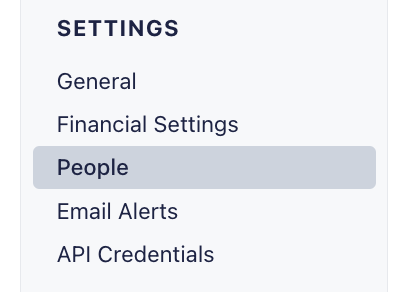
Next, click the blue Invite Someone button:

Enter the new user’s email address in the space provided, and then select which user role you want to grant them. You can read more about each user role here.
Once you're finished, click the blue Grant Access button:
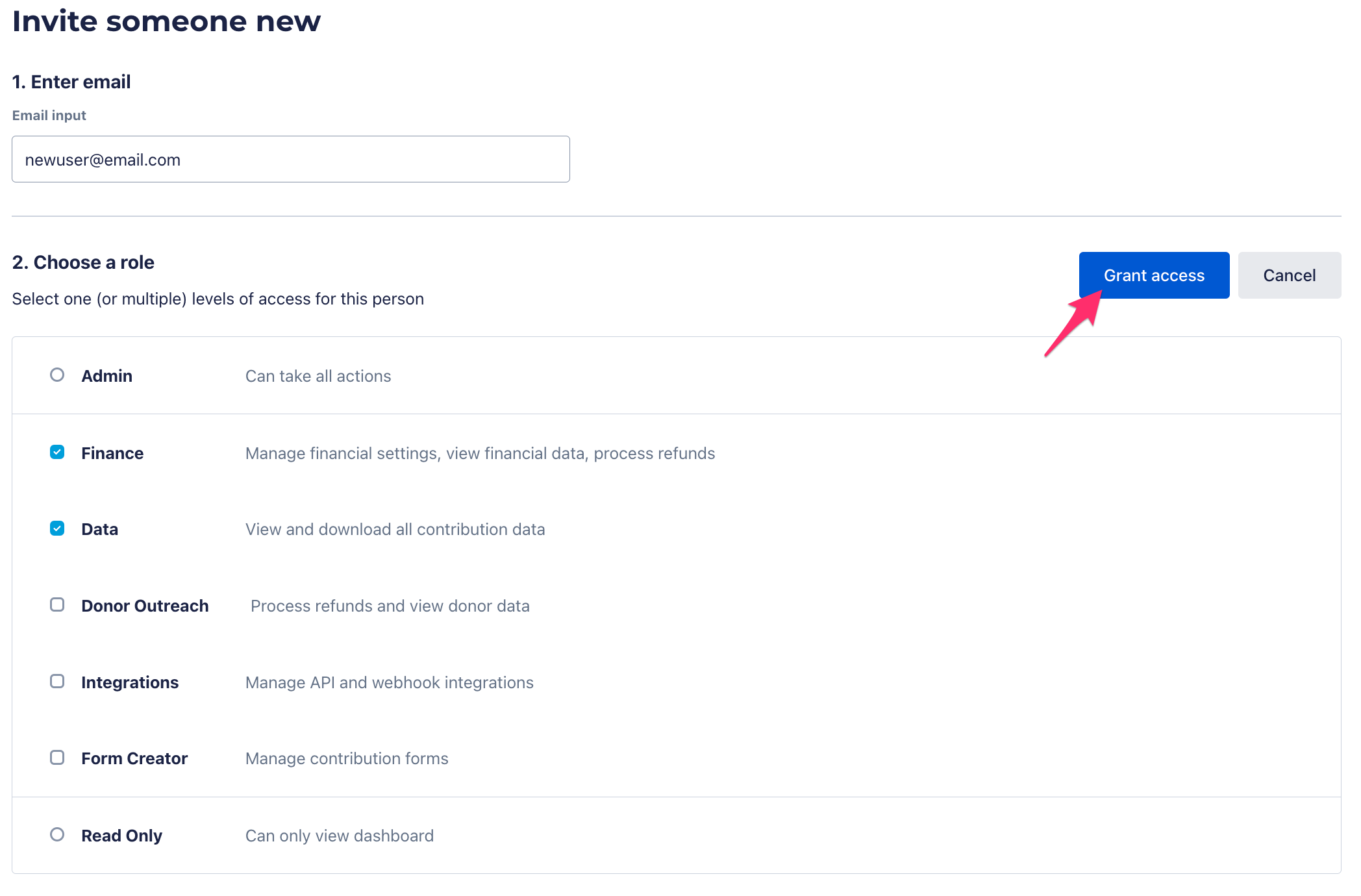
Once you've granted your new user access, they should receive an email from ActBlue with further instructions on how to access your Dashboard.
If you receive an error message while attempting to add a new user to your account, this likely means that the email address you're attempting to grant access to has been permanently deleted by its associated user:

In this case, you will need to request an alternate email address from the person you're trying to add to your Dashboard and then repeat the steps outlined above.
I'm an Admin - how do I remove an existing user from my Dashboard?
To add a new user to your Dashboard, start by navigating to the People tab under the Settings heading on the left-hand menu:
This will take you to your Dashboard's People page where you can view a list of users who currently have access to your campaign or organization.
From the list of displayed users, you'll want to click the blue Edit link located to the far left of your desired user's email address:

Next, click the red Remove Person button:

I'm an Admin - how do I remove MYSELF from my Dashboard?
For security reasons, Admins are not able to revoke their own Dashboard access. Please contact our support team for additional assistance!
I'm an Admin - how can I change an existing user's role and permissions?
For more guidance on adjusting user roles and permissions, check out the following guide!