
Because two-factor authentication (2FA) is linked to your mobile device, you will need to update your account’s security settings whenever you change devices.
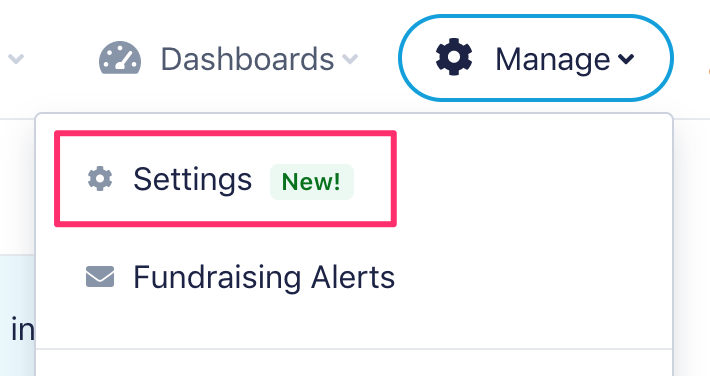
To do this, start by signing into your ActBlue account, clicking the Manage tab at the top of your screen, and then selecting Settings from the dropdown:
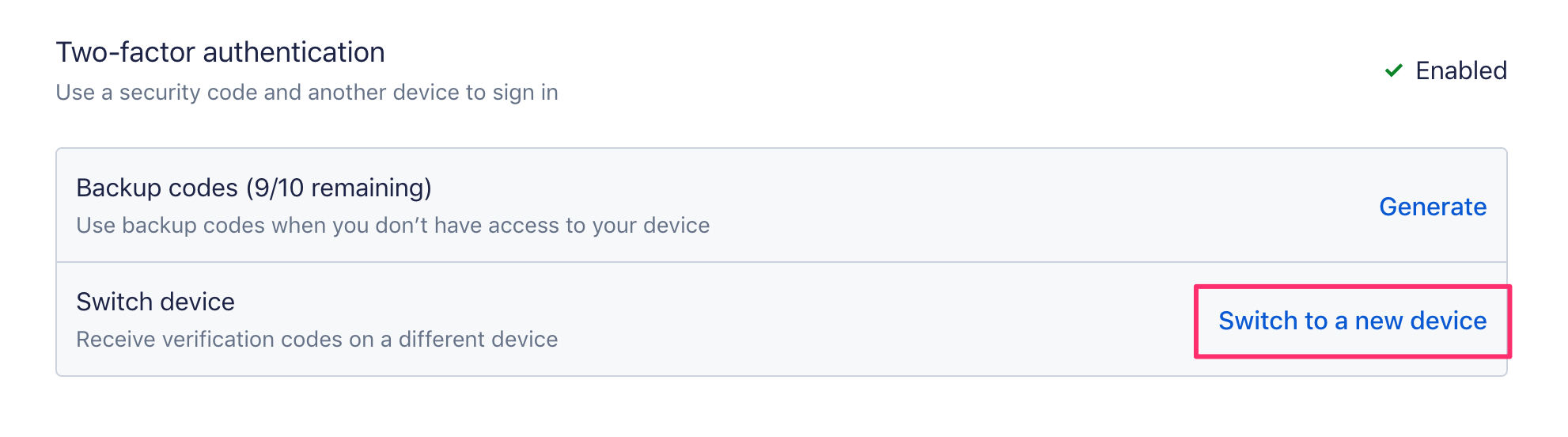
This should automatically take you to the Security tab of the Settings page which will display your 2FA settings. To switch your device, simply click the link provided:
Next, you will be asked to enter a 2FA or backup code to confirm your identity:
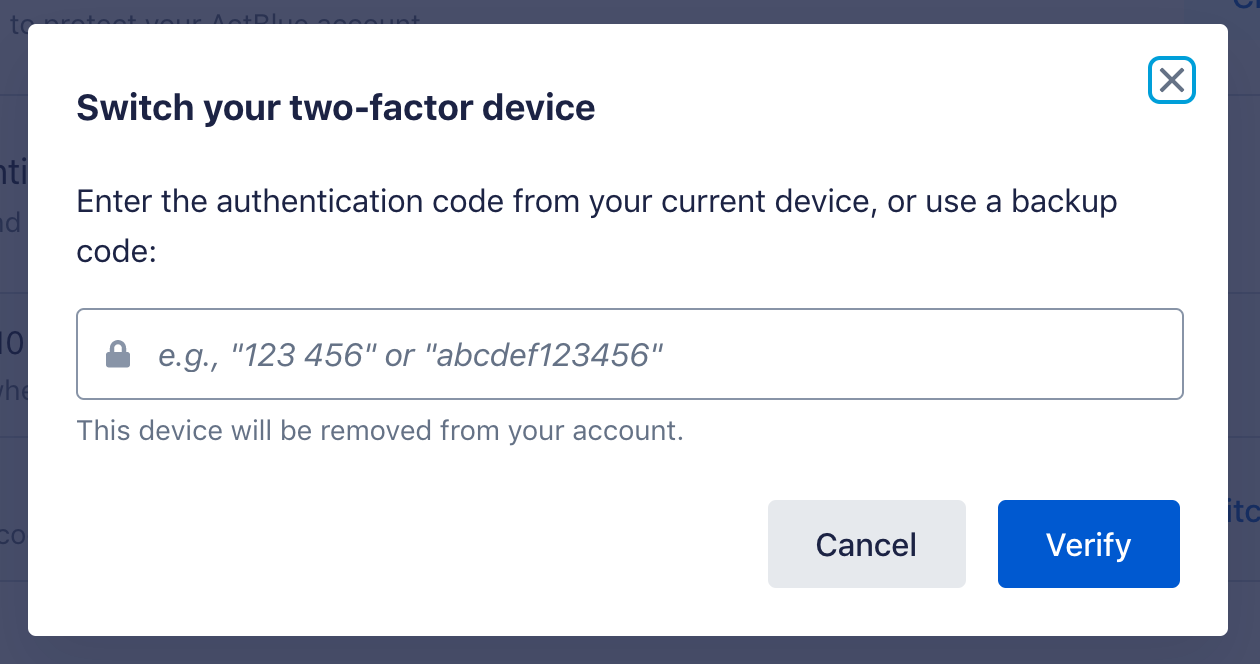
Once you've entered the code, click the blue Verify button to remove your old device. Doing so will automatically redirect you to the 2FA enablement screen so you can set up your new device. For more detailed instructions on setting up 2FA, check out this guide!
After your old device is removed, you should also receive an email from ActBlue Security Alerts confirming a 2FA device has been removed. To keep your account secure, ActBlue Security Alerts will send you email notifications whenever changes are made to your 2FA settings.
Please note that switching to a new device will invalidate any back-up codes associated with your previous device.