This article explains how to edit and share a Raise by ActBlue fundraising page. Users can update the title, message, page link, logo, button color, preset amounts, and thank-you message, enable recurring donations, and publish changes from the Dashboard. It also covers sharing the fundraising page via email, social media, or a website button, copying the form link, and downloading a QR code from the Overview tab.
In this article
Edit your fundraising page
Note: If you have a brand-new Raise account, the process to customize your fundraising page will look a little different.
You can make edits to your fundraising page at any time!
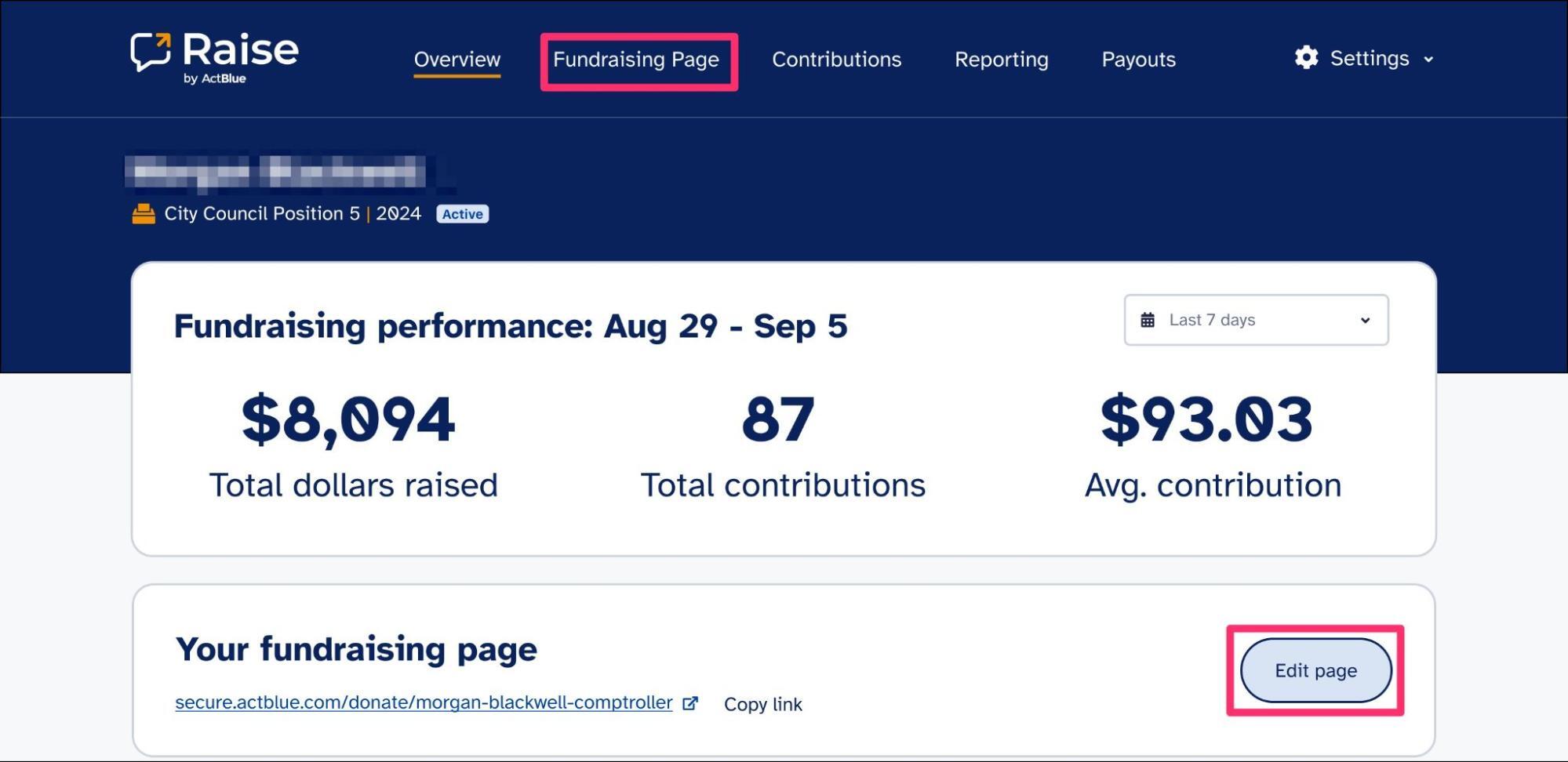
To edit your fundraising page, navigate to your Dashboard Overview and click the “Edit page” button in the “Your fundraising page” module. Or click the “Fundraising page” tab at the top of the Dashboard.
You’ll be taken to a page with expandable sections where you can edit every customizable aspect of your fundraising page.
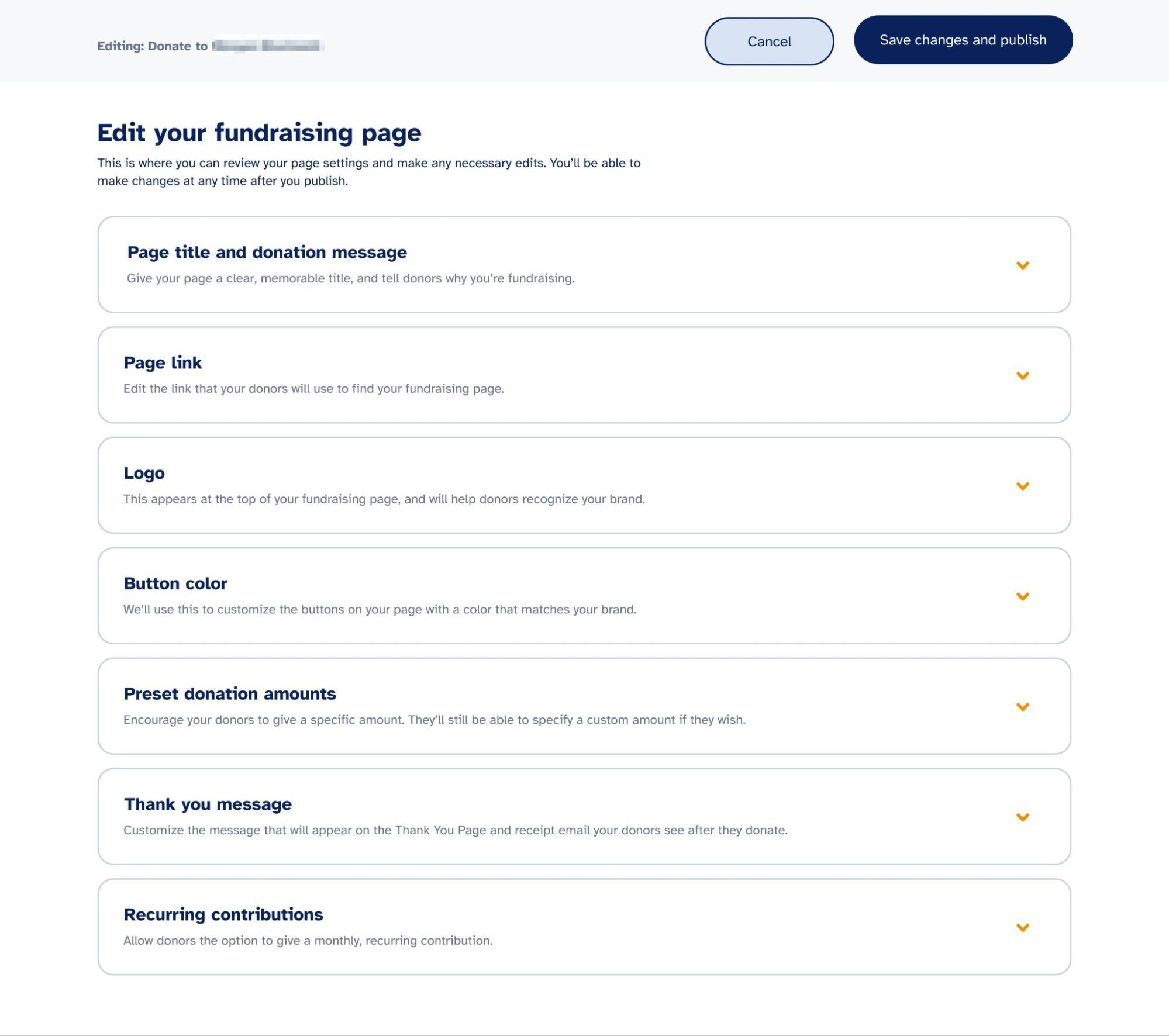
- Page title and fundraising message: Edit the custom language on your form, including the title that appears at the top of the page and the section where you tell donors about what you are fundraising for and why.
- Page link: Change the link (URL) that donors will use to find your fundraising page. (Note: Once you change your page link, you will no longer be able to access this page from the previous link. Your previous link will not automatically redirect to the new link. If you’ve shared this link anywhere, you must update it in order for donors to access your page.)
- Logo: Swap in a new logo to appear at the top of the page.
- Button color: Customize the button color on your fundraising page to match your campaign.
- Preset donation amounts: You can set donation buttons to any amount you want — separate amounts with a comma. Donors can still specify a custom amount if they wish.
- Thank you message: Customize the message that appears on the Thank You page donors see after they contribute and the email receipt they’ll receive from us. This is a great place to show donors your appreciation and share important information about your cause or campaign, such as Election Day reminders, links to your website and social media, and suggestions for other ways to get involved, like yard signs or volunteering.
- Recurring: Activate recurring donations so your donors can set up a monthly, automatic contribution.
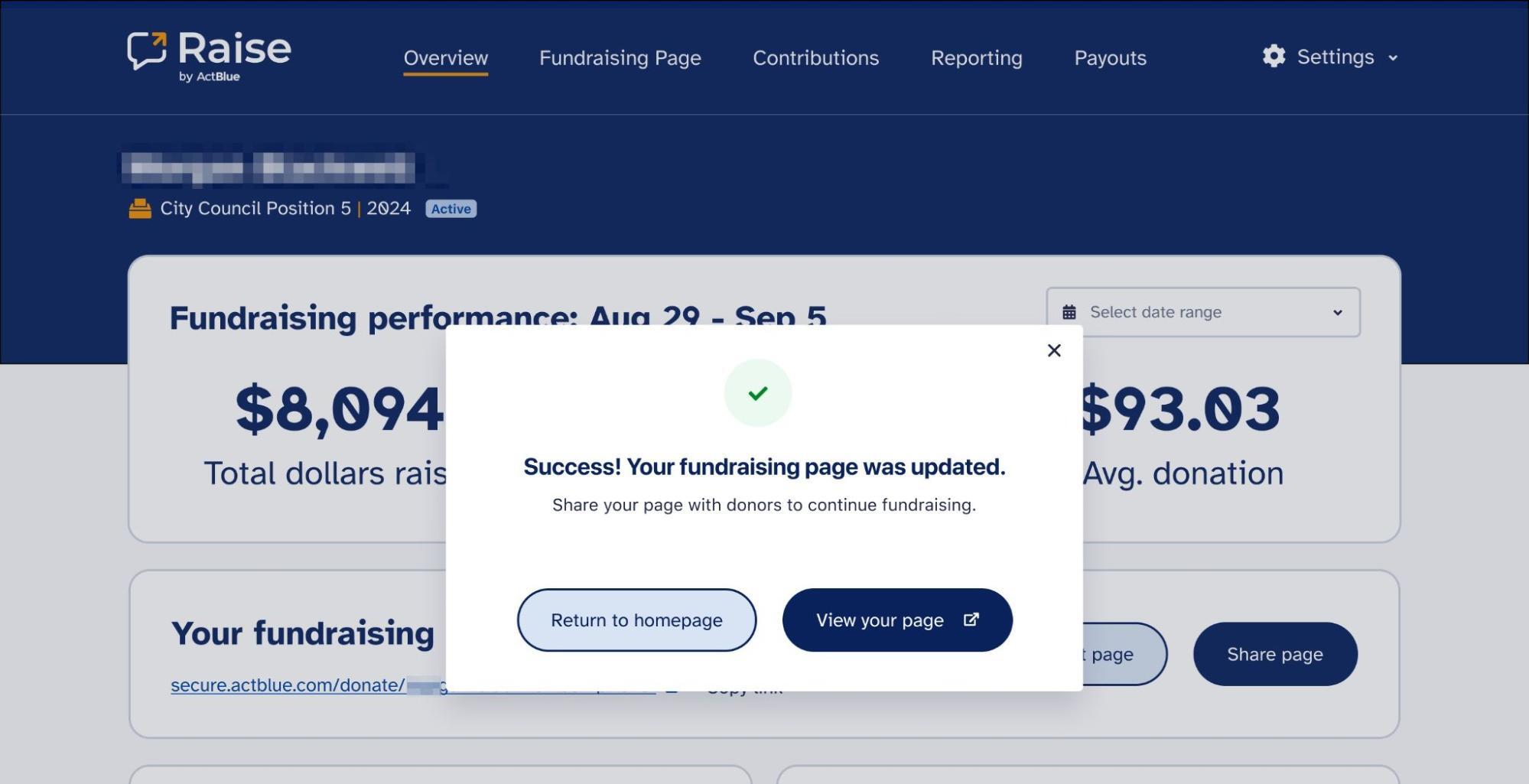
Once you’ve made your changes, click “Publish my fundraising page” in the upper right. You’ll be returned to your Dashboard and see the following message confirming that your page has been updated.
Start fundraising
Once you create and customize your fundraising page, it’s time to connect with small-dollar donors and start raising money! A fundraising page makes it easy for your supporters to donate online. You can share your form across many channels:
- Email (where most digital fundraising occurs)
- Social media
- A button on your website
Note that when you share your page in a social media post, such as on Facebook or Twitter, the link preview will appear like this:
![Example of a social media link preview for a Raise fundraising page. The card shows a "Chip In!" graphic with a hand holding a phone with donation buttons, above the text "secure.actblue.com" and "I just gave to [name]. Show your support with a contribution."](https://help.actblue.com/hubfs/Knowledge%20Base%20Import/image14.png)
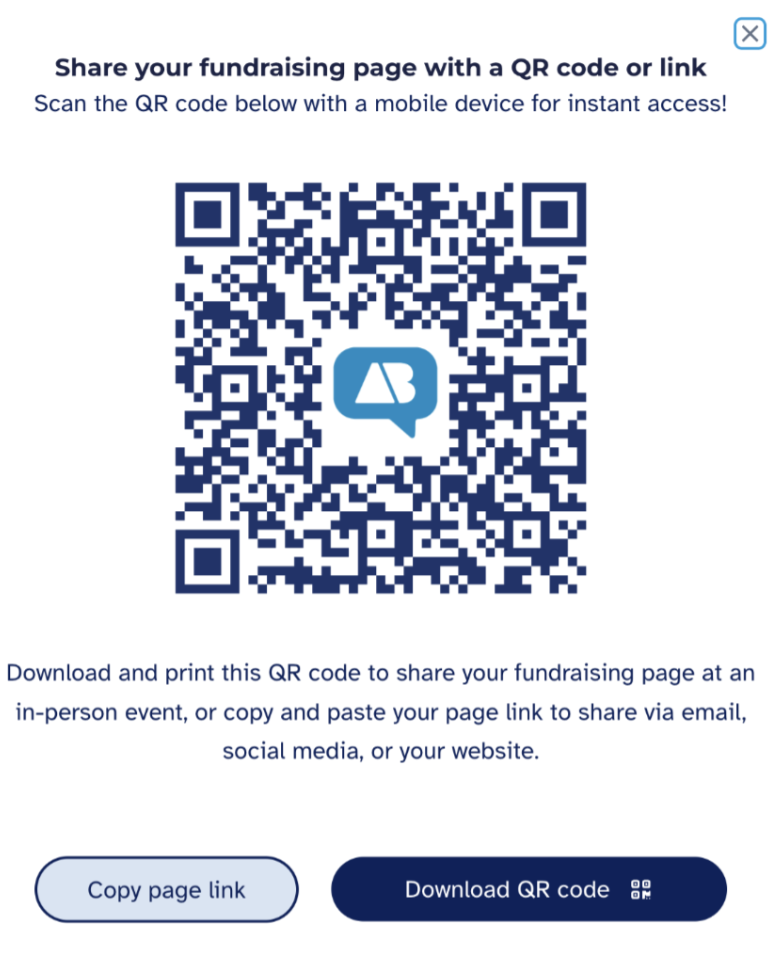
To get the shareable link for your fundraising page, navigate to your Overview tab. Here, you should be given the option to either copy and paste your form link or view a QR code.
To view and download the QR code for your fundraising page, simply click the "Show QR code" button. This will open a new window with your QR code, which you can either scan directly using a mobile device, or download for later use on printed material: