
This article explains the difference between Core ActBlue and Raise by ActBlue, how to figure out which solution type your account is set up with, and how to confirm your solution from your fundraising Dashboard.
In this article:
- What is the difference between Core ActBlue and Raise by ActBlue?
- What if my account wasn't set up this way or I can't remember which solution I selected?
- Can I tell which solution type I'm using from my fundraising Dashboard?
What is the difference between Core ActBlue and Raise by ActBlue?
ActBlue offers two solutions for campaigns and organizations looking to fundraise with our tools: Core ActBlue and Raise by ActBlue. You can find the primary differences in the chart below:
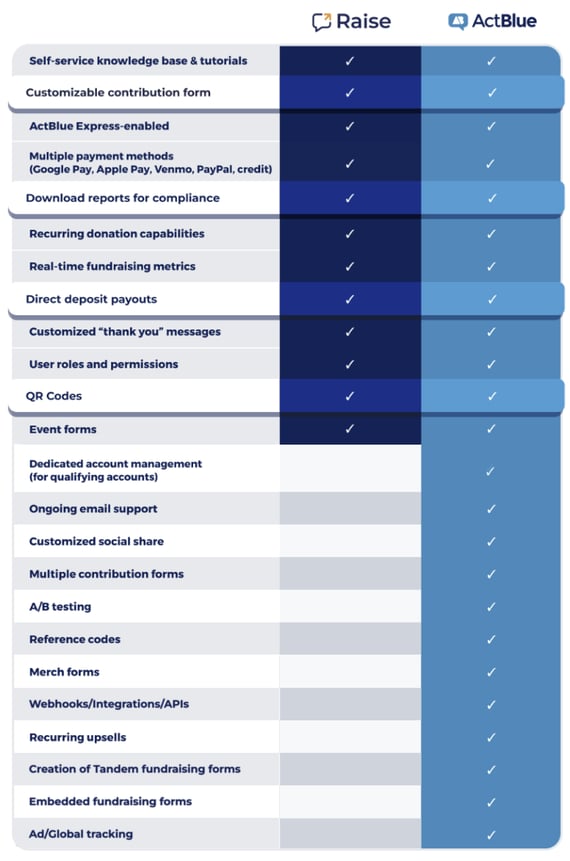
In most cases, you were likely prompted to select which solution type best suited your campaign or organization's needs during the account set-up process:


What if my account wasn't set up this way or I can't remember which solution I selected?
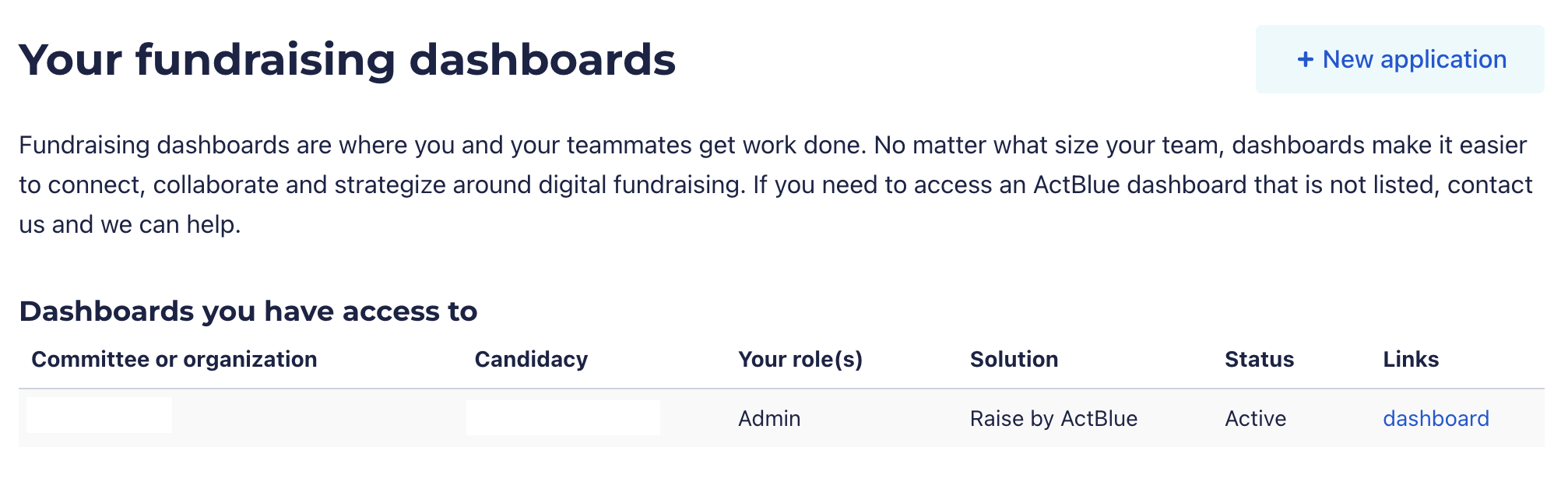
If you're unsure whether you have an ActBlue or Raise by ActBlue Dashboard, you can easily confirm your solution type by signing into ActBlue and navigating to your My Dashboards.
The My Dashboards tab will display all Dashboards you have access to, as well as the solution type for each Dashboard. In the example shown below, the Dashboard's solution type is listed as Raise by ActBlue.
Can I tell which solution type I'm using from my fundraising Dashboard?
Yes! To confirm which solution type you're using from your Dashboard, simply inspect the logo and navigation bar displayed at the top of your screen.
If you see a white Raise by ActBlue logo on a navy blue navigation bar, then your solution type is Raise by ActBlue:

If you see the standard ActBlue logo on a white navigation bar above a blue Dashboard banner, then your solution type is ActBlue:
