
This article explains how to use ActBlue webhooks to send contribution data to outside tools such as a CMS, mailer, or CRM. The article lists the webhook types available (ActBlue Default, Default Refunds, Default Cancellations, Ad Tracking, Blue State Digital, OSDI, Salsa) and the platforms that connect through the vendor form or self-serve integrations (such as ActionKit, Action Network, NationBuilder, and NGPVAN Digital 8). It then walks through creating a webhook from the Integrations tab in seven steps: choose a type, add a nickname and contact email, enter a secure https:// endpoint and credentials, optionally request a historical backfill, and create it. It also covers approving a webhook that a vendor requested with your Entity ID, finding and editing existing webhooks, and pointers to the Google Sheets export and Salesforce integrations. Backfills are always run by ActBlue staff, and a backfill start date can’t be changed after it has run, though you can request a new backfill.
Disclaimer: ActBlue user roles and permissions dictate what users can do on our platform. If the tools or features mentioned in this article are unavailable to you, please speak to your Dashboard Admin(s) about updating your permissions.
In this article:
- What is a webhook?
- How can I create a new webhook?
- How do I approve a vendor webhook?
- How do I find and edit a webhook?
- How can I export data to Google Sheets and Salesforce?
Additional resources:
- Figuring out which webhook type you will need to use
- Building an integration on top of ActBlue Default webhooks
- For vendors: Requesting a webhook
What is a webhook?
A webhook is an automatic, immediate notification between two systems. When you receive a contribution through ActBlue, a webhook will send this contribution information to the location, or endpoint, you provide. ActBlue webhooks can notify you when three types of events occur: contributions, refunds, and recurring contribution cancellations.
Contribution data is described in the notifications as contributions from donors to entities. They include the donor’s name, address, employer, contribution form used, and other personal information. Read more about the information included in these notifications.
You can now activate a new webhook in the Integrations tab of your Dashboard. Choose the webhook you need from a dropdown menu depending on what service you want to connect with or whether you’re building a custom integration.
Read our guide on webhook types to understand which one you will need.
We currently offer the following webhooks:
- ActBlue Default
- ActBlue Default Refunds
- ActBlue Default Cancellations
- Ad Tracking
- Blue State Digital
- OSDI
- Salsa
Through our Vendor Form and our self-serve integrations, you can connect your contribution data with the following platforms:
- ActionKit
- Action Network
- Blue State Digital
- CallTime
- Campaign Deputy
- ISP
- NationBuilder
- NGPVAN Digital 8
- Numero
- Salsa
- Switchboard
- Tatango
- Trilogy
- And more!
How can I create a new webhook?
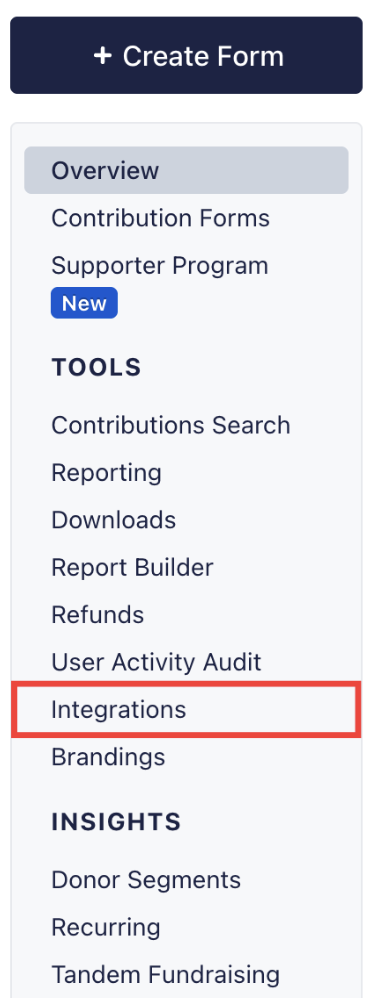
Step 1: Click the Integrations tab on your Dashboard
From your Dashboard toolbar, click the 'Integrations' tab under the 'Tools' heading, then select 'Webhooks.' If you've set up webhooks before, you’ll see a list of requested, active, and inactive webhooks:
Step 2: Create a new webhook
Click the green “Create a new webhook” button in the top right:

Step 3: Select the webhook type you need from the dropdown menu
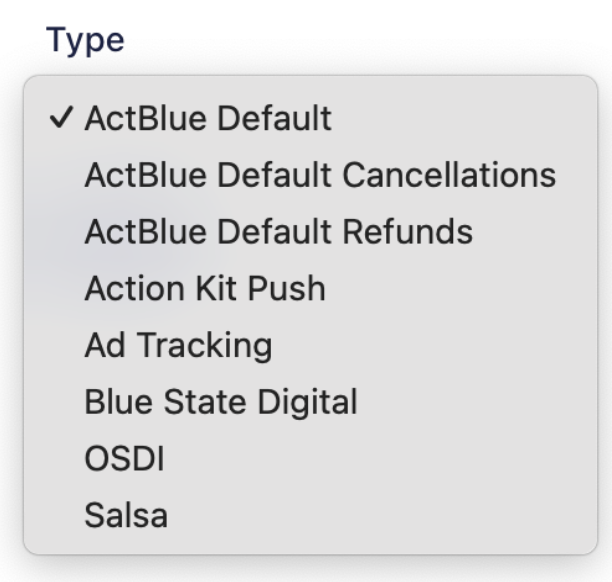
After choosing the webhook you need, click “Next.”
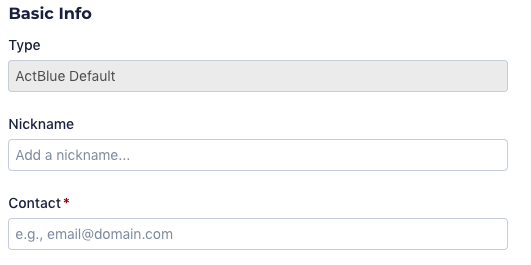
Step 4: Enter some basic information
You have the option to include a nickname for your webhook. We recommend you do this to help you differentiate similar webhooks.
Enter the email of your campaign or organization’s main point of contact. We will contact this person about activating your webhook, so make sure the email is accurate.
Step 5: Enter your endpoint and credentials
The endpoint URL and credentials required in this section depend on your webhook type. Check our guide for what specific information you’ll need.
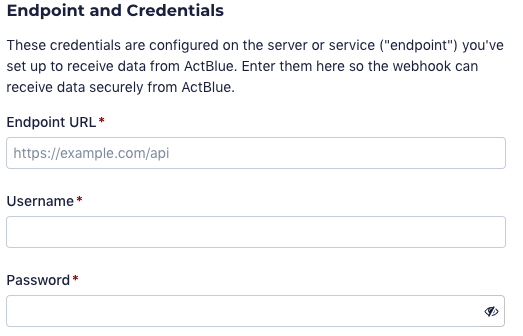
The “Endpoint URL” is where you’d like ActBlue to send your contribution data, and it needs to be a secure URL that begins with “https://”
The “Username” and “Password” fields are the credentials for your endpoint.
Step 6: Optional: Include a “Backfill” date
If you set up a webhook for the first time and have previous donations with ActBlue, you can receive these notifications with our backfill feature.
Select your data’s date range under “Requested backfill start date (optional).” All backfills run from the start date through the webhook activation date.

Step 7: Create the webhook
Once you’ve entered the required information, click the ‘Create webhook’ button at the bottom of the page:

Note: Backfills must be initiated by ActBlue staff. If you’ve included a backfill date, our system will prompt our team to initiate the backfill after you've activated the webhook. There is no need to contact ActBlue separately to initiate a backfill. We will confirm with you that data is being sent over or flag any issues we encounter during the process.
How do I approve a vendor webhook?
If you are working with a third-party vendor, they can set up a webhook on behalf of your campaign or organization using our Vendor Request Form . Your vendor will need the Entity ID of your ActBlue account, which you can find listed on the ‘Webhook Integrations’ page. From your Dashboard toolbar, click the 'Integrations' tab under the 'Tools' heading, then select 'Webhooks.'

Once your vendor has submitted the webhook request, it will appear on the ‘Webhook Integrations’ page of your account, under Requested. Click “Edit” to view the integration details.

Once you’ve confirmed that the details look correct and that the request is from a trusted vendor, click “Approve and Activate” to initiate the flow of data.

Note: Historical data backfills must be initiated by ActBlue staff. If your vendor included a backfill date, once your webhook is approved our team will initiate the backfill and confirm with you that the data is on its way!
How do I find and edit a webhook?
You can always find your webhooks in the ‘Integrations’ tab of your Dashboard toolbar.
Click the ‘Edit’ button to make changes to a specific webhook.

You can update a webhook’s basic information, like nickname, contact email, and credentials. Click “Save” after making updates.
Once a backfill of data has been run, you cannot edit the start date you specified for the backfill, but you can request a new backfill by reaching out to the ActBlue team member who confirmed your backfill or filling out our Contact Us form.
How can I export data to Google Sheets and Salesforce?
Setting up your Google Sheets integration and exporting reports to your Google Drive is simple. Learn more about exporting your data to Google Sheets.
For users with Salesforce, you can connect to your account via our Integrations page and streamline your contribution data management.