
In this article:
- What are user roles?
- What user roles does ActBlue offer?
- I'm an Admin - how can I add a new user and assign them a role?
- I'm an Admin - how can I change an existing user's role and permissions?
- I'm an Admin - how can I remove an existing user from my Dashboard?
What are user roles?
User roles are varying levels of access and permissions available to users on an ActBlue Dashboard.
User roles are assigned and managed by Admin-level users via the People tab of the Dashboard. If you are not currently an Admin user but would like to make changes to the user roles on your Dashboard, you will need to contact the current Admin user(s) on your team and ask them to increase your permissions.
Below, you can learn more about what specific permissions and functionalities each user role currently has on ActBlue.
What user roles does ActBlue offer?
Read Only
Read Only is the lowest permission level a user can have. It's typically used for volunteers, interns, and similar roles.
| Can | Cannot |
|
|
This role cannot be combined with any other roles.
Donor Outreach
The Donor Outreach role offers similar permissions to the Read Only role with added capabilities to issue refunds and cancel recurring contributions.
| Can | Cannot |
|
|
This role can be combined with any other roles.
Form Creator
The Form Creator role primarily allows users to create and manage contribution forms in addition to several other capabilities.
| Can | Cannot |
|
|
This role can be combined with any other roles.
Integrations
The Integrations role primarily allows users to set up APIs and integrations in addition to several other capabilities.
| Can | Cannot |
|
|
This role can be combined with any other roles.
Data
The Data role primarily allows users to create and download donor data reports in addition to several other capabilities.
| Can | Cannot |
|
|
This role can be combined with any other roles.
Finance
The Finance role is primarily designed for users who manage a campaign or organization's finances and/or compliance.
| Can | Cannot |
|
|
This role can be combined with any other roles.
Admin
The Admin role has access to all features and functions on the Dashboard. Admins are the only users able to assign roles and permissions, add new users to a Dashboard, remove existing users from a Dashboard, and deactivate a Dashboard.
This role cannot be combined with other roles.
I'm an Admin - how can I add a new user and assign them a user role?
To add a new user to your Dashboard, start by navigating to the People tab under the Settings heading on the left-hand menu:
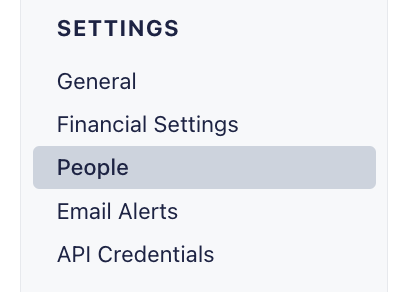
Next, click the blue Invite someone button.
Enter the new user’s email address in the space provided, and then select which user role you want to grant them. Once you're finished, click the blue Grant Access button:
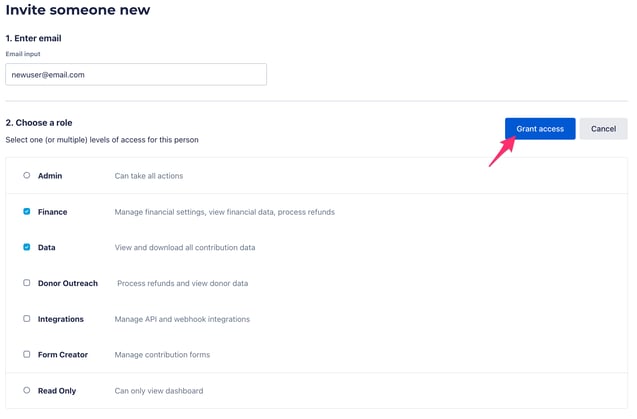
Once you've granted your new user access, they should receive an email from ActBlue with further instructions on how to access your Dashboard.
I'm an Admin - how can I change an existing user's role and permissions?
To edit the permissions that an existing user has, start by navigating to the People tab under the Settings heading on the left-hand menu:
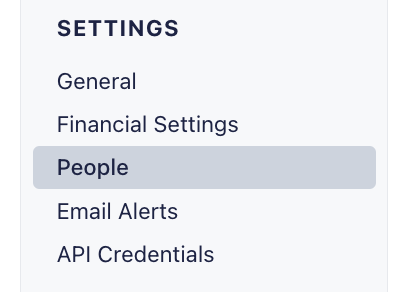
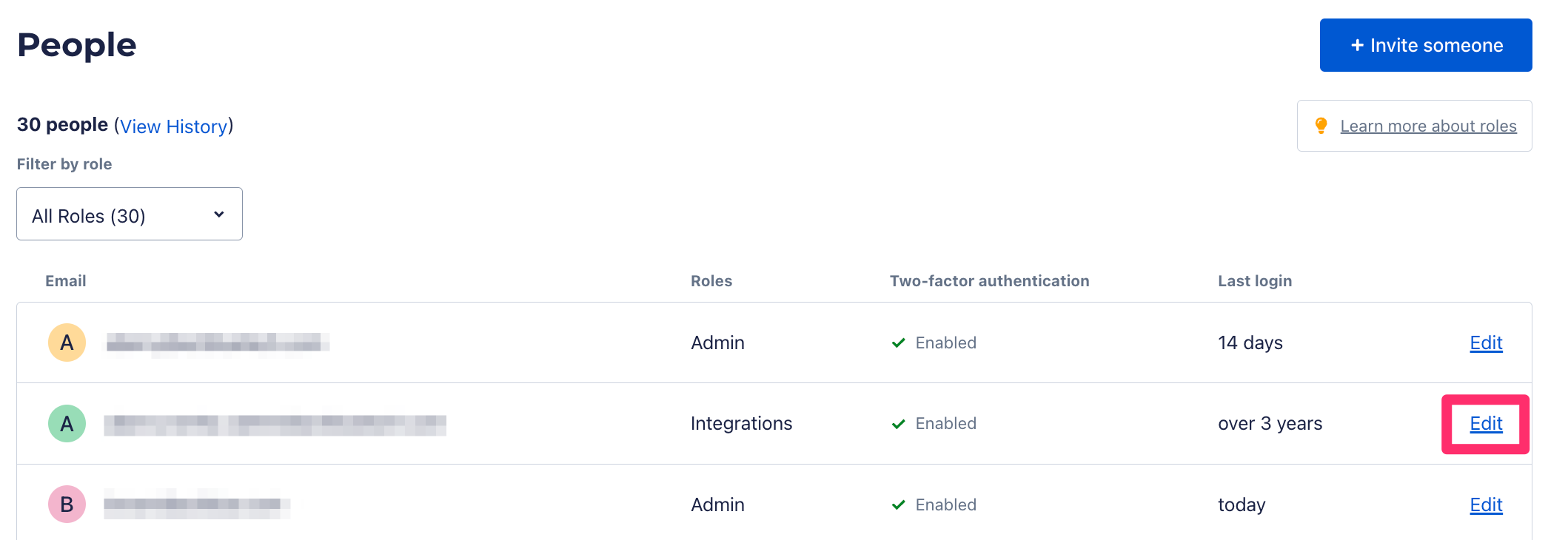
Next, locate the user whose role you'd like to edit and click the blue Edit link beside their email address. This will bring you to their individual user settings page.
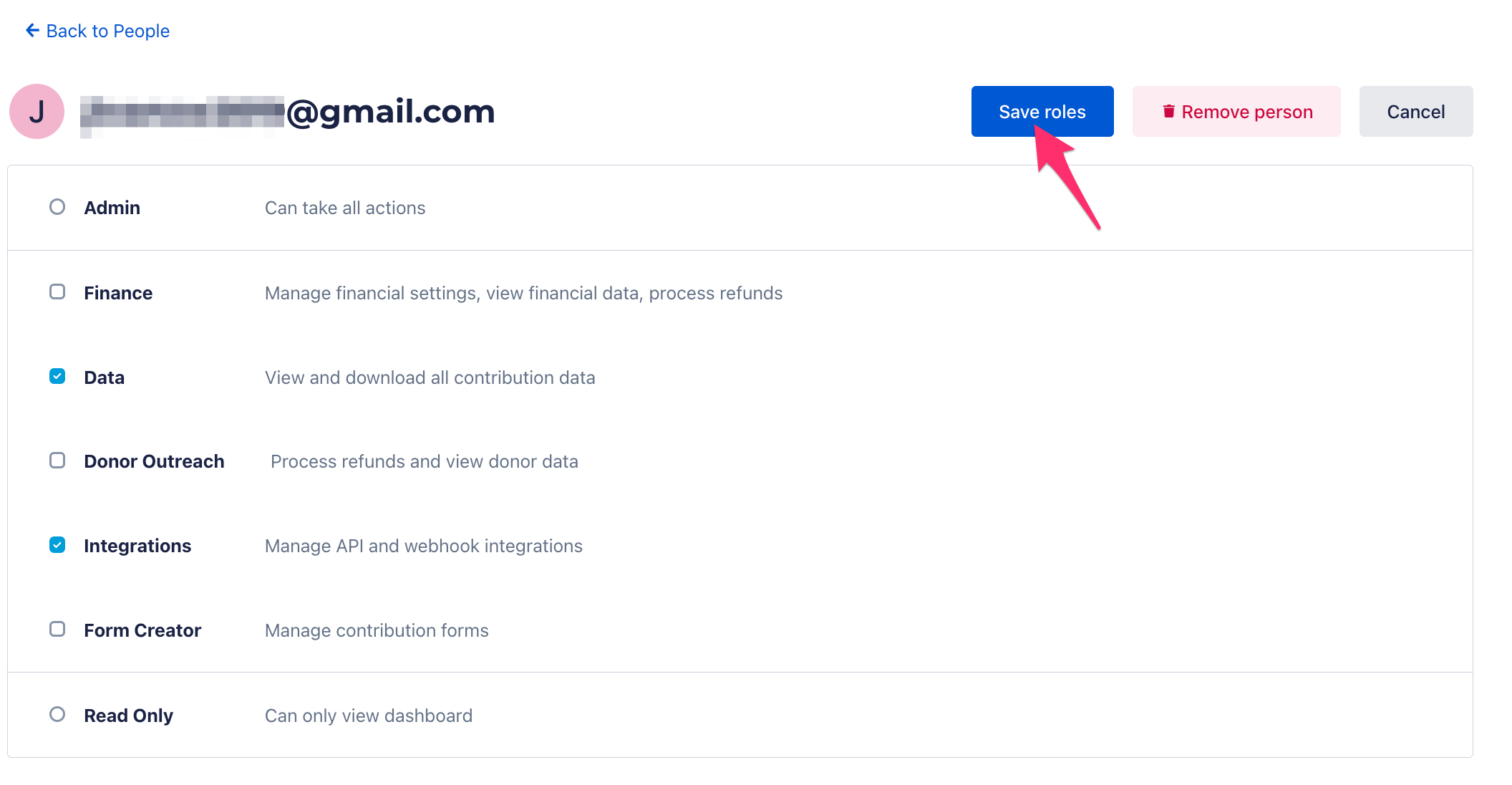
From the individual user settings page, select which new role you would like the user to have. Once you've finished, click the blue Save Role button to complete the change:
For security reasons, any changes made to roles and permissions will update immediately. To prevent confusion on your team, please be sure to communicate any changes to affected users prior to making them.
I'm an Admin - how can I remove an existing user from my Dashboard?
For more on adding and removing users on a Dashboard, check out the following guide!