Disclaimer: ActBlue user roles and permissions dictate what users can do on our platform. If the tools or features mentioned in this article are unavailable to you, please speak to your Dashboard Admin(s) about updating your permissions.
To duplicate an existing contribution form, start by navigating to the Contribution Forms page of your Dashboard. Next, locate the form you'd like to duplicate, click the grey dotted button under the Actions heading, and then select Duplicate Form from the options provided:

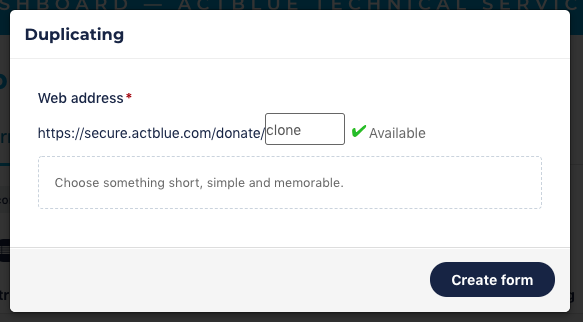
This should trigger a pop-up which will ask you to designate a new web address (or URL slug) for your duplicated form. Once you've entered a new address, click the black Create Form button to complete the duplication:
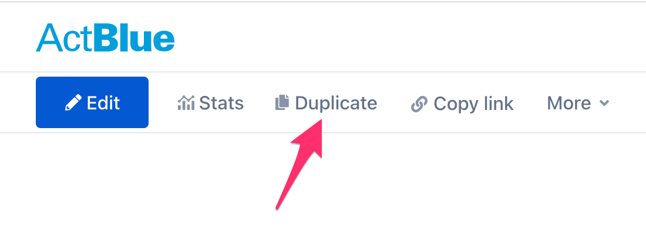
You can also duplicate a form by opening the form you'd like to duplicate and clicking the Duplicate button in the form editor menu: