
Disclaimer: ActBlue user roles and permissions dictate what users can do on our platform. If the tools or features mentioned in this article are unavailable to you, please speak to your Dashboard Admin(s) about updating your permissions.
In this article:
- What is the Report Builder?
- How do I build and download a custom report?
- How do I create and save a custom report template?
What is the Report Builder?
The Report Builder is a tool that allows you to create and download custom CSV spreadsheets of fundraising data. CSV is a text file format that works with CRMs, reporting tools, and spreadsheet applications including Excel and Numbers. You can also use the Report Builder to create and save custom CSV templates you want to download regularly.
How do I build and download a custom report?
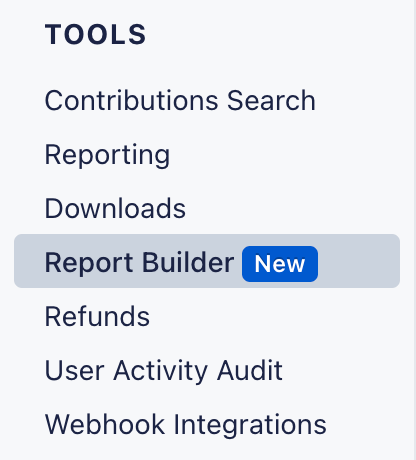
To get started building your custom report, simply open your campaign or organization's Dashboard and select the Report Builder tab under the Tools heading:
From the Report Builder page, click the blue Build New Report button at the top right corner of the page:

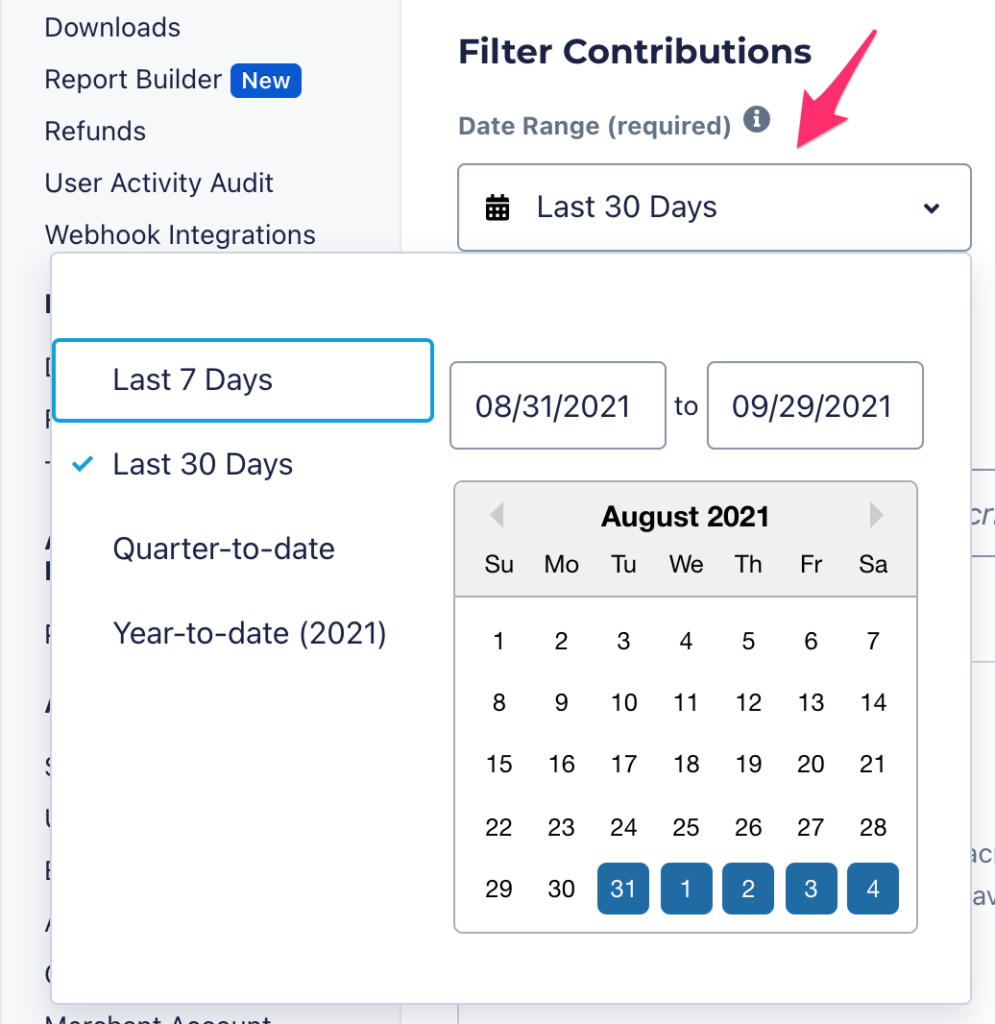
Next, select the date range you want to collect data from. You need to select a date range for every report you download, whether from a previous template or a new report altogether:
Second, select whether you want to implement other filters on your report. This includes filtering for Refund Status, Disbursement Status (only available for conduit accounts that receive checks or wires), Donor Status (first-time or recurring), and Form-specific data.
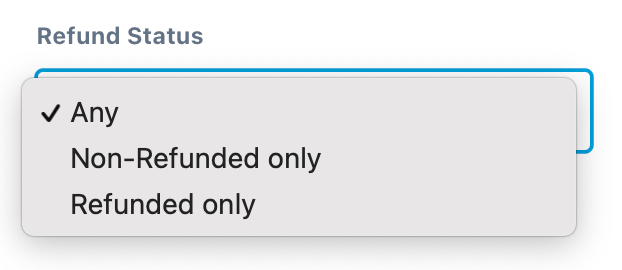
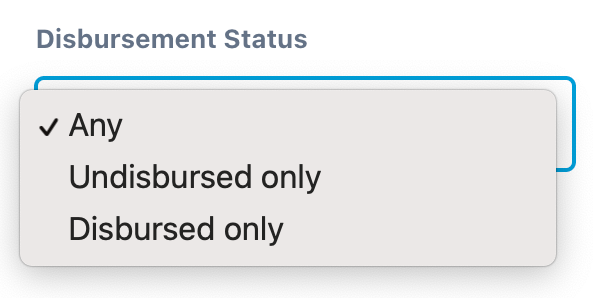
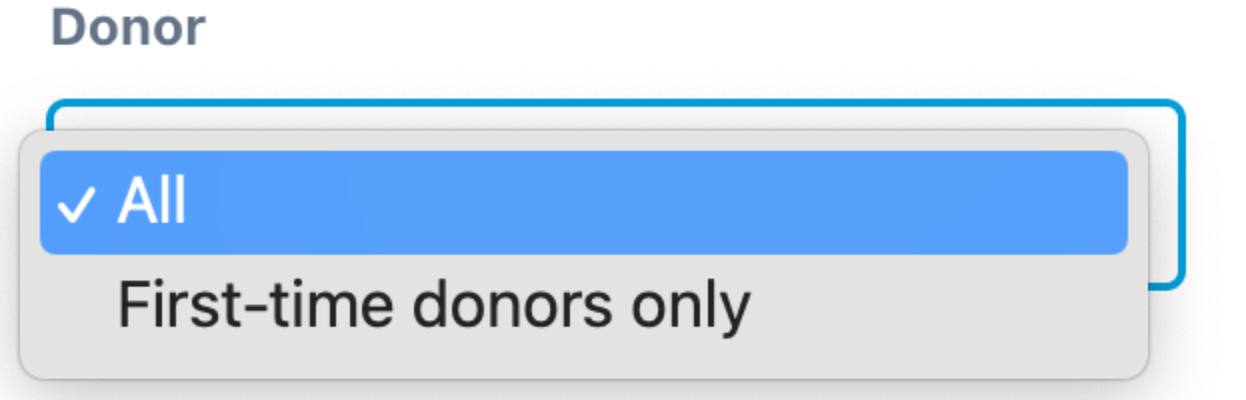
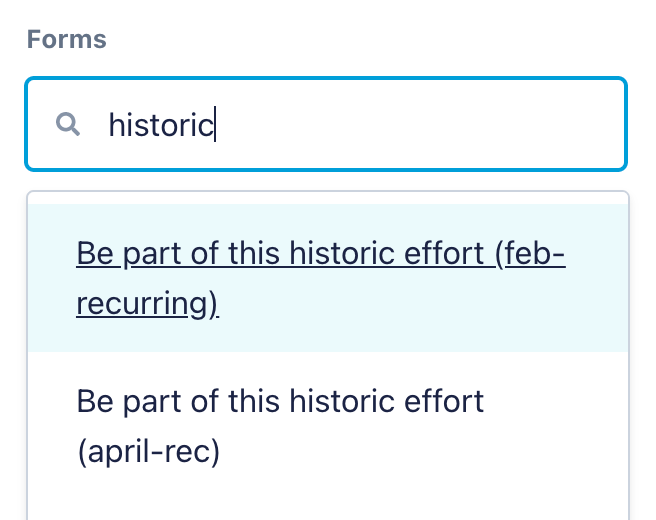
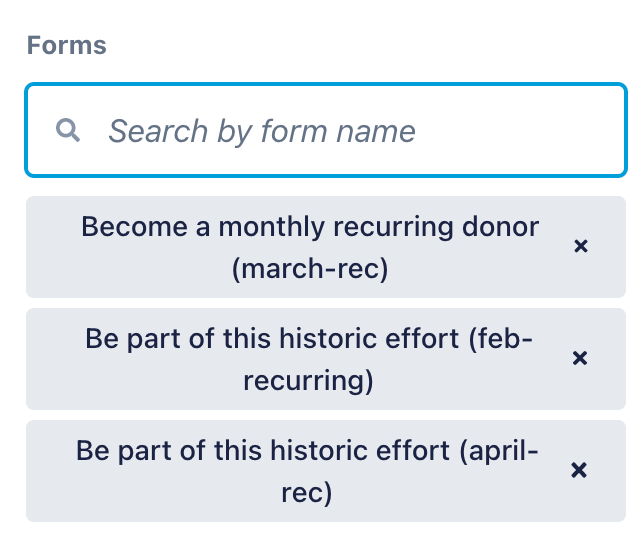
Third, choose which columns you would like to include in your report. There are around 60 columns organized around the following categories:
- Contribution
- Contribution Form
- Donor
- Recipient
- Recurring
- Payment
- Feature Usage
If you know what column you’re looking for, you can use the box provided to search by name or description:
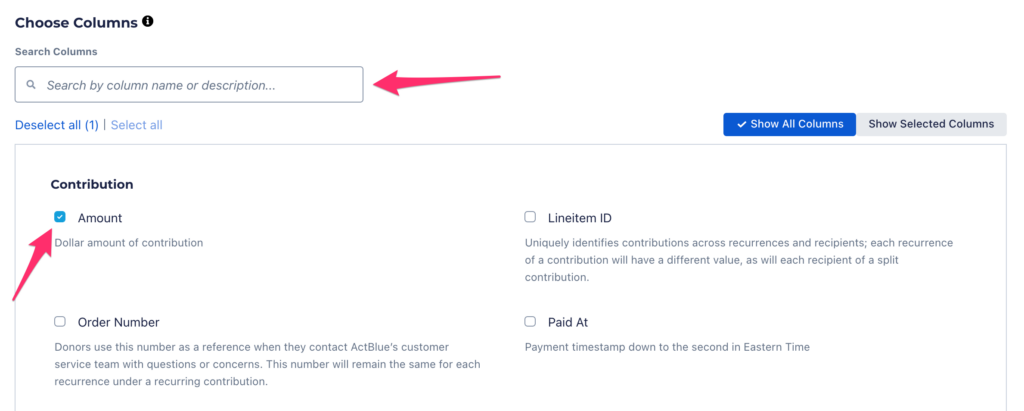
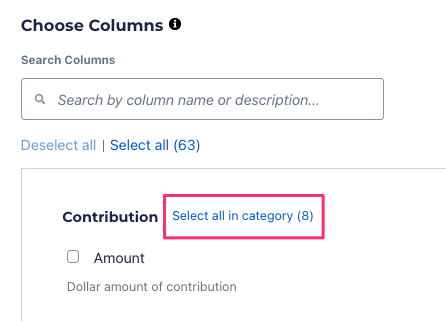
You can also select all columns in a category by clicking Select All in Category:
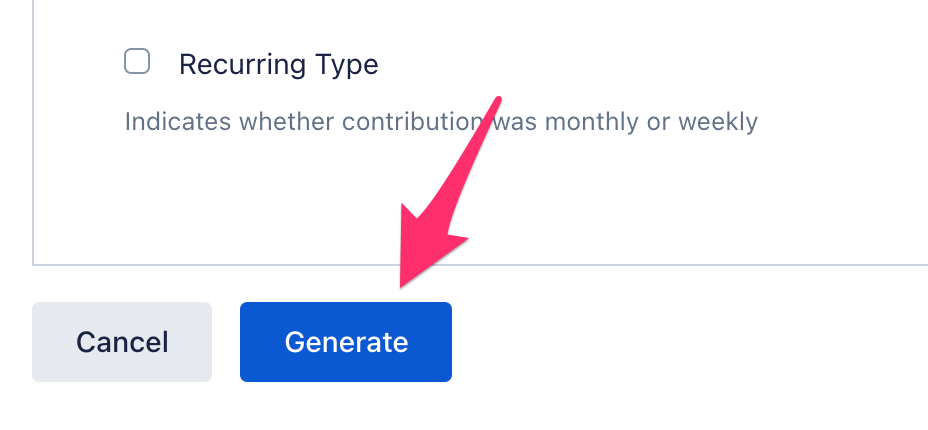
Lastly, click the blue Generate button:
A pop-up will ask if you want to save your column and filter selections as a reusable template. If you do, you can download the same report later with any date range!
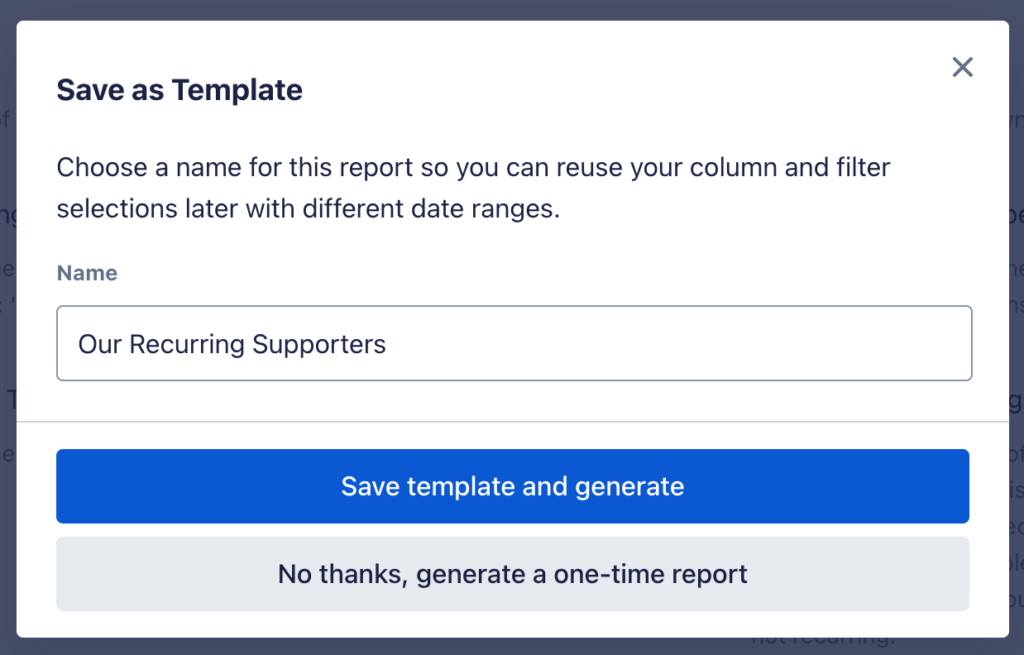
Once you click either Save Template and Generate or No Thanks, Generate a One-Time Report, you will land back on the main Report Builder page. A banner at the top should indicate that your report generation is in progress. Click Email Me When Ready if you’re building a large file and would like to receive an email when your report is available to download:

Once your report is available to download, you will find it at the top of the Recently Generated Reports section with a Download button to its right. Click Download to download a CSV of your report to your computer:

How do I create and save a custom report template?
While creating a custom report, you will be given the option to save your column and filter selections as a reusable template.
If you selected this option while creating your report, you can view your template(s) under the Saved Report Templates section of the Report Builder page.
Under this heading, you should be able to view the template's name, which columns and filters it includes, and which Dashboard user created it.
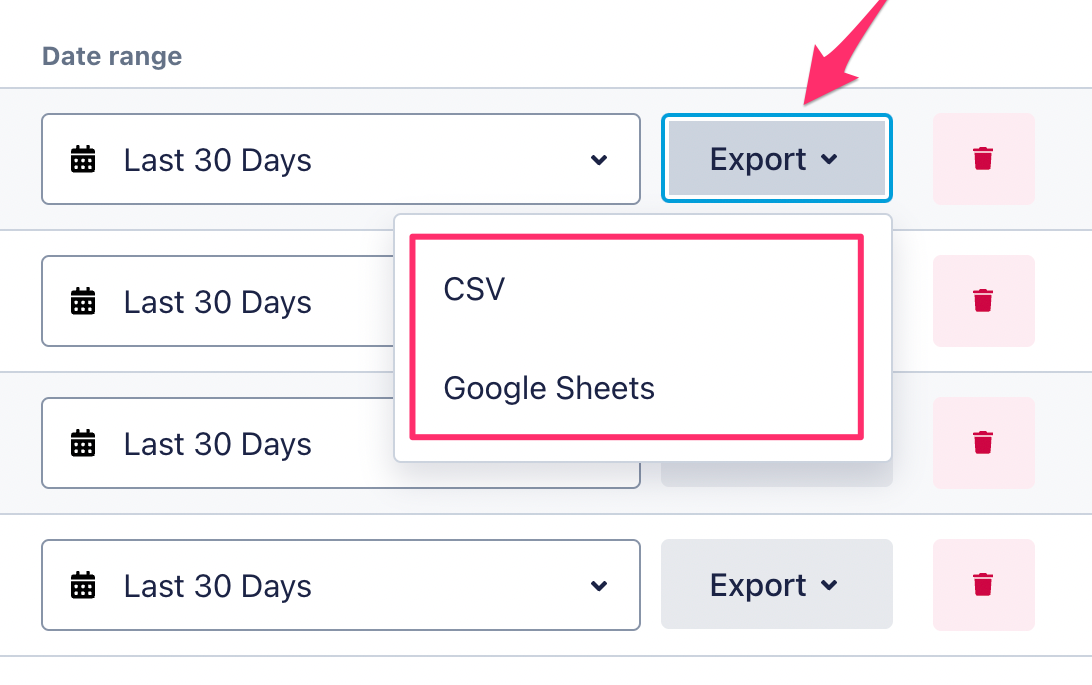
To generate a report based on the template, choose a date range and click the grey Export button:
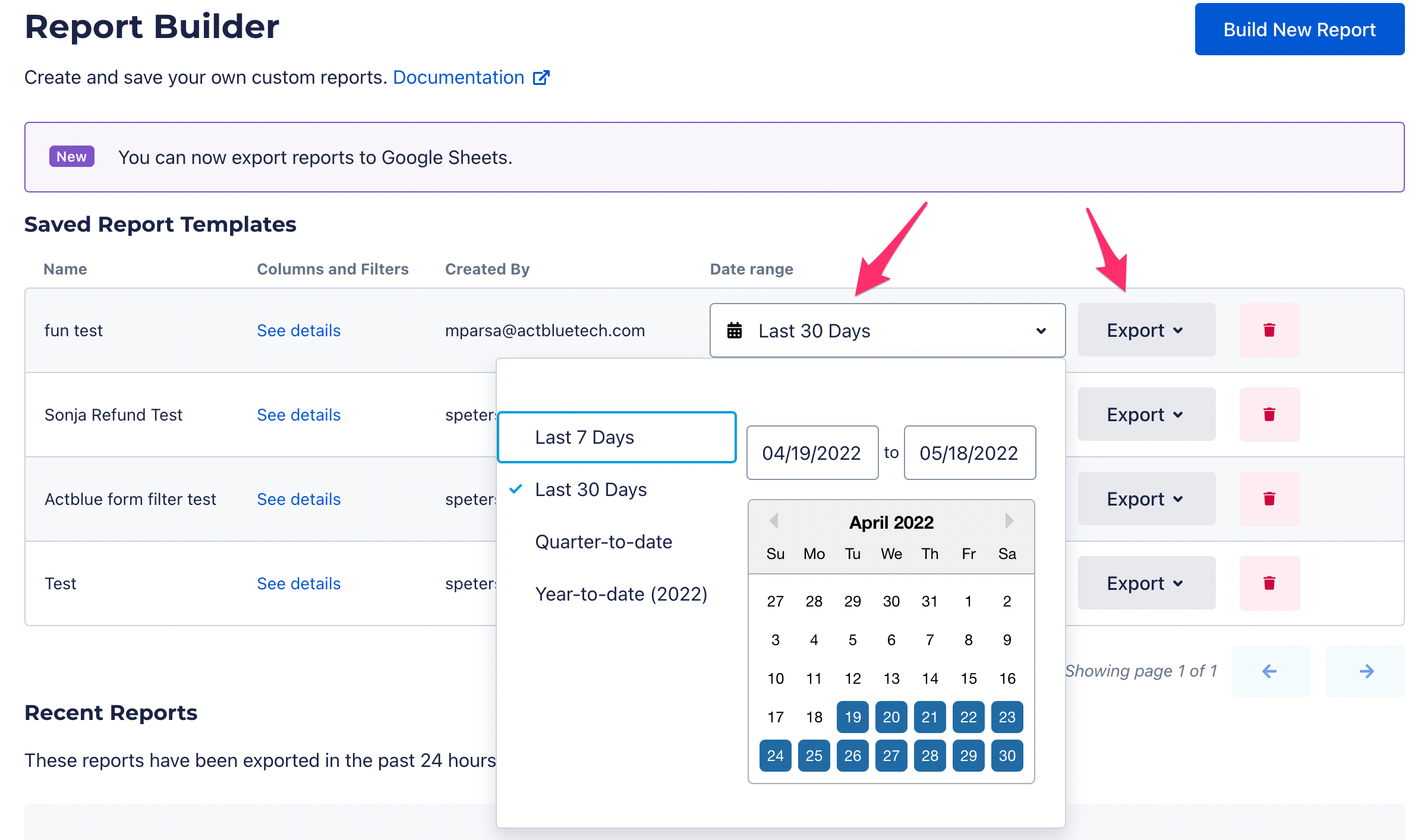
Next, select CSV or Google Sheets depending on which format you want your report to be in:
Once your report is ready to download, it will become available under the Recently Generated Reports section of the Report Builder page. You will then have 24 hours to download your report.