
Disclaimer: ActBlue user roles and permissions dictate what users can do on our platform. If the tools or features mentioned in this article are unavailable to you, please speak to your Dashboard Admin(s) about updating your permissions.
In this article:
- How can I manage my personal account settings on ActBlue?
- Understanding the Security Tab
- Understanding the Notifications Tab
How can I manage my personal account settings on ActBlue?
To manage the settings for your personal ActBlue Express account, start by clicking the Manage tab at the top right of your screen. Next, click the Settings option from the dropdown provided:
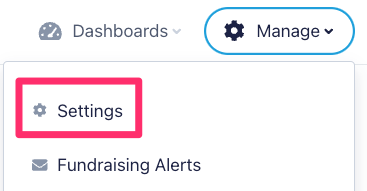
This will take you to your account's Settings page where you should see two new tabs: Security and Notifications.
Understanding the Security Tab
The Security tab will allow you to manage various aspects of your account's security, starting with the email address and password. Please note that you will not be able to change your email address to one that is already registered to another, existing ActBlue Express account.
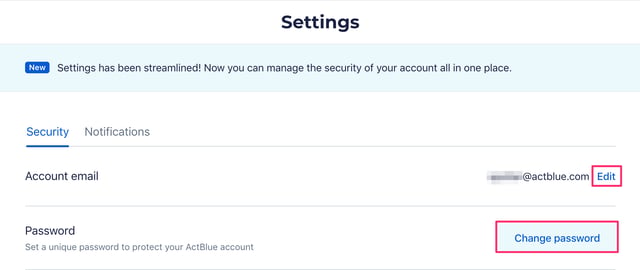
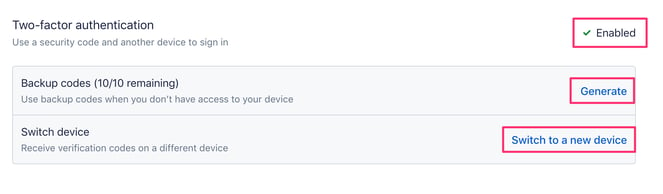
On the Settings tab, you can also enable or manage two-factor authentication or 2FA. 2FA is an extra layer of protection for your ActBlue Express account that requires you to provide two independent pieces of verification when logging in. If 2FA is enabled, you can switch your two-factor device or generate backup codes.
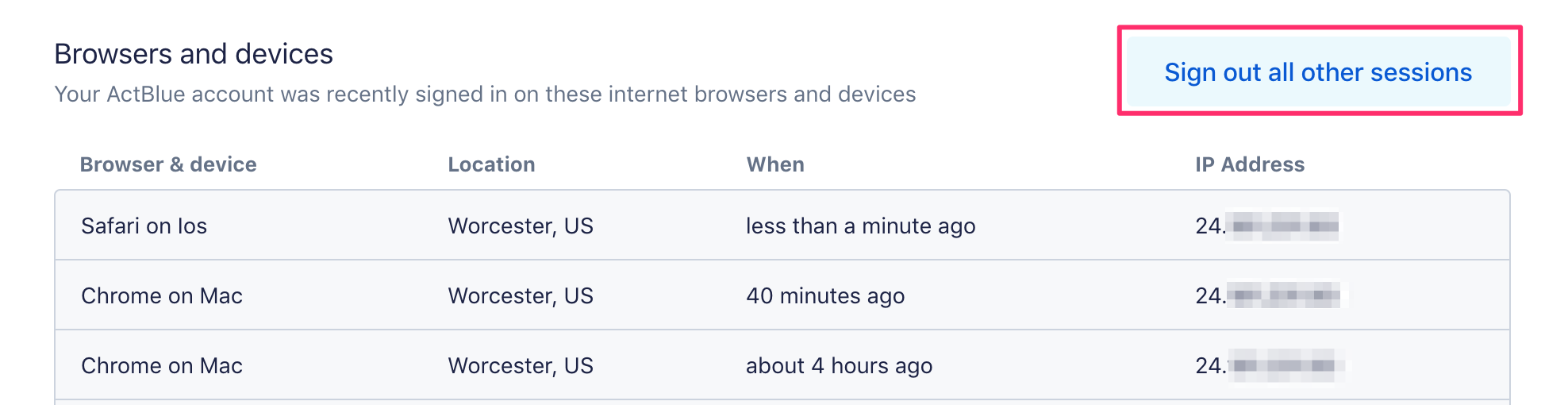
Under the Browsers and Devices heading you can view an access log for your account. Information includes what devices, browsers, and IP addresses have accessed your account, as well as their activity history. You will also see a Sign Out All Other Sessions button which, if clicked, will automatically sign you out of all browsers you're signed into (except the current one).
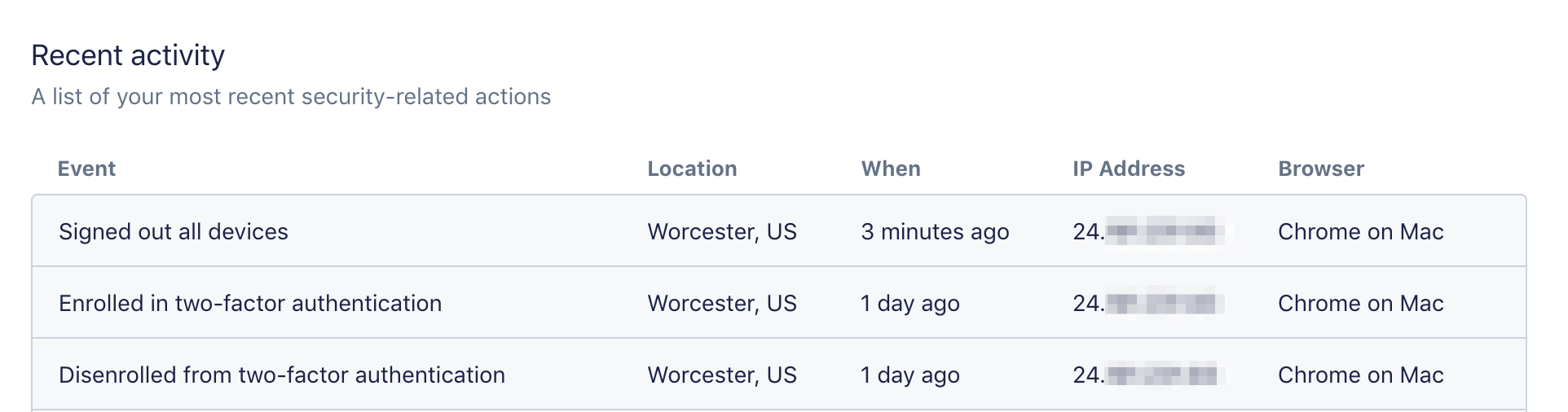
Under the Recent Activity heading, you can view security-related activity on your account, such as password changes or 2FA enrollment:
Lastly, you will be given the option to permanently delete your personal account at the bottom of the page. Please note that this option is for personal account deletion only. If you'd like to deactivate your campaign or organization's fundraising Dashboard or simply remove your point of access, please contact us for additional assistance.
Understanding the Notifications Tab
The Notifications tab will allow you to manage the fundraising and security notifications you automatically receive via email.
Please note that the following notifications are automatically turned on by default whenever you're granted access to a Dashboard:
- Daily email reports about your fundraising
- An alert to let you know when you have been signed out of all sessions
If you also your personal Express account to donate on ActBlue, you'll see additional settings for the following events:
- A payment method was added, removed, or updated
- Your ActBlue Express profile info (address, tip, etc.) was updated
If you wish to turn any of these notifications off, simply click the toggle beside each one:
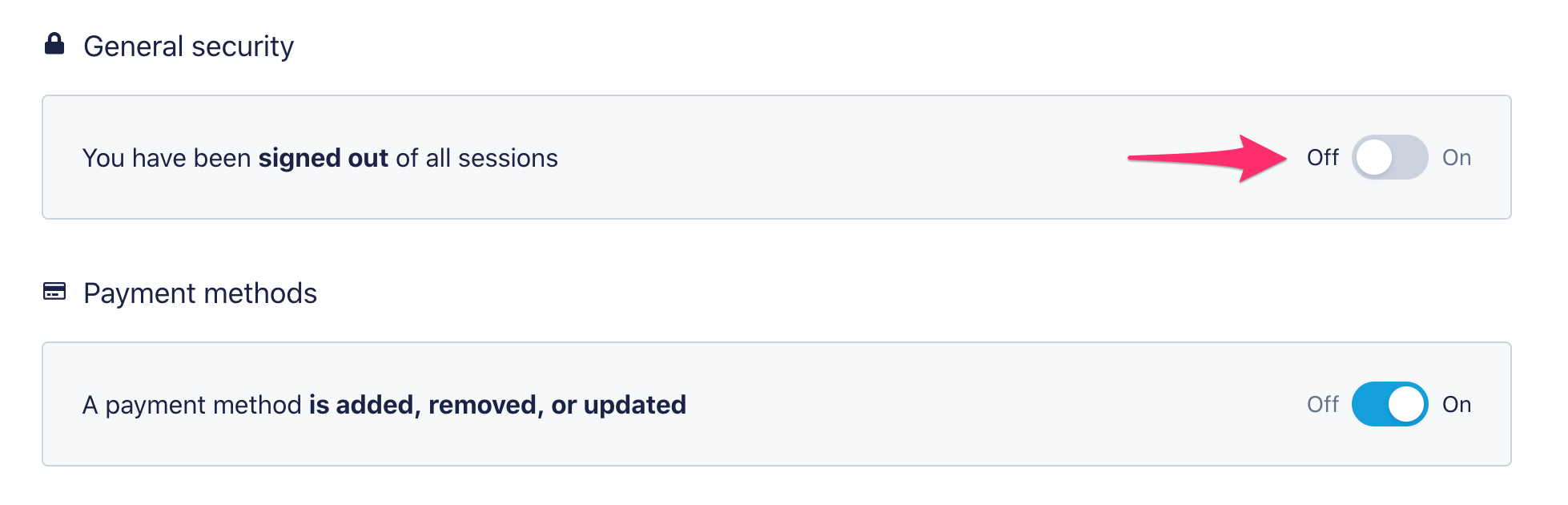
Please note that even if all of these notifications are toggled off, you will still receive security notifications for critical events including password changes and updates to two-factor authentication.