
Disclaimer: ActBlue user roles and permissions dictate what users can do on our platform. If the tools or features mentioned in this article are unavailable to you, please speak to your Dashboard Admin(s) about updating your permissions.
In this article:
- What is a QR code?
- How do I download a QR code from my Dashboard?
- How do I download a QR code from the form editor?
- Where can I use my QR code?
- Where can I view my QR code's stats?
What is a QR code?
A QR or “quick response” code is a type of barcode you can scan with your mobile device’s camera to instantly open up a link on your device's browser. Creating a QR code for an ActBlue contribution form allows you to put a donation link anywhere that you could paste an image: flyers, yard signs, business cards, and more!
How do I download a QR code from my Dashboard?
To download a QR code from your Dashboard, start by navigating to your Contribution Forms tab.
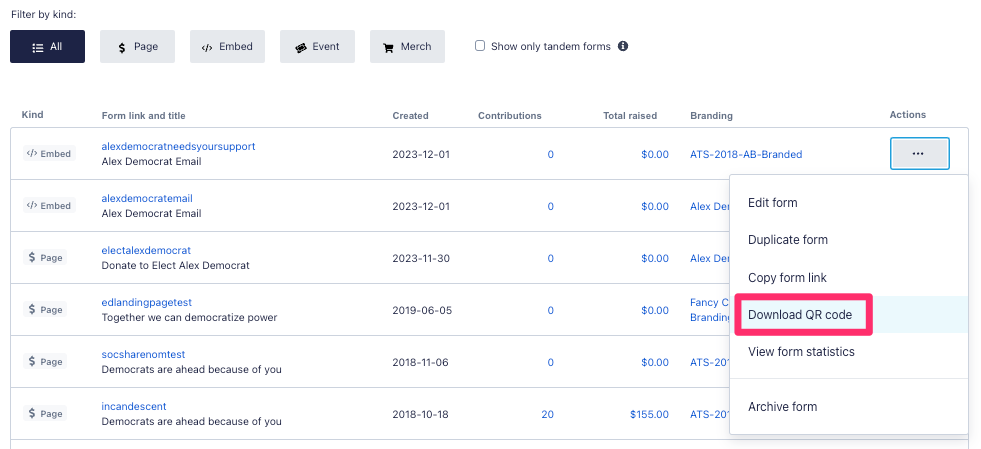
Next, identify the form you'd like to download a QR code for and then click the three grey dots under Actions. From the dropdown options provided, click Download QR Code:
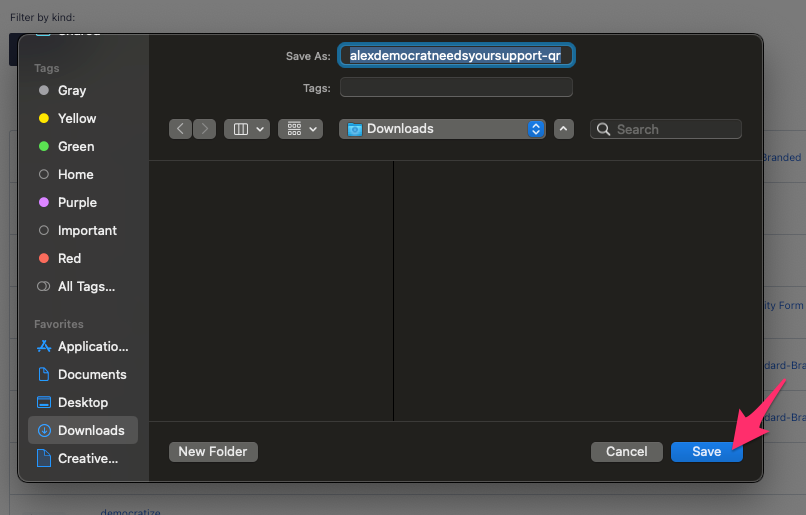
This will load a new pop-up window which will prompt you to name and save your QR code on your computer. Once you've named the file and saved it where you intended, click the blue Save button:
Your downloaded QR Code should look something like this and will automatically save as a .PNG file (making it easier for you to add it to any existing fliers, images, etc):

How do I download a QR code from the form editor?
To download a QR code from the form editor, start by navigating to your Contribution Forms tab.
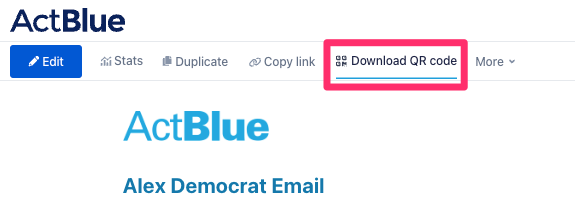
Next, click to open the form you'd like to download a QR code for. Once the form is open, select the Download QR Code button at the top of the page:
This will load a new pop-up window which will prompt you to name and save your QR code on your computer. Once you've named the file and saved it where you intended, click the blue Save button:
Your downloaded QR Code should look something like this and will automatically save as a .PNG file (making it easier for you to add it to any existing fliers, images, etc):
Where can I use my QR code?
You should be able to use your QR like any regular image, meaning it can easily be added to a flier, email, website, or any other location that allows you to upload an image.
To test your QR code, simply open your phone or device's camera and point it at the code. This should automatically trigger a hyperlink to pop up on your camera. Tap on this hyperlink to be automatically redirected to your contribution form.
Where can I view my QR code's stats?
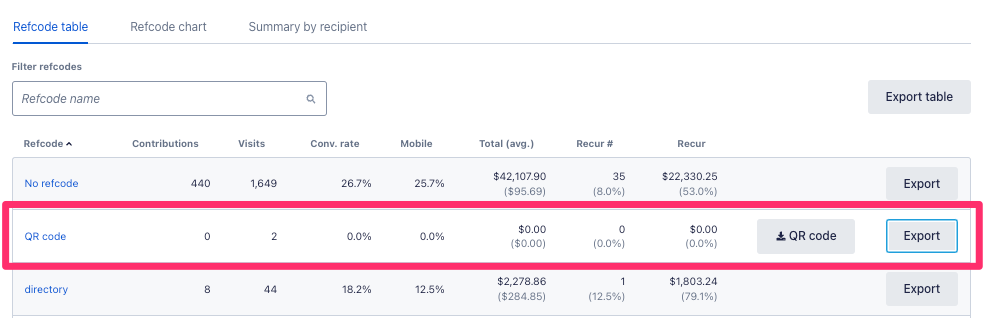
Once you’ve generated a QR code for a contribution form, you'll be able to view how many donors used it to contribute by opening up your form and clicking the Stats button at the top of the page.
From the Stats page, you'll want to specifically look at numbers generated under the QR Code refcode as show in the example below:
If you have any questions, please contact our support team using the email address you use to access your ActBlue account.