
Disclaimer: ActBlue user roles and permissions dictate what users can do on our platform. If the tools or features mentioned in this article are unavailable to you, please speak to your Dashboard Admin(s) about updating your permissions.
If you're currently an Admin user on your campaign or organization's Dashboard, you can require all users on that Dashboard to set up two-factor authentication (or 2FA) in order to access it.
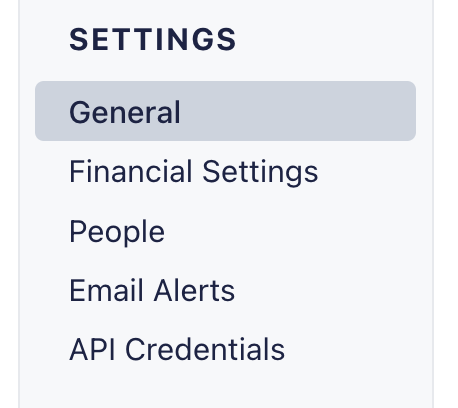
To do this, simply open your campaign or organization's Dashboard and click the General tab under the Settings heading on the left-hand menu:
From the General Settings page, select the Security tab and then toggle the Require Two-Factor Authentication button from Not Required to Required:

Once the toggle is moved, the 2FA requirement will go into effect immediately and all users will receive an email with instructions on how to enable 2FA.
To eliminate concern or confusion, please let your team members know to expect this change ahead of time!