
Disclaimer: ActBlue user roles and permissions dictate what users can do on our platform. If the tools or features mentioned in this article are unavailable to you, please speak to your Dashboard Admin(s) about updating your permissions.
To edit or customize your contribution forms, simply log on to your ActBlue Dashboard, select Contribution Forms from the left-hand menu, and click the name of the form you'd like to edit from the list provided.
Next, open up the Form Editor by clicking the blue Edit button at the top of your form:

In the Form Editor, you will be shown several different tabs that correlate with various, customizable aspects of your contribution form.
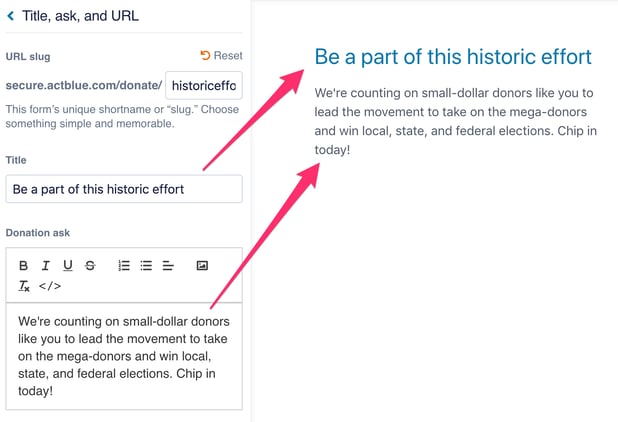
- The Title, Ask, and URL tab allows you to customize the text on your form, as well as edit your form's URL name (or slug). We recommend that you include a custom title and donation ask, as well as add an image of yourself or your organization's logo by clicking the picture frame icon and uploading a file. If you've already been using this form to fundraise, we advise against changing the URL slug as this render all previous links to your form unusable.
- In this tab, you can also add videos or livestreams, making it easy to host a virtual event and raise money at the same time. You can learn more about embedding videos and hosting livestreams here.
- The Preset Donations Amounts tab allows you to customize the donation presets on your form.
- The Form Customization tab allows you to switch the ActBlue-provided text on your form to Spanish.
- The Goal Tracker tab allows you to set a goal and add a live tracker to your form.
- The Timer tab allows you to add a sense of urgency to your fundraising asks by including a date you're counting down to, such as Election Day or end-of-quarter.
- The Branding tab allows you to more thoroughly customize the look and feel of your form by adding a custom logo and colors.
- The Recurring Settings tab allows you to customize the recurring settings of donations made through your form. You can enable Pop-Up or Smart recurring and customize pop-up text, recurring asks, and add a recurring incentive.
- The Remarketing tab allows you to enable and customize the email bump sent to anyone who started donating through your form, but didn't finish.
- The Post-Donation Upsells tab allows you to choose what type of upsell you want donors to see after giving - recurring or Smart Boost.
- The Thanks and Receipt tab allows you to customize the text in your email receipts and thank you page blurb that donors see after contributing.
- The Social Share tab allows you to customize the image and text that displays when you share a link to your contribution form over email, text, or social media.
- The Recipients tab allows you to add additional recipients to your form. At ActBlue, we refer to this as tandem fundraising.
If you have any questions, please contact our support team using the email address you use to access your ActBlue account.