Disclaimer: ActBlue user roles and permissions dictate what users can do on our platform. If the tools or features mentioned in this article are unavailable to you, please speak to your Dashboard Admin(s) about updating your permissions.
If you’ve identified a donor who's maxed out their individual donation limit to your campaign, you can set up a Contribution Block associated with their email address to prevent further donations.
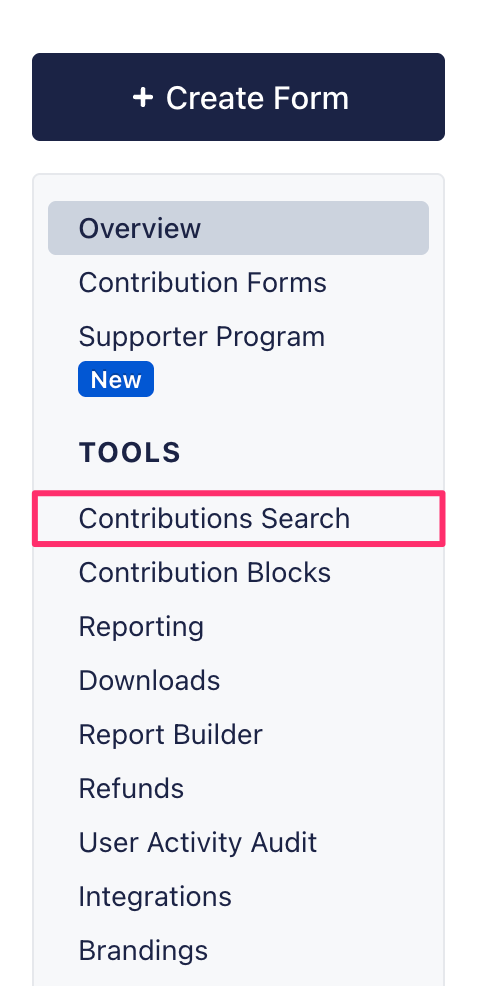
To set up a contribution block, start by logging onto your Dashboard and navigating to the Contribution Search tab:
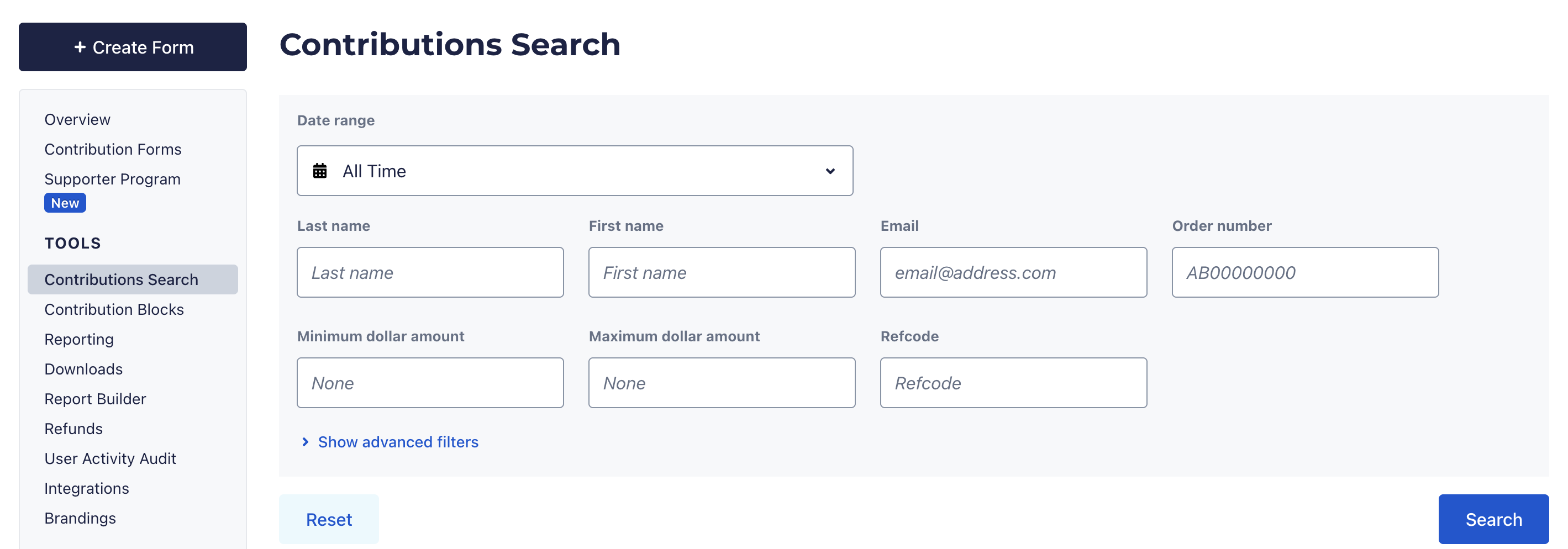
Next, search for the donor you'd like to block using the email address associated with their contributions:
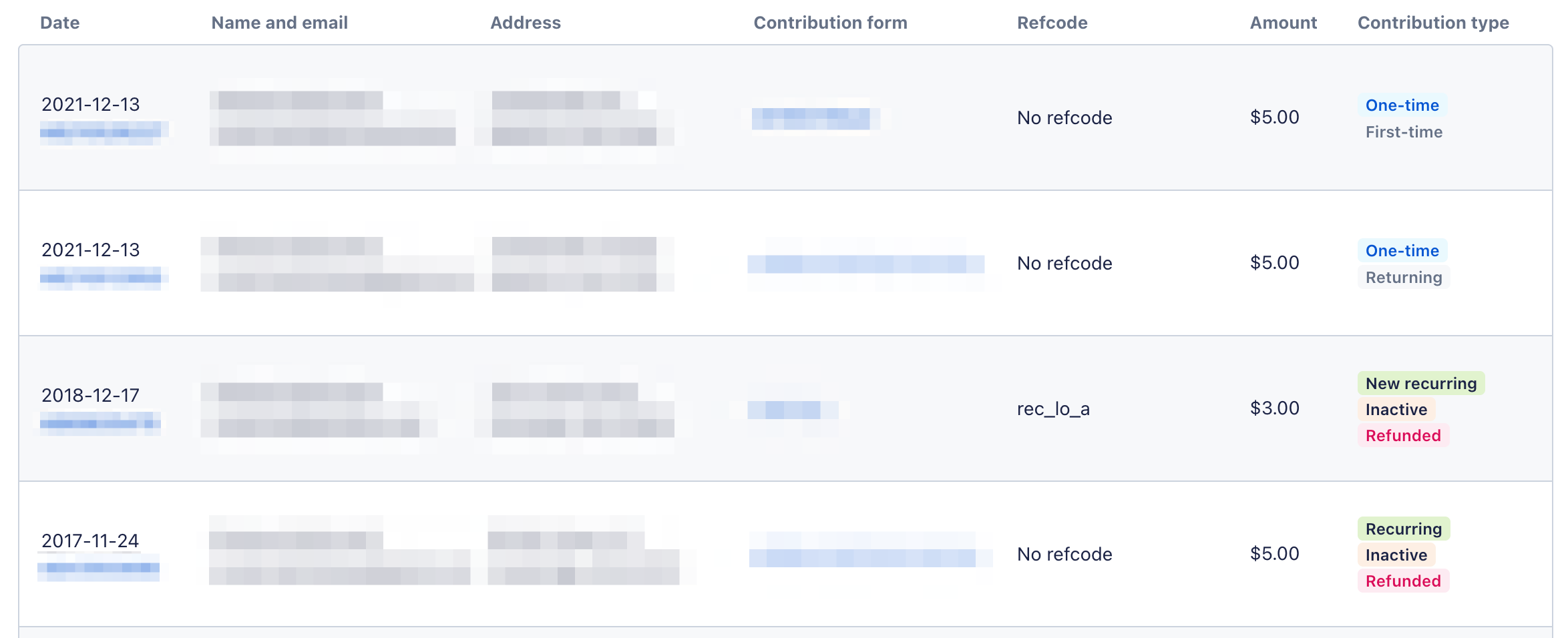
Once you've pulled up the donor's contributions, click on one of their AB order numbers to view a full contribution receipt:
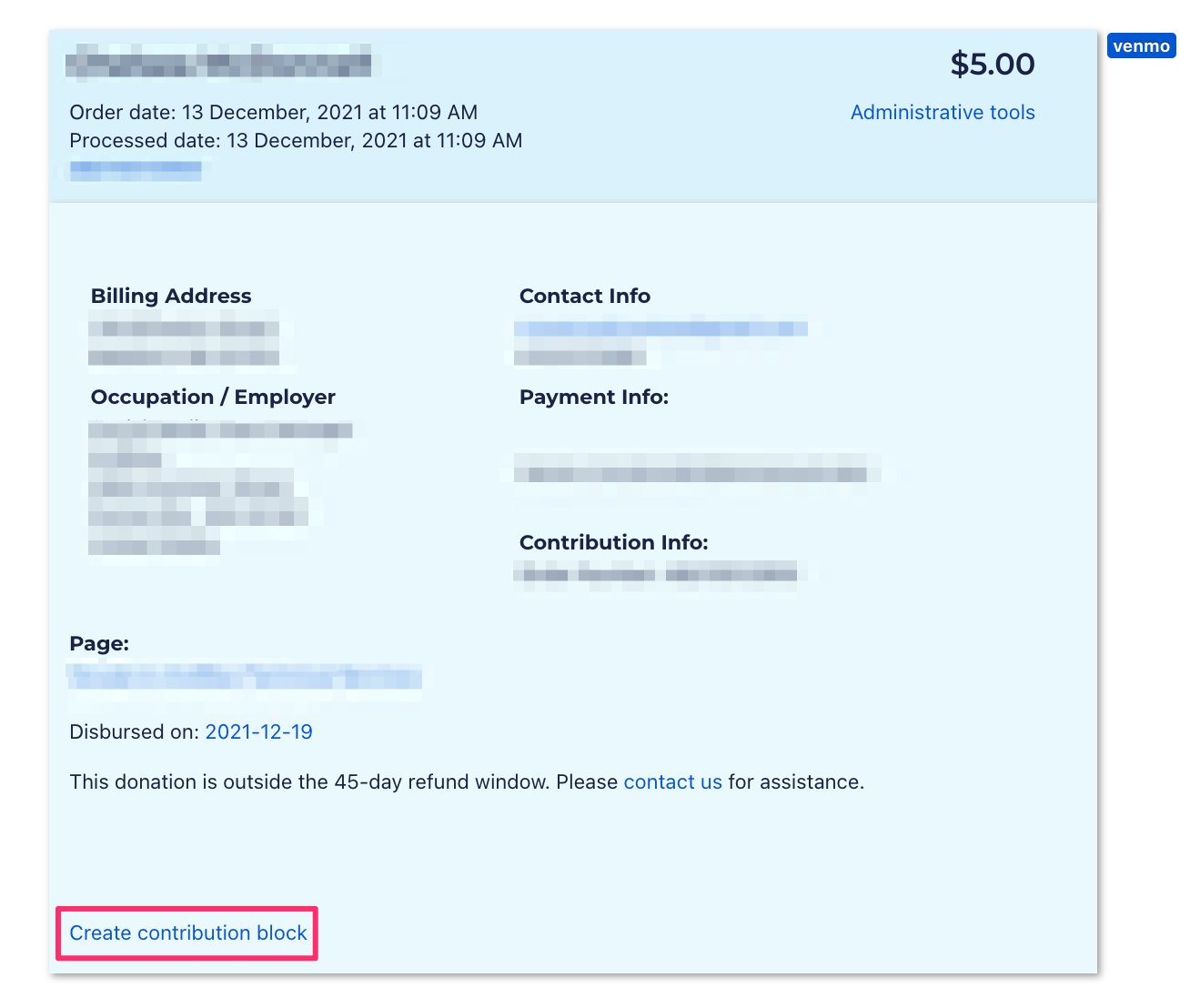
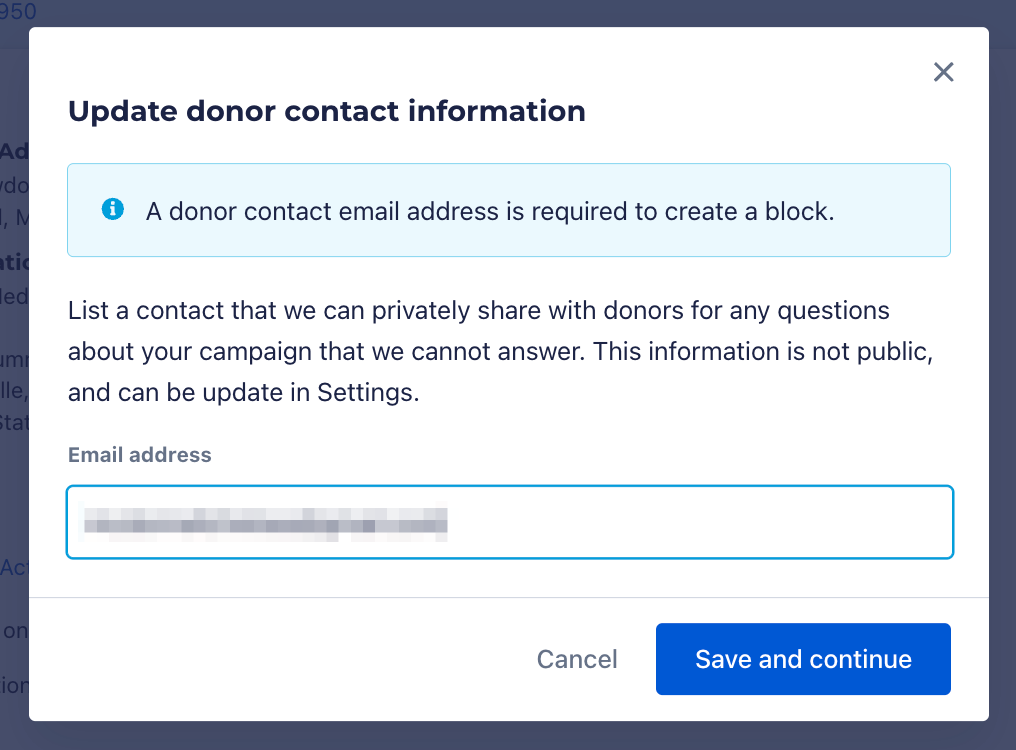
On the contribution receipt, click the Create Contribution Block link. This will open a new pop-up window which will prompt you to enter the donor's email address. Enter the email address and then click the blue Save and Continue button:
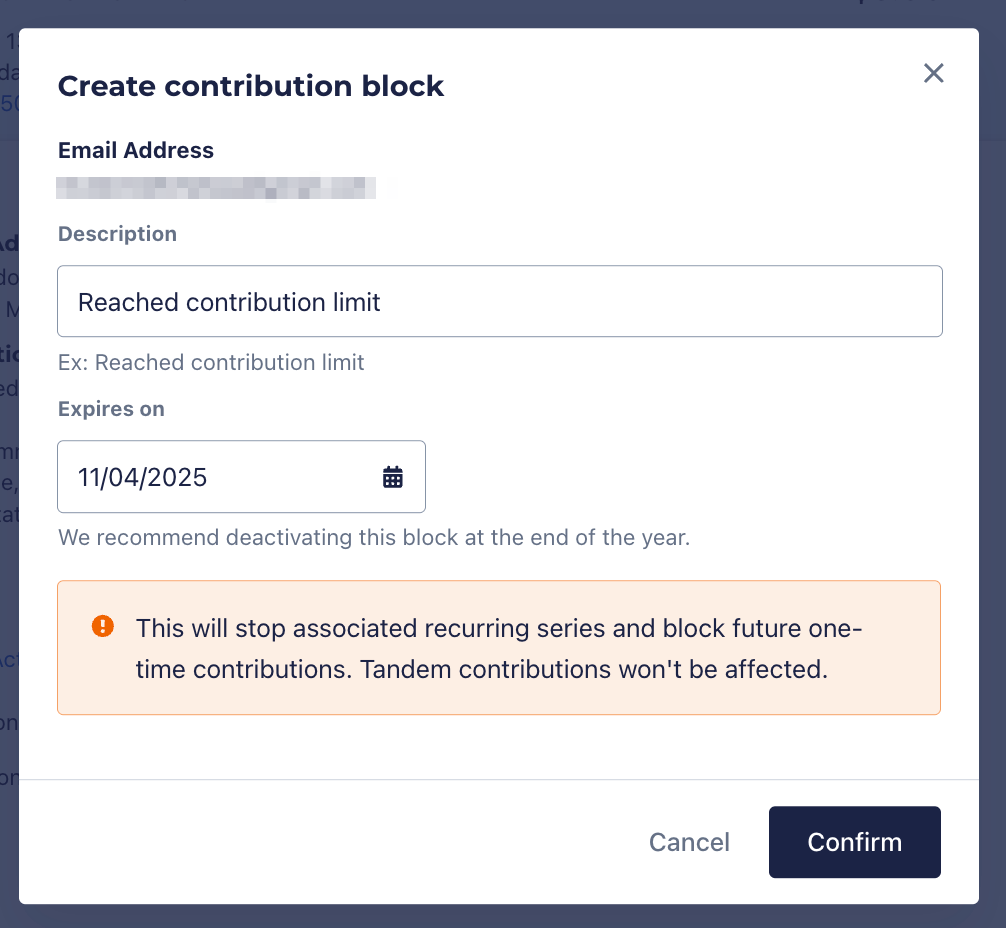
Finally, enter a description to explain the reason for the block and an expiration date. By default, a block's expiration date should be set to the last day of the calendar year or the day of your campaign's election. Please note that initiating a contribution block will cancel any actively recurring contributions the donor has to your campaign or organization, but will not impact any tandem contributions split between your campaign/organization and others.
Once a block is initiated and the blocked donor tries to make a contribution, they'll receive a notification from ActBlue that their contribution is processing. Shortly after this, they'll receive an email letting them know that we were unable to process their donation. They will then be directed to contact the donor-facing contact email that your campaign or organization provided during account set-up.
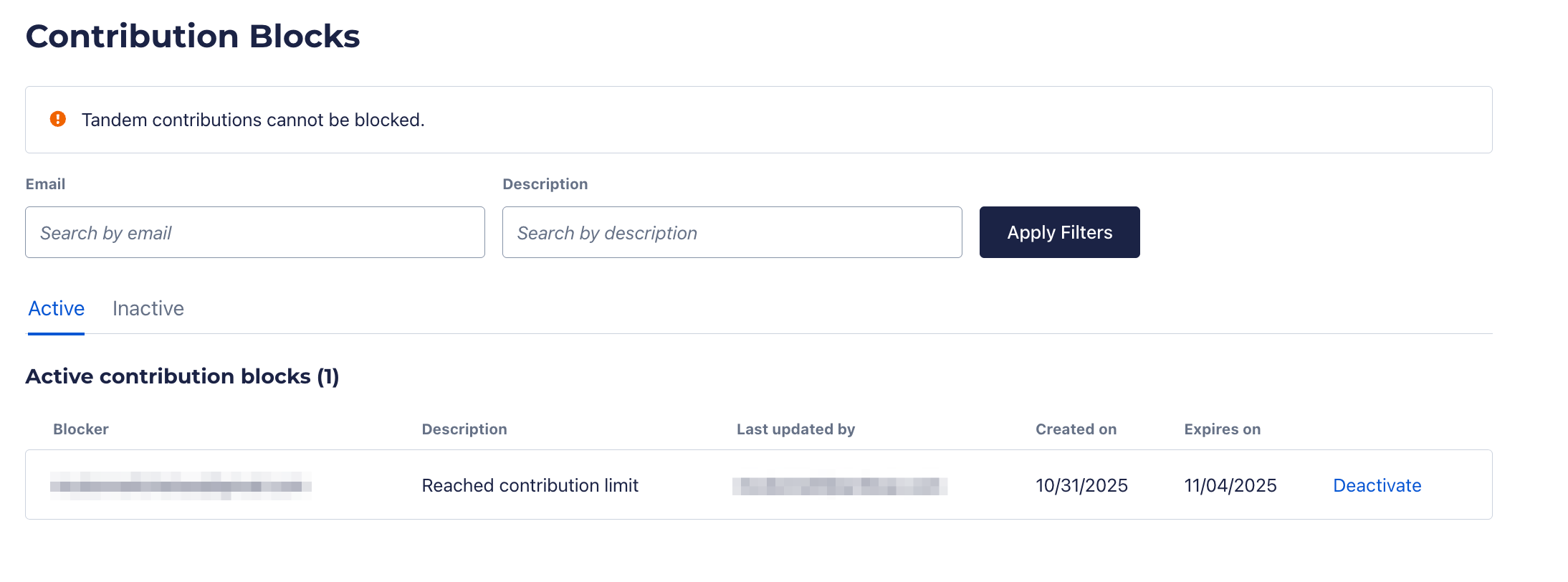
To manage contribution blocks once you've created them, simply navigate to the Contribution Blocks tab of your Dashboard:
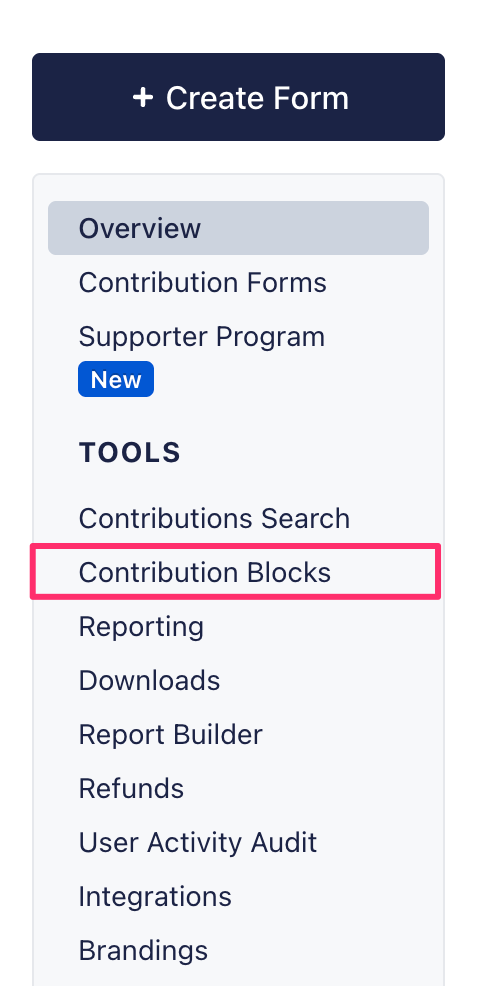
Here, you can view key details like who initiated the block and the block's expiration date. You'll also have the option to deactivate existing blocks.