Using ActBlue's Website Builder, you can easily publish your site using a custom domain or an ActBlue subdomain (sitesab.com).
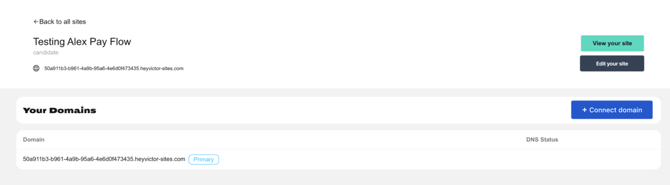
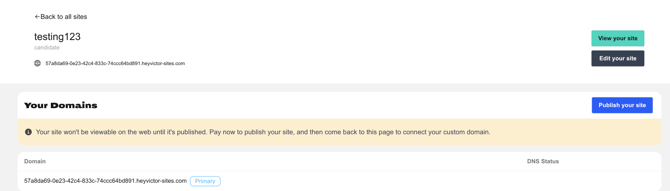
To publish with an ActBlue subdomain, navigate to your site's Dashboard and click on either +Publish Site (if you haven’t already activated your subscription) or +Connect Domain (if you haven't already paid for a subscription):
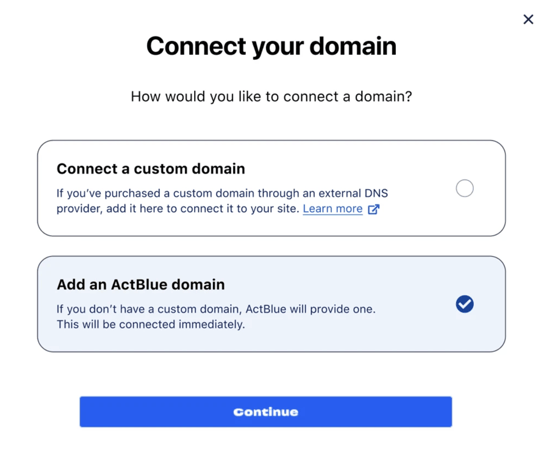
Once you select Add an ActBlue Domain, you’ll be prompted to enter your preferred domain name. Because your site is technically a subdomain, you will not be able to edit or remove the sitesab.com which proceeds your custom input (ex. your site name will be janedoneformayor.sitesab.com instead of janedoeformayor.com):
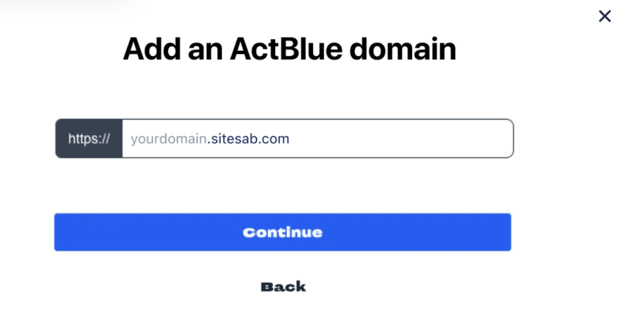
If you'd prefer a simpler URL like janedoeformayor.com, you'll want to select the Connect a Custom Domain option instead. For more details on connecting a custom domain, check out this guide!
After you select and enter a valid domain name, click Continue to finalize your subdomain:
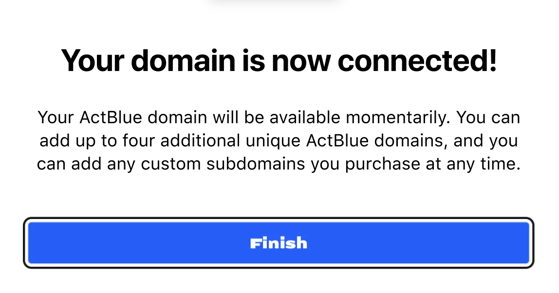
Once the set-up process is finalized, you will be able to share the link to your custom subdomain, and it will become available for searchability and indexing! No fancy DNS settings or steps required.
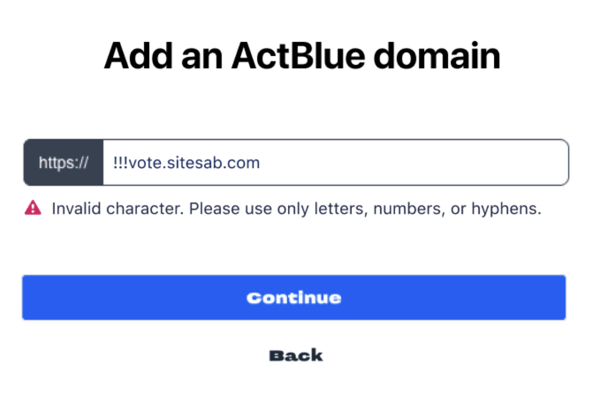
My domain name isn't meeting the validation standards. What does this mean?
All site/domain names are subject to validation standards. While these standards aren't specific to ActBlue, Website Builder will still help you to identify which standard(s) your domain name is not meeting and provide guidance on how to fix them.
Typical validation error messages include:
-
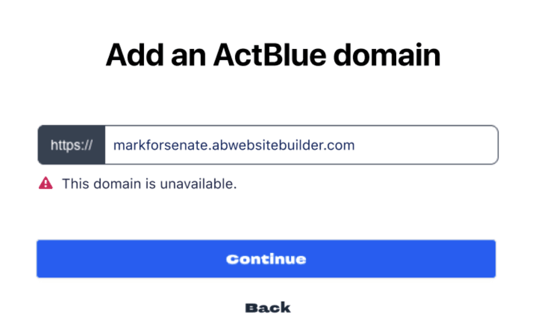
Uniqueness (i.e. someone has already used this naming convention)
-
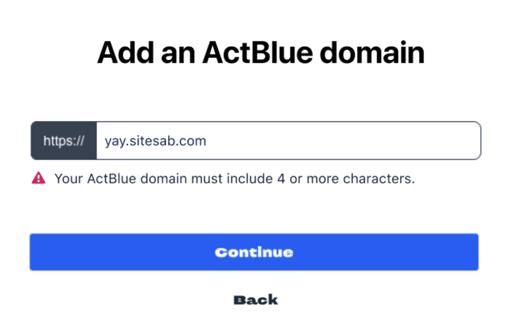
Minimum character length (i.e. your domain name is not long enough)
-
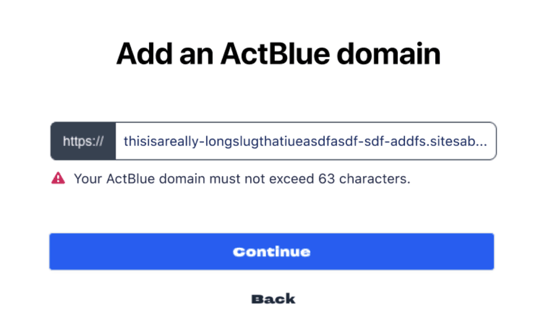
Maximum character length (your domain name is too long)
-
Invalid character use (you've entered invalid characters ex. @)