Creating your grassroots fundraising form
If you’re an ActBlue Express user, you can create a grassroots fundraising form from your "Fundraising" Dashboard by signing into your ActBlue account, selecting "Fundraising" from the Account dropdown, and then clicking the blue "Create Form" button:


From there, you’ll be prompted to create a title for your grassroots fundraising form, add recipients, and decide on a web address. You'll also be given the option to choose between a standard fundraising form and an event-specific form. For more information on creating an event form, check out this guide!
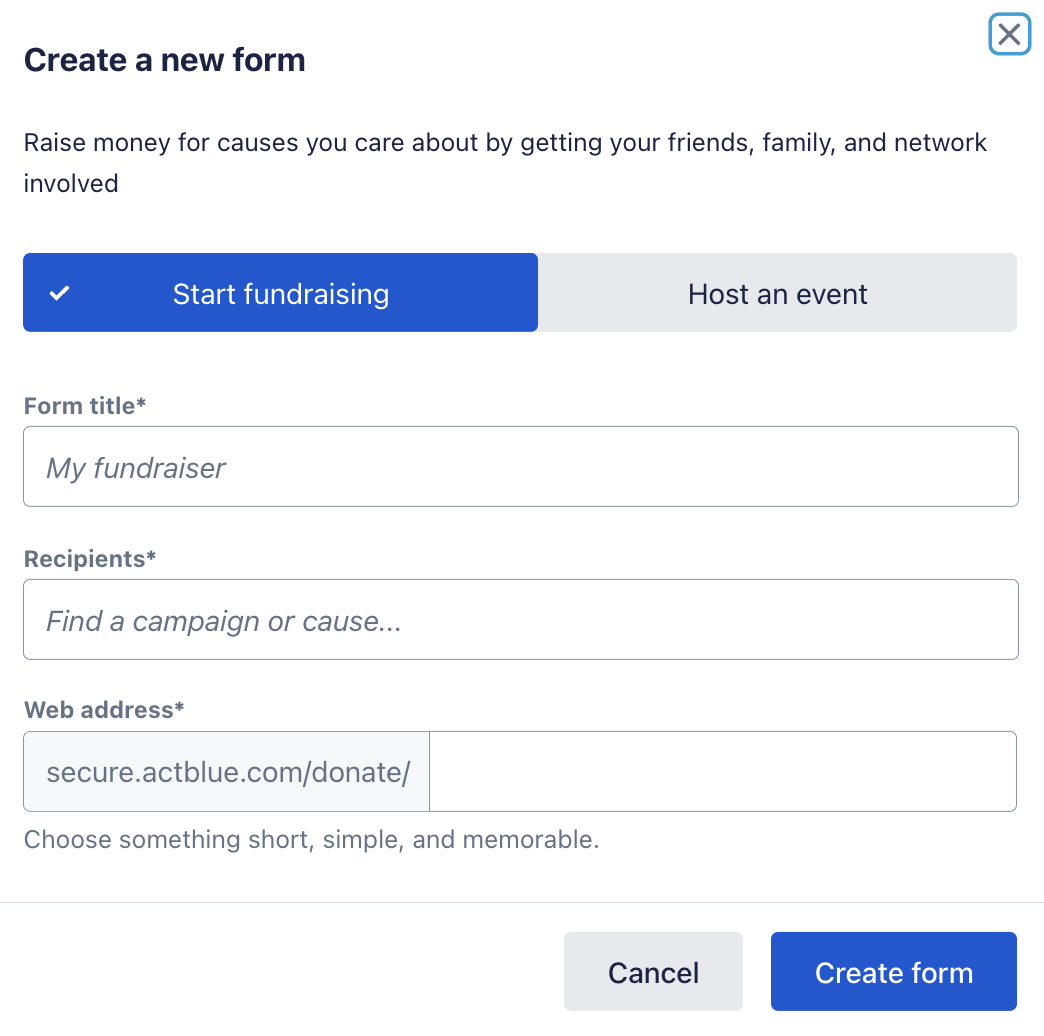
Click the blue "Create Form" button to finalize and view your form.
Adding details to your form
The affiliated organization has already branded your grassroots fundraising form, but you can explore the form editor to customize more elements.
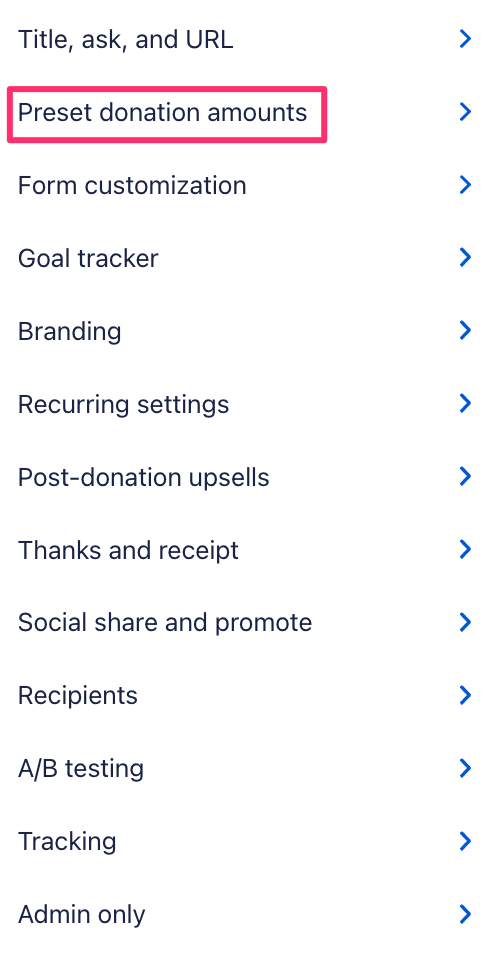
We recommend customizing contribution amounts. Presetting these numbers will make it quick and easy for your donors to select an amount. You can do this in your form editor’s “Preset donation amounts” tab.
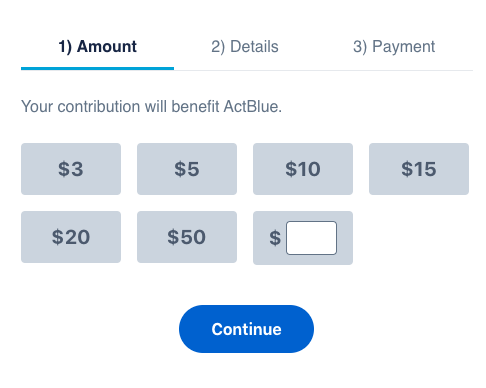
Donors always have the option to type in an amount, but it’s best if the amounts listed on the form make sense for the people you’ll ask to give.
Click the green “Publish” button at the top of the form editor to save any changes you make before sharing the form.
Finding your grassroots fundraising form
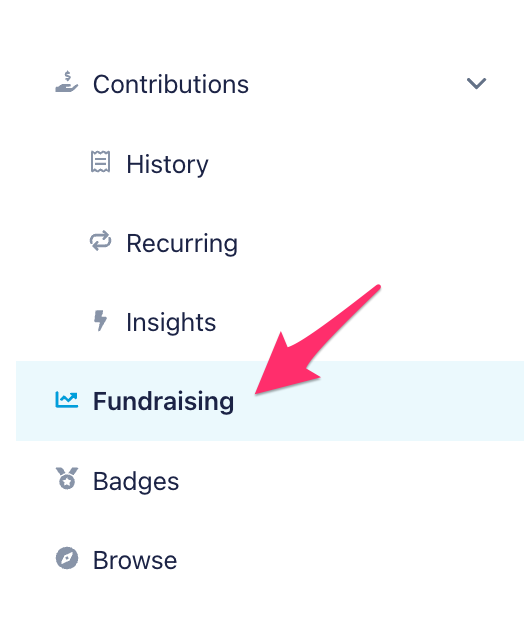
To see your form list, click “Fundraising” in the left navigation bar.
At the top, you will see the number of contributions, dollars raised, and average contribution size across all your forms. Next is a list of your forms, the dollars raised, and the number of contributions on each form. Click “Actions” to copy your form link, edit and preview your form, view your form’s statistics, duplicate it, or delete it.
Fundraising with your grassroots fundraising form
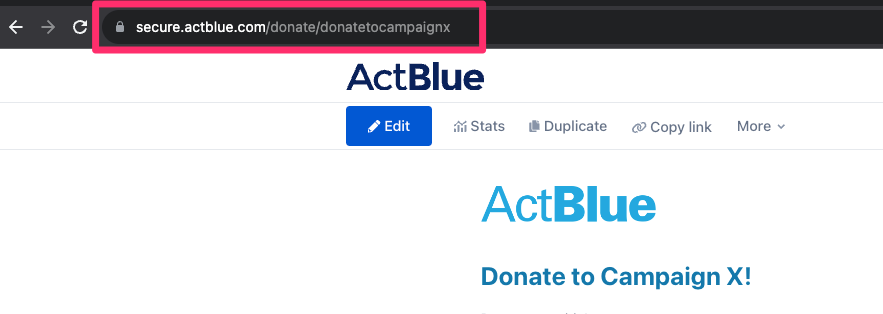
You can copy and paste your form’s URL and ask friends, family, and social networks to pitch in.
Your fundraising statistics
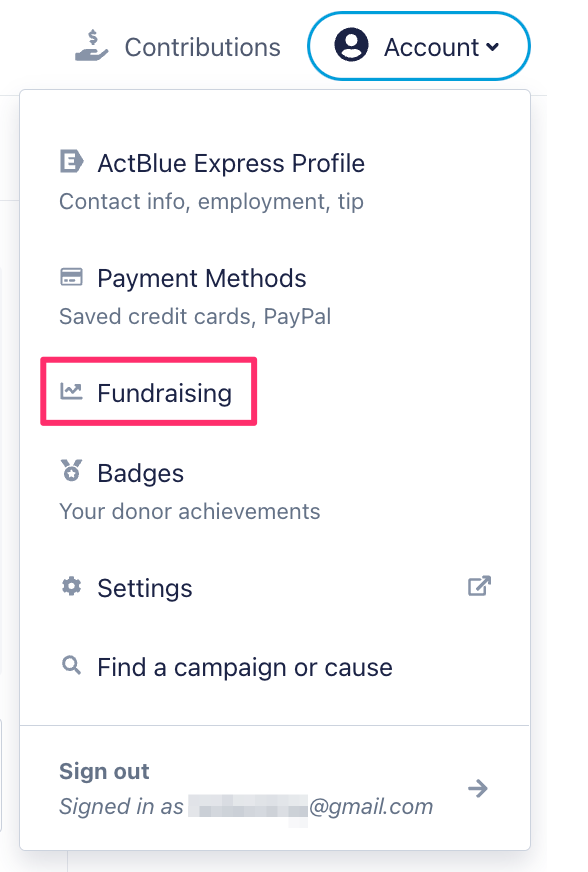
To see your form’s fundraising statistics, log in to your ActBlue account , click “Account” in the top right corner, and select “Fundraising.”
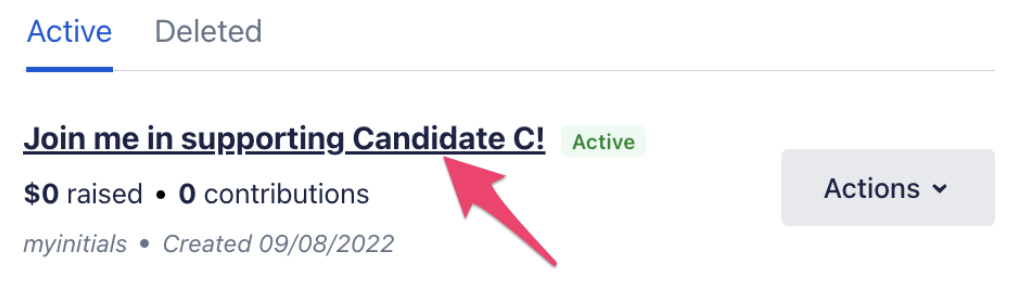
Click on the title of your form.
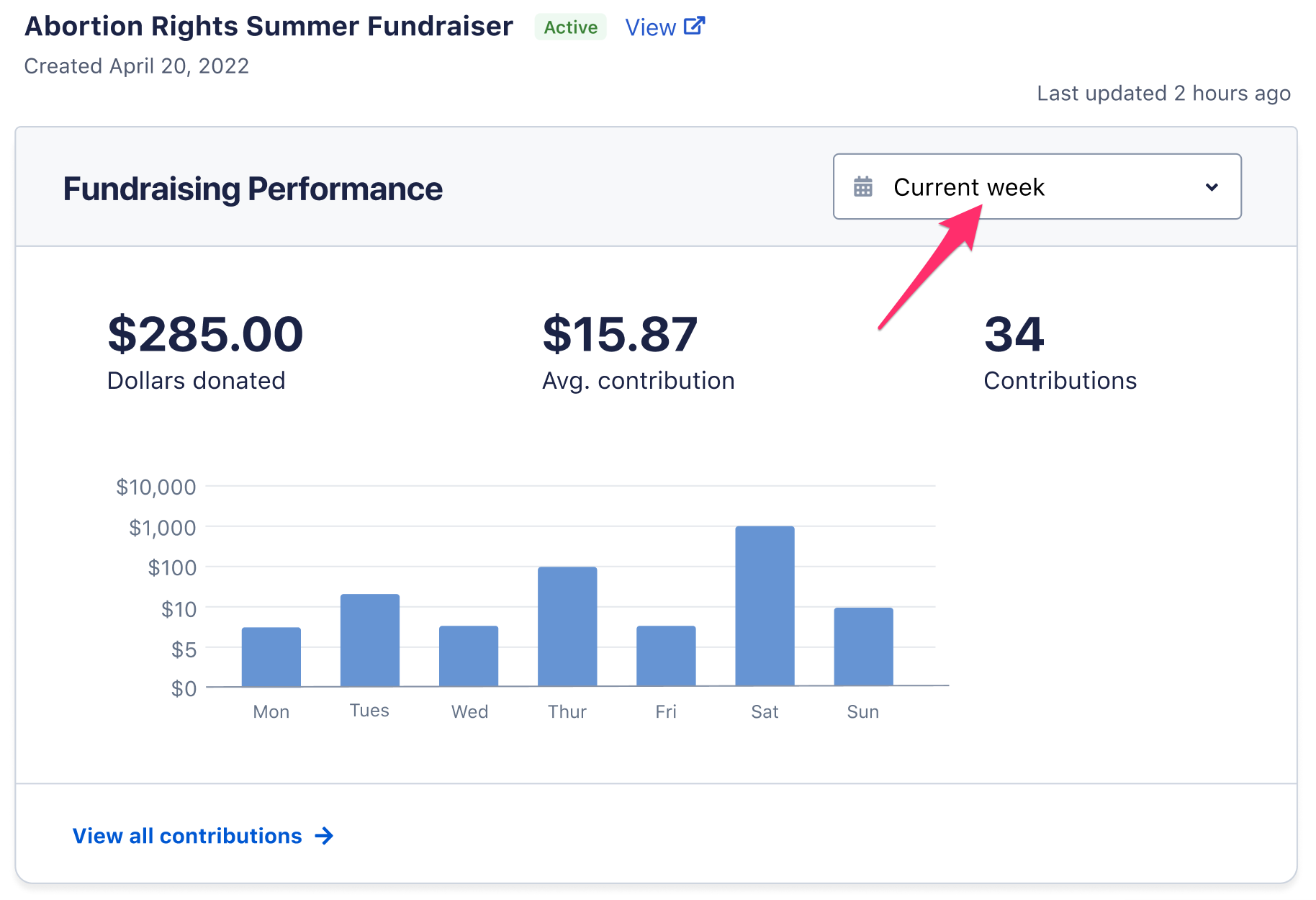
You will see detailed information on your form’s performance, beginning with a bar graph that shows how your form has done in the past seven days. You can customize the time frame using the dropdown in the top right corner of the graph.
Next is a series of modules that dive deeper into your fundraising numbers.
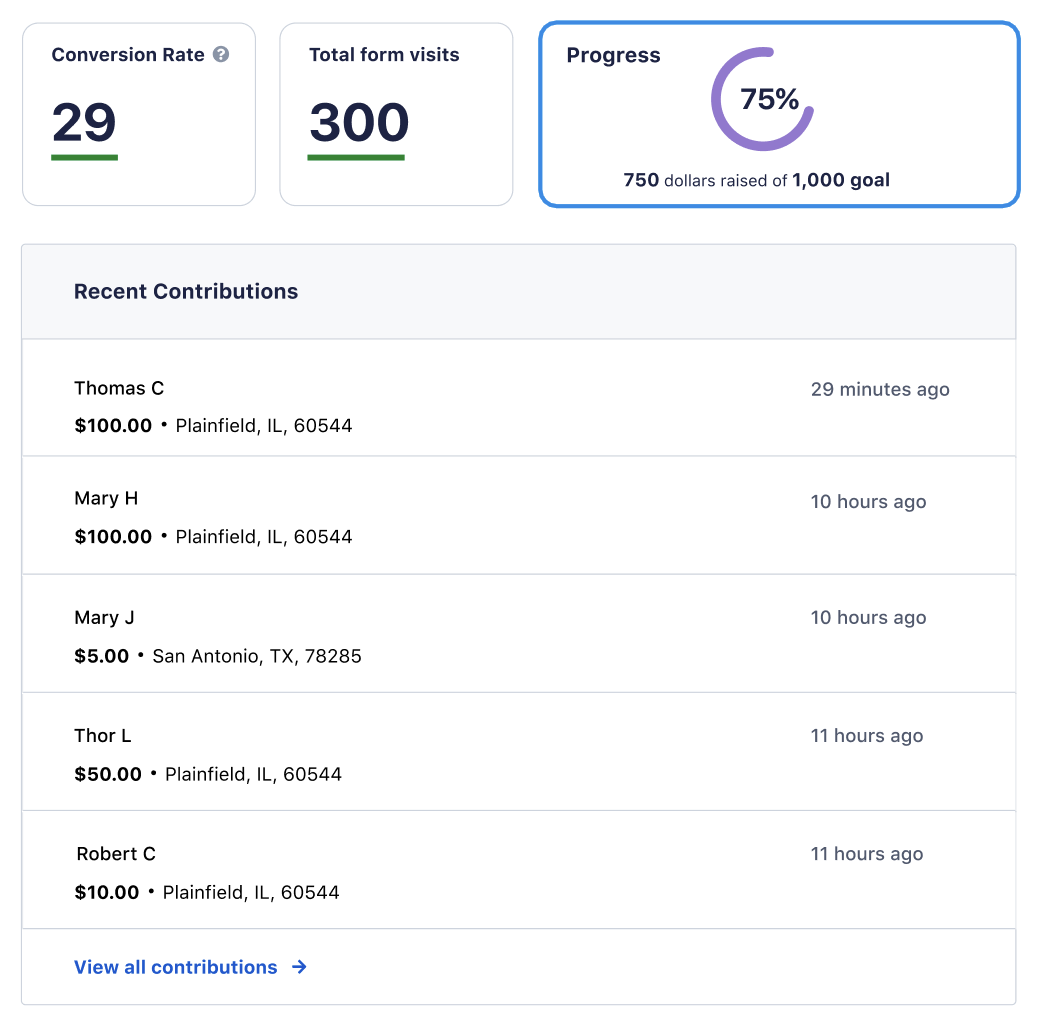
- Conversion Rate: the number of conversions divided by the total number of visitors to your form. For example, if your form receives 200 visitors in a month and has 50 donations, the conversion rate would be 50 divided by 200, or 25%. For the strongest data, we don’t recommend donating to your form while logged in. Doing so can affect the accuracy of your conversion rate.
- Total form visits: the total number of people who visited your form. If you visit your own form while logged into your ActBlue Express account, the “Total form visits” number will remain unaffected.
- Progress: your progress toward your goal. If you haven’t set a goal, you will see a prompt to do so.
Next is a list of the most recent form contributions. Click “View all contributions” to see the full list or download a report.
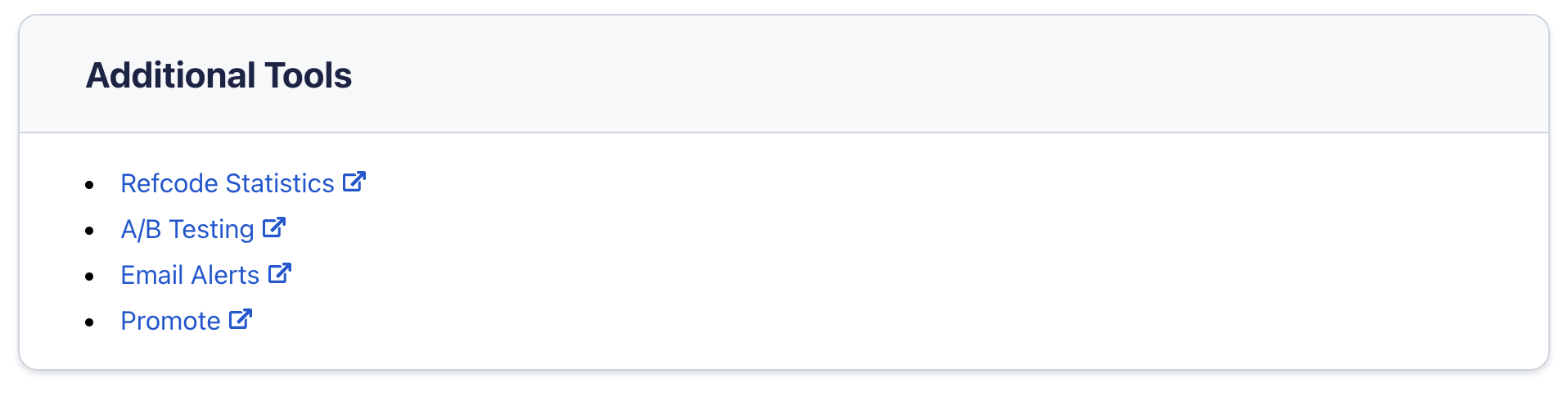
The last module has links to additional tools, including Refcode Statistics, A/B Testing, Email Alerts, and Promote.
Grassroots fundraising form data
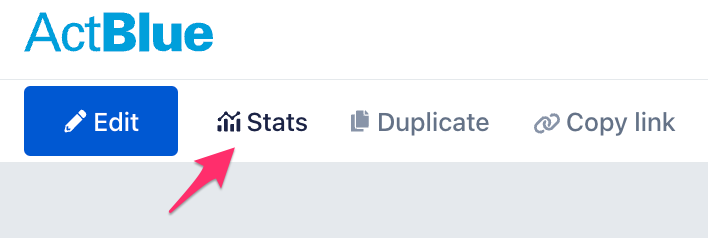
To download data on your form, enter your form editor from the fundraising form by selecting “Edit and preview” from the dropdown next to your form’s name. Click “Stats” at the top of the form editor.
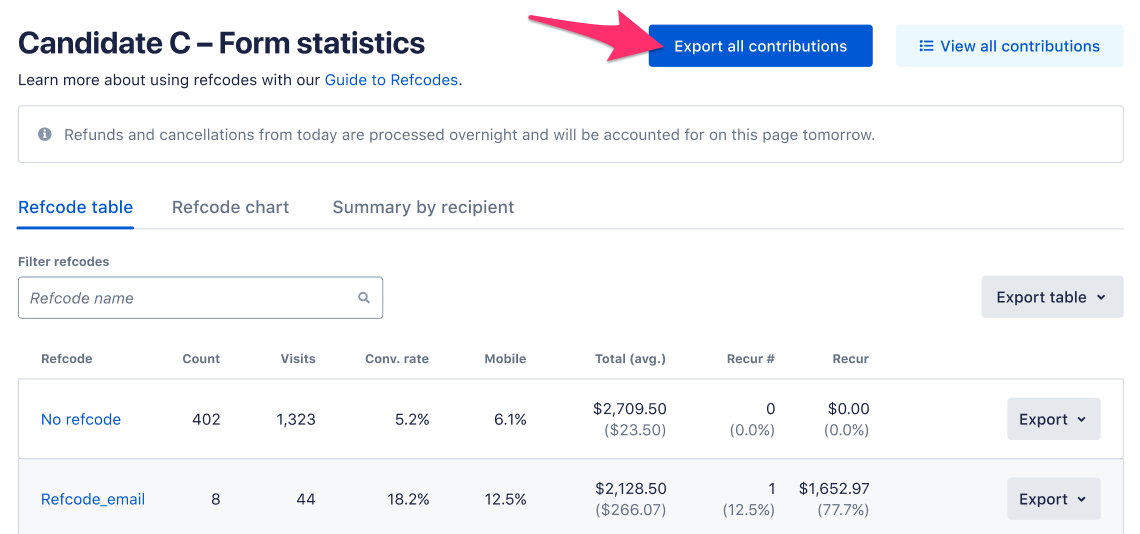
You’ll see a statistics table on your form’s performance, organized by refcode. Data points include:
- Count: Number of contributions made
- Visits: Number of people who landed on your form
- Conversion Rate: Percent of people who landed on your form who donated (count divided by visits)
- Mobile: Percent of contributions made on mobile devices
- Total (avg.): Total dollars raised, followed by the average contribution size in parentheses
- Recur #: Number of recurring contributions made, followed by the percent of contributions made that are recurring contributions in parentheses
- Recur: Total dollars raised from recurring contributions
Select “Export all contributions” in the top right to download a spreadsheet of your contribution data (including donor names and email addresses).