
This article explains what two-factor authentication (2FA) is and how to enable it on a personal ActBlue account. 2FA adds a second verification step, usually a six-digit code from an authenticator app, which makes it much harder for someone to access an account from an unfamiliar device. ActBlue recommends Google Authenticator and advises against text or voice verification because those methods are vulnerable to social engineering. The article walks through setup (Manage tab, Enable Two-Factor Authentication, scan the QR code, enter the code, and click Verify and Enable) and explains where to find the six-digit code afterward.
Disclaimer: ActBlue user roles and permissions dictate what users can do on our platform. If the tools or features mentioned in this article are unavailable to you, please speak to your Dashboard Admin(s) about updating your permissions.
In this article:
- What is 2FA and why is it important?
- Which authenticator should I use?
- How do I set up 2FA with Google Authenticator?
- Where can I find my six-digit 2FA code?
- Can I use another authenticator?
- What are emergency recovery or backup codes and how do I generate them?
- I received an email or pop-up prompt telling me that 2FA is now required to access my Dashboard. Why?
What is 2FA and why is it important?
Two-factor authentication (or 2FA) is an extra layer of account security that requires users to provide two separate pieces of verification in order to confirm their identity.
After filling out a username and password, 2FA commonly requires users to enter an additional authentication code that a phone app (ex. Google Authenticator) randomly generates.
Besides securing routine logins, 2FA can also safeguard your account from unfamiliar log-ins. When logging in from a new device, 2FA will require you to provide an authenticator code in additional to your username and password, making it much harder for someone to impersonate you and access your account.
Because security is a top priority at ActBlue, we strongly recommend campaign and organization Admins require 2FA for all users who access their Dashboard.
Which authenticator should I use?
We recommend using the Google Authenticator app for the safest, most secure experience possible. Google Authenticator is a time-based one-time password (TOTP) app that significantly upgrades your account’s security using algorithms to produce authentication codes. When you use Google Authenticator, you will not receive text messages or voice calls as part of the verification process as those methods are vulnerable to social engineering attacks.
How do I set up 2FA with Google Authenticator?
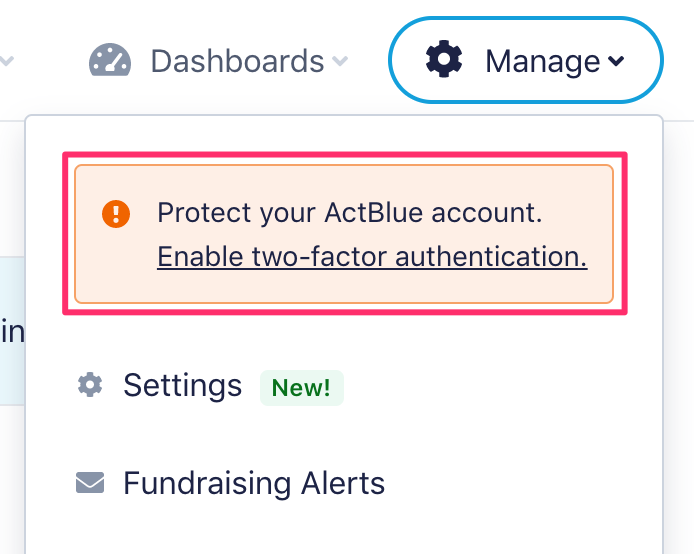
To set up 2FA with Google Authenticator, you'll first want to sign into your ActBlue account and then click the Manage tab at the top of the page. From the Manage dropdown provided, click Enable Two-Factor Authentication:
You can also begin the 2FA set-up by following a similar prompt displayed at the top of your Dashboard:

If you don't see either prompt, you can enable 2FA by clicking the Manage tab at the top of the page and then selecting Settings from the dropdown:

From the Settings page, simply click the blue Enable button beside Two-factor authentication to get started:

Following any of these methods should bring you to the 2FA enablement page where you'll find additional instructions on how to download Google Authenticator to your device:

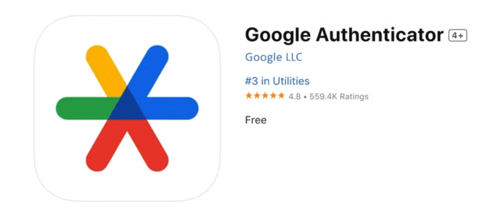
In the current Apple App Store, the Google Authenticator icon should look like this:
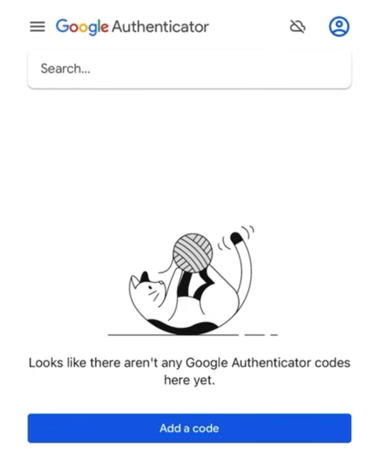
Once you've successfully downloaded Google Authenticator, open the app, select Add a Code, and then select Scan a QR Code:
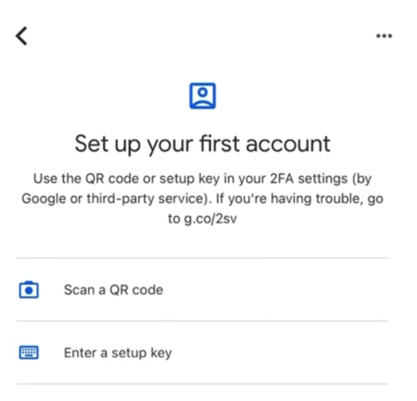
Using your device's camera, scan the barcode displayed on the ActBlue page. You will need to align the yellow box shown on your device's screen with the bar code shown in order to move to the next step.

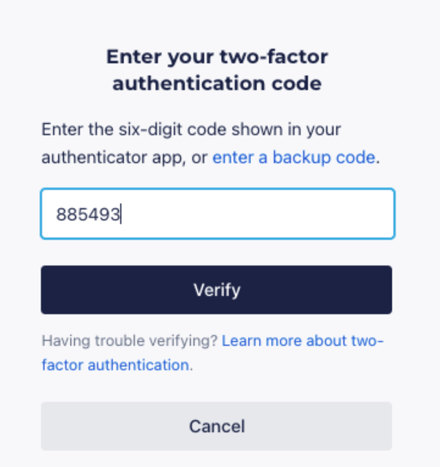
Once your device's camera is successfully aligned with the bar code, the Google Authenticator app will generate a six-digit code likely titled ActBlue. Enter this code into the box at the bottom of the ActBlue screen and then click the blue Verify and Enable button to complete your 2FA set-up:

Going forward, you will now be intermittently prompted to enter a six-digit code generated by the Google Authenticator app when you sign into ActBlue. Please note this code is not a static number and will change regularly.
Where can I find my six-digit 2FA code?
Once you've successfully set up 2FA on your ActBlue user profile, you will need to use the codes generated by your linked authenticator app in order to sign in. Unlike OTP codes, 2FA codes will not be sent via text or email.
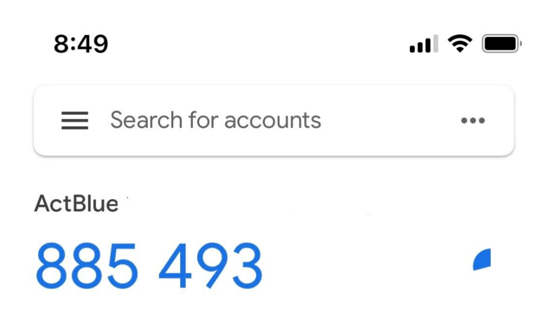
To access your 2FA codes, simply open up your phone's linked authenticator app (in this case, Google Authenticator), locate the six-digit code displaying underneath the ActBlue heading, and then enter this code into the ActBlue sign in screen where prompted:
Can I use another authenticator?
If you already use another 2FA app like Authy and prefer not to switch to Google Authenticator, we strongly recommend disabling the Authy Multi-Device feature. This feature makes your account vulnerable to social engineering attacks.
Using 2FA with Google Authenticator tends to be the most accessible method for ActBlue users. Our platform also supports YubiKeys (a physical device you insert into your computer, similar to a USB drive). YubiKeys users can now log in to ActBlue with codes generated by the Yubico Authenticator desktop app for 2FA.
What are emergency recovery or backup codes and how do I generate them?
Emergency recovery codes (also know as backup codes) are static codes you can use to log into your 2FA-protected account in the event you lose your device or don't have access to your authenticator app.
You will receive one emergency recovery code when you set up 2FA in ActBlue, meaning you can use this code for one, singular sign-in if you lose access to your authenticator app.
Once this emergency recovery code is used, a new one will be generated.
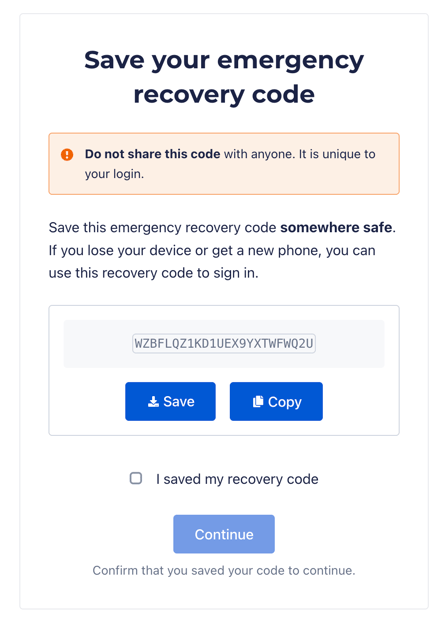
You can also generate and view a new emergency recovery code by signing into ActBlue, clicking the Manage tab at the top of your screen, selecting Settings, and then navigating to the Security tab:


The Security tab will show you whether you’ve turned on 2FA and generated recovery/backup codes for your account. To generate a new recovery code from this page, simply click the Generate button provided:
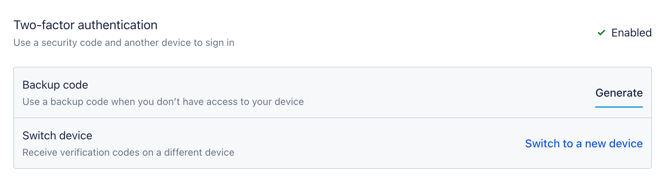
Next, verify your identity with a temporary code sent to your email address. The email should look something like this:
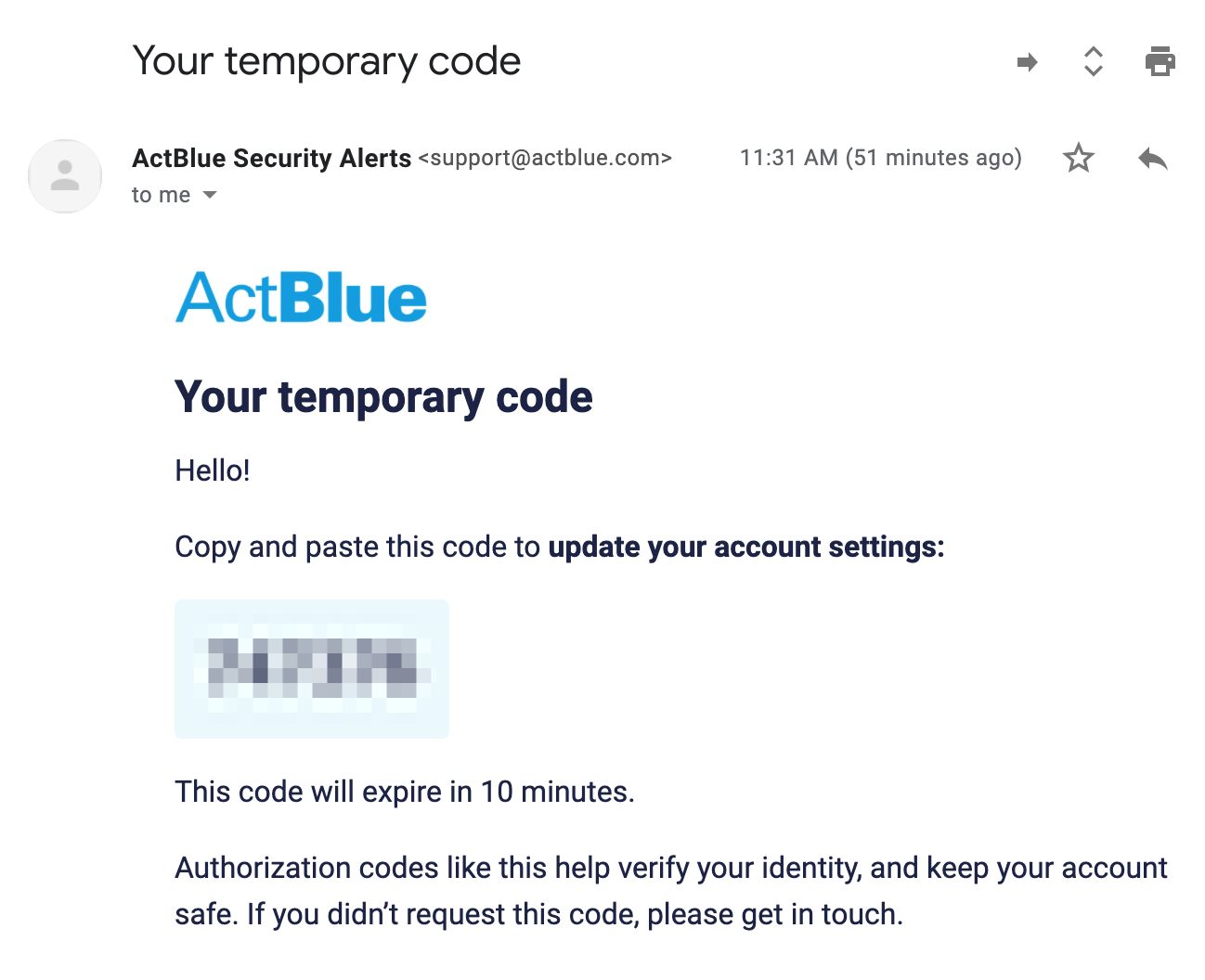
Enter the temporary code and then click Generate Code to continue to your recovery/backup code. You should save this code immediately after it's generated.
After generating a new code, you should also receive an email from ActBlue Security Alerts confirming a new recovery/backup codes was generated.
I received an email or pop-up prompt saying 2FA is now required to access my Dashboard. Why?
If you received an email or pop-up prompt saying that 2FA is now required to access a Dashboard, this means an Admin user on your Dashboard has opted to require 2FA for all users.
In order to access your Dashboard, you will need to set up 2FA on your account as soon as possible using the prompts provided or the instructions found above.
If you're an Admin user looking to require 2FA across your Dashboard, check out this guide for more information!