
In this article
Set up your merchant account
Your jurisdiction’s campaign finance laws might require that you fundraise on Raise through a merchant account, an electronic payment processor. With our partner, Stripe, we will securely process your donations and deposit them into your bank account.
Once we receive your Raise by ActBlue account setup request, ActBlue staff will review your submission and determine whether your account requires a merchant account. If so, you will receive an email from support@actblue.com with an invitation to the Stripe onboarding process and specific instructions for completing it.
To complete the Stripe onboarding process, you will need:
- Your committee’s federal tax ID (EIN)
- An active campaign bank account
- An authorized representative from the campaign to sign terms and agreements
- Stripe may require additional information – you will be prompted for that if so.
After completing some initial account creation steps on Raise and reviewing our terms and conditions, you’ll land on a secure setup form hosted by Stripe. Stripe collects information on their end for verification and security purposes, and after completing the Stripe setup process, you’ll land back on Raise.
Your committee must have a federal tax ID (EIN) to set up your Stripe account. Stripe will not accept a Social Security Number in place of an EIN. If you do not have an EIN, you can obtain one in minutes via the IRS website. Make sure to save your EIN confirmation document (usually an SS-4), as we may ask you to provide that to expedite the verification process.
Because the IRS does not update its database in real-time, Stripe may be unable to verify your EIN if you obtained it recently. If this is the case, you may need to upload a document from the IRS confirming the issuance of your committee’s EIN; this is usually an IRS Letter SS-4 or IRS Letter 147C.
After completing the onboarding steps in Stripe, you'll return to Raise to securely upload your bank documentation for payouts to your bank account. Stripe will transfer your funds directly to your committee’s bank account, so we'll need one document from your bank confirming your account information:
- Voided check
- Bank statement
- Account confirmation letter
We can only accept an original and unaltered bank document that meets all of the following requirements:
- The document includes the committee (or DBA) name associated with the account in print (not handwritten). Registering the campaign bank account to this name proves ownership of the account.
- The document includes the full name of the bank in print.
- The document includes the full bank account number in print (not handwritten).
- The image you upload must include the entire document, and all text must be legible. If the bank document does not meet the requirements above, we'll notify you of our inability to accept the document, and you'll need to upload a new one that fits the requirements.
Once we receive and approve your bank documentation and confirm that you successfully created your Stripe account, we'll queue your account for review and activation by ActBlue staff. This process typically takes 1-2 business days, though we may need additional time in some circumstances.
Not ready to announce your campaign publicly yet? We can privately set up your account so that as soon as you’re ready to make your big announcement, you can begin fundraising immediately. If you do not want your account to be publicly accessible immediately, contact us and let us know.
Manage your merchant account
Please contact us for help managing or updating your merchant account. Make sure you reach out from the same email address you use to log into Raise, and let us know specifically what updates you need. An ActBlue team member will make these changes for you on the backend of our platform as promptly as possible!
Update your Stripe account or linked bank account
If you need to update your Stripe account, please contact us for more information.
If you need to update the details of the bank account where you receive ACH transfers, navigate to the “Settings” drop-down menu in the right-hand corner of your Dashboard and choose “Financial Settings.”
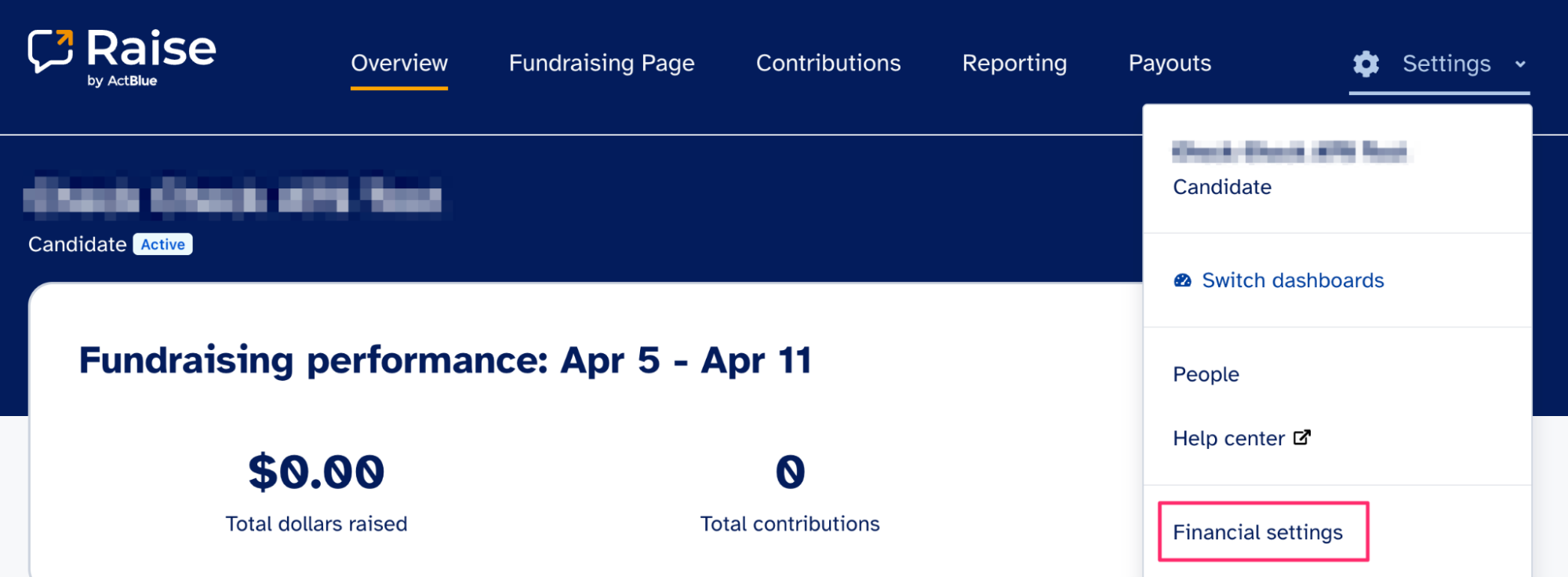
From the Financial Settings page, click “Edit account info” next to the bank account you currently have connected.
On the next page, click “Connect to bank account” and follow the prompts to connect to your updated banking institution. Once you’ve logged in and verified your account, you’re all set to receive direct deposit.
If you don’t see your bank listed, click “link your bank account another way.” On the next page, add your banking information manually. You’ll also need to upload a picture of a bank document, such as a bank statement. Make sure the document is not handwritten and includes the following:
- Your full bank account number
- Your bank’s nine-digit routing number
- The name of the banking institution
- The name of the account owner (i.e., your committee name)