
ActBlue user roles and permissions dictate what users can do on our platform. If the tools or features mentioned in this article are unavailable to you, please speak to your Dashboard Admin(s) about updating your permissions.
This article explains how to sell merchandise through Core ActBlue's merchandise forms. It covers creating a form (title, link, customer service contact info, shipping timeframe), the note that donors can always add an extra donation on top of merchandise cost, and editing the form via the Form Editor — adding items with images, variations (e.g., size/color), and stock limits, reordering or hiding listings. It closes with how to view and download the order fulfillment spreadsheet (CSV), and two compliance reminders: the seller is solely responsible for producing/shipping items, and merchandise is treated as a gift in exchange for a contribution, so it still needs to be reported as such.
In this article:
- Can I sell merchandise for my campaign or organization through ActBlue?
- How do I create a merchandise form?
- How do I edit and add items to my merchandise form?
- How do I view and fulfill my orders?
Can I sell merchandise for my campaign or organization through ActBlue?
Yes! ActBlue makes selling merchandise easy, and donors can use the same payment methods they use on regular contribution forms, including their debit/credit card, the saved card in their ActBlue Express account, PayPal™, Google Pay™, Apple Pay®, and Venmo™.
How do I create a merchandise form?
To create a new merchandise form, simply log onto your Dashboard and click the Create Form button in the top left corner:

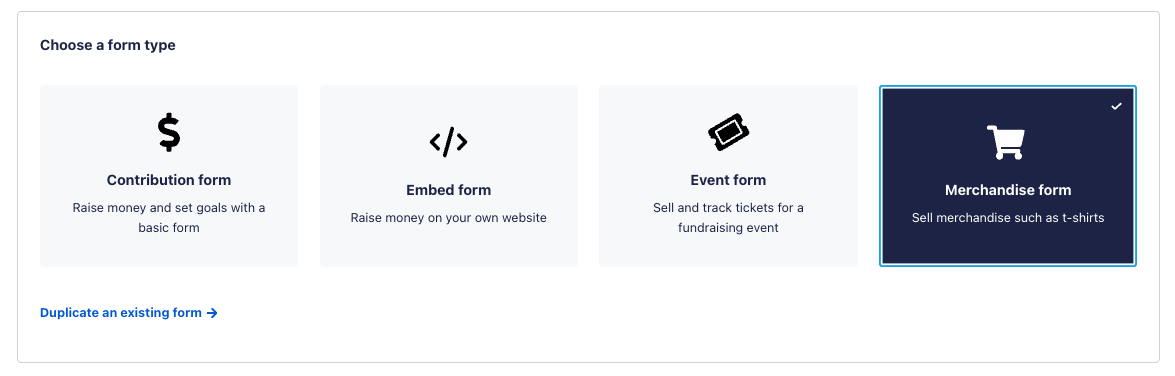
Next, select Merchandise Form from the form type options provided:
Once you've selected merchandise form, you'll need to provide a form title, link name, customer service email address, customer service phone number, and shipping timeframe.
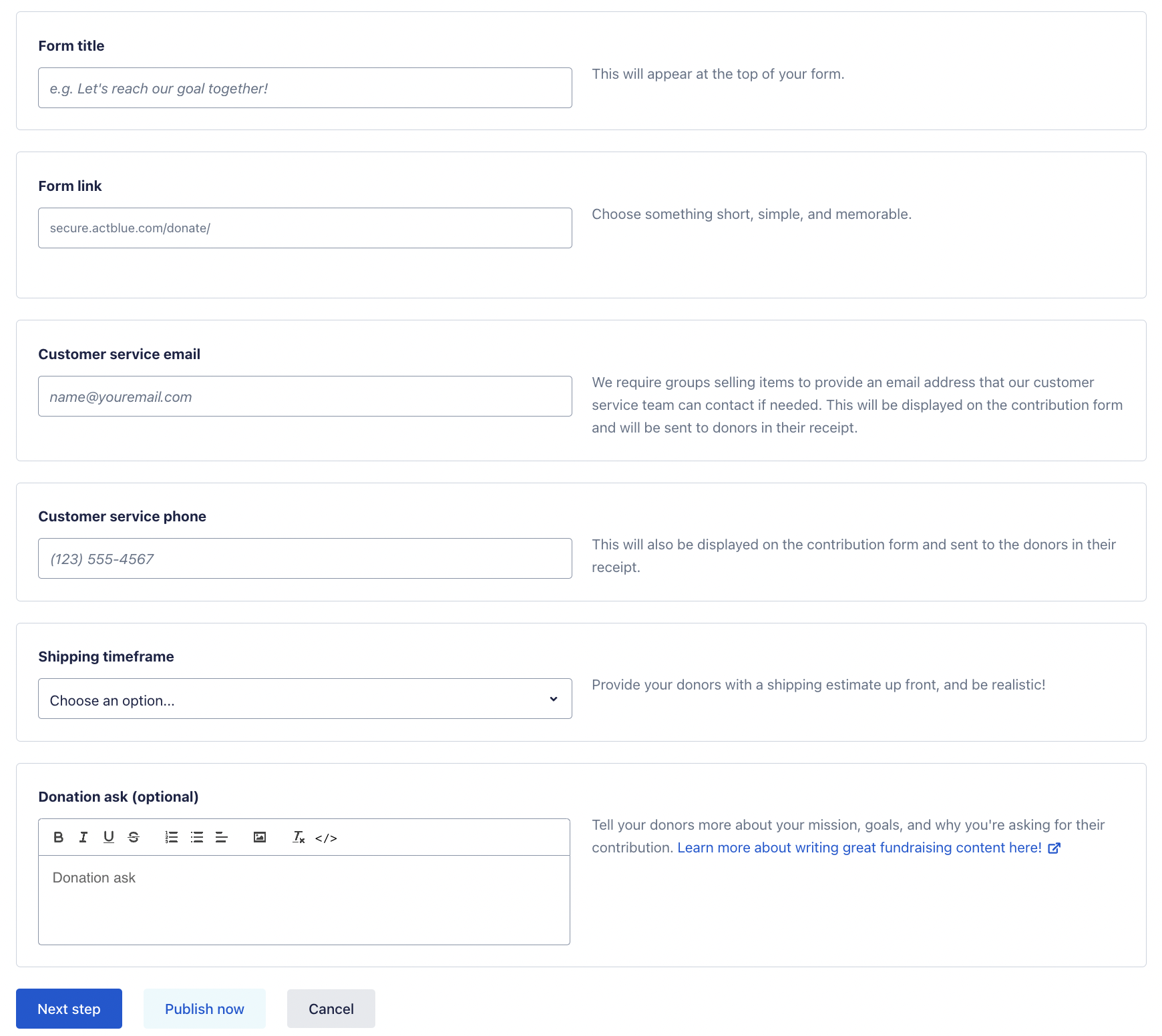
The customer service email address and phone number will be displayed on your form and in your donation receipts in case your donors need to get in touch about any merchandise fulfillment issues.
The shipping timeframe will provide donors with an estimate of when they can expect to receive their items. You can choose between a timeframe of 24 hours, 3-7 days, 1-2 weeks, 2-4 weeks, 4-6 weeks, and 6-8 weeks. Please ensure you and your team have a fulfillment plan in place before you start selling items through ActBlue to prevent any delays.
After you finish filling out the basic information for your merchandise form, click Publish Now to complete the form creation process. While your form will become live as soon as you publish it, we strongly recommend ensuring all merchandise listings are fully added to your form before actively sharing it with your supporters.
Please note that donors will also always be given the option to donate in addition to the cost of their merchandise. This is a static feature across all ActBlue merchandise forms and cannot be changed.
How do I edit and add items to my merchandise form?
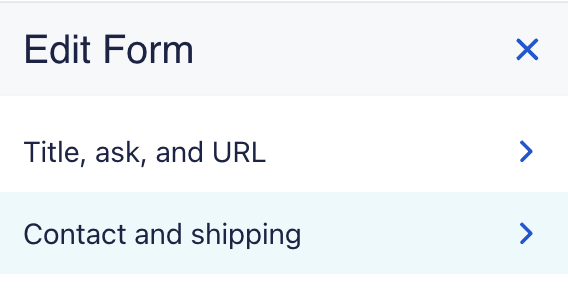
To edit or add items to your merchandise form, simply open up your form and click the blue Edit button in the top left corner. This will open up the Form Editor and the following menu:
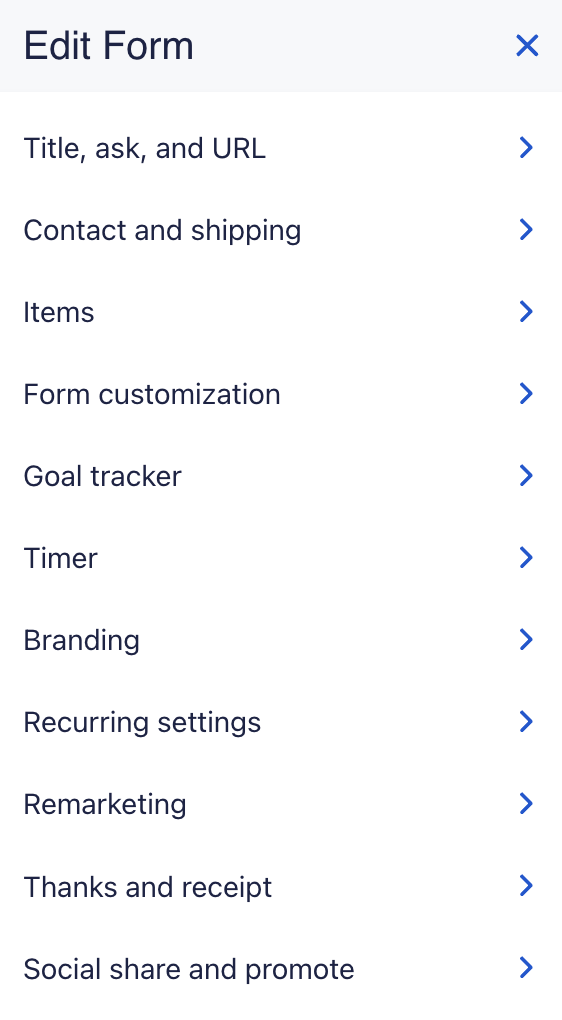
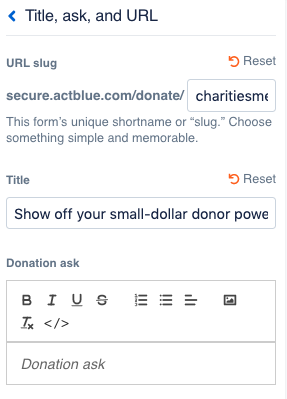
From here, you can add or edit your merchandise form's title, link, and donation ask by clicking on the Title, Ask, and URL tab:
You can also edit your form's fulfillment information under the Contact and Shipping tab:
To add merchandise to your form, start by clicking the Items tab and then selecting Add Item. This will trigger a pop-up where you can enter your item's name, description, price, and image:

Images should be as high-resolution as possible and can be uploaded by either clicking the Upload an Image button or by dragging and dropping an image file into the upload area. Please keep image vetting and consent best practices in mind throughout this process.
If you have a limited supply of an item, uncheck the Unlimited box and enter the number of items you have available in the Stock box. Once the exact number of items is sold for this listing, donors will no longer be able to purchase any more.
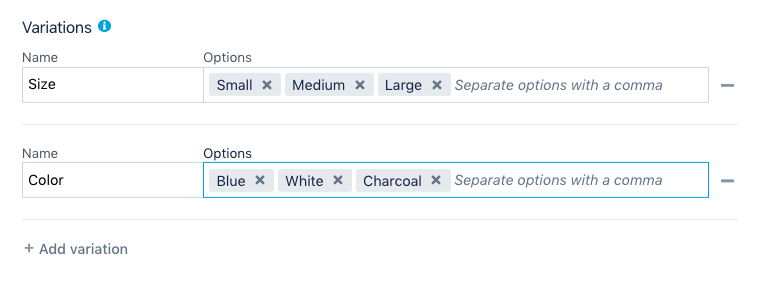
You can also add any merchandise variations for your item such as different sizes or colors by clicking the Add Variation button and then listing out your item's options (ex. a variation name could be "size" and the options could include "small," "medium," "large," and "extra large"). More information on variations can be found by clicking the blue information ("i") button.
Once you've finished entering all the information about your item, click the blue Done button to view a preview of your form and item listing. If you're happy with the way the item displays, click Publish to make the changes live.
To change the order items appear on your form, return to the Items tab and simply drag and drop your merchandise listings into your desired order.
You can also hide items by clicking the blue Edit button beside each item and then selecting Hidden from the dropdown:

How do I view and fulfill my orders?
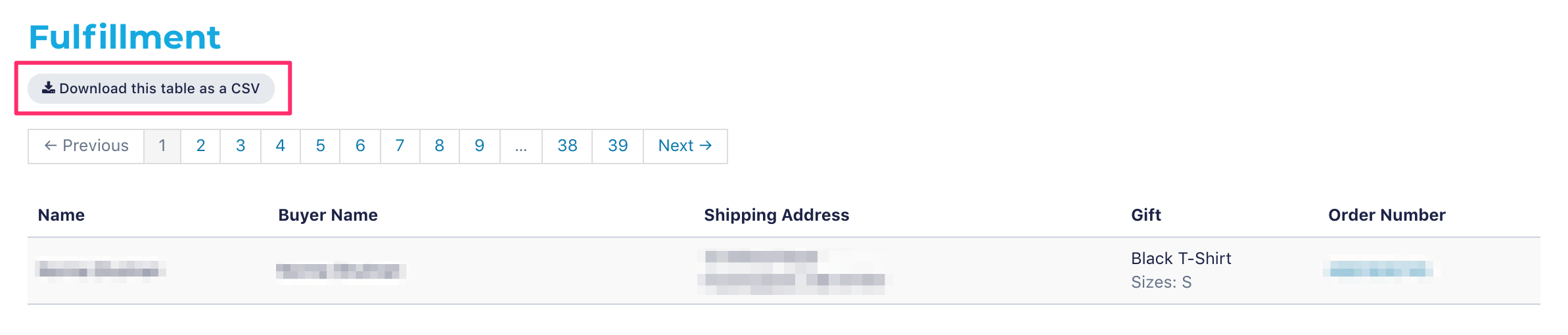
To simplify the fulfillment process, we provide a CSV spreadsheet of all merchandise orders your form receives.
To view and download this spreadsheet, start by opening up your merchandise form, clicking More at the top of the page, and then selecting Fulfillment from the dropdown menu:

The Fulfillment tab will list all orders placed through your merchandise form. To download this same information as a CSV file spreadsheet, simply click the button prompt at the top of the page:
Please keep in mind that when selling and fulfilling merchandise orders on ActBlue:
- You are solely responsible for producing and shipping any items you offer.
- Your merchandise item is considered a gift in exchange for a contribution to your campaign or organization. This means that you'll need to report these contributions as usual.
© 2009 PayPal, Inc. All rights reserved. PayPal and the PayPal logo are trademarks of PayPal, Inc. Other names, trademarks and brands are the property of their respective owners.
Google Pay is a trademark of Google LLC.
Venmo is a service of PayPal, Inc., a licensed provider of money transfer services (NMLS ID: 910457). All money transmission is provided by PayPal, Inc. pursuant to PayPal, Inc.’s licenses. © 2021 PayPal, Inc.