
Disclaimer: ActBlue user roles and permissions dictate what users can do on our platform. To set up and manage integrations, you'll need to be an entity admin or have the Integrations permission for your entity.
In this article:
What is ActionKit?
ActionKit is a digital organizing platform used by progressive groups to manage fundraising, advocacy, and supporter engagement. By connecting ActionKit to ActBlue, your contribution data (including contributions, refunds, and cancellations) will automatically sync to your ActionKit instance.
Connecting Your ActionKit Account
Before you begin, you'll need the username and password from an ActionKit staff account, as well as your ActionKit hostname. If you haven't set up a staff account for this integration yet, see ActionKit's documentation on connecting with ActBlue for instructions.
Step 1: Find ActionKit on the Integrations Hub
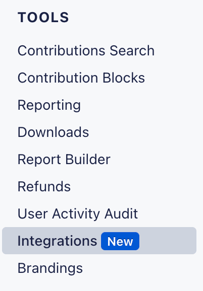
Start by signing onto you ActBlue Dashboard and navigating to the Integrations tab:
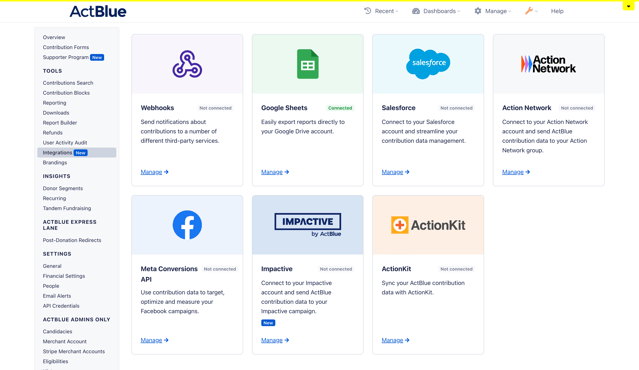
On the Integrations page, you should see the ActionKit tile displayed alongside your other available integrations. Click Connect to get started:
Step 2: Enter Your Credentials
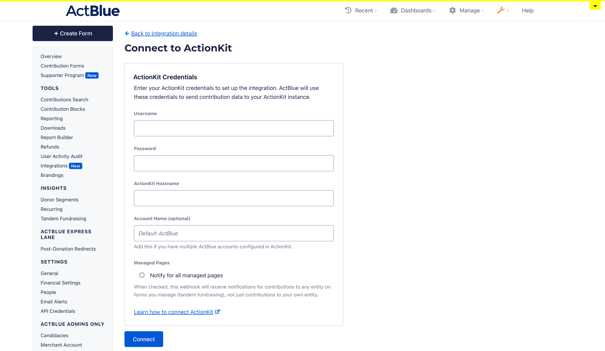
On the connection page, fill in the following:
-
Username (required): The username from your ActionKit staff account
-
Password (required): The password from your ActionKit staff account
-
ActionKit Hostname (required): The URL of your ActionKit instance (e.g.,
yourorg.actionkit.com) -
Account Name (optional): A name to identify this ActBlue account in ActionKit. If left blank, this defaults to "Default ActBlue." This is useful if your organization has multiple ActBlue accounts connected to the same ActionKit instance.
Step 3: Choose Managed Forms Settings
You'll also see a Notify for All Managed Pages checkbox. This is relevant if your organization uses tandem fundraising (managing contribution forms on behalf of other entities).
-
Checked: ActionKit will receive data for contributions made on any form your entity manages, not just forms for your own entity.
-
Unchecked: ActionKit will only receive data for contributions made directly to your entity.
If you're not sure, you can leave this unchecked and change it later in your integration settings.
Step 4: Connect
Click the Connect button. Once connected, you'll be redirected to your integration details page with a confirmation message.
Your Integration Details Page
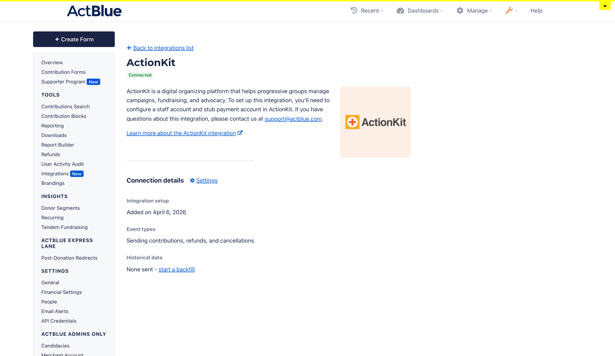
After connecting, your ActionKit details page shows an overview of your integration:
-
Status: Shows whether your integration is Connected, Not connected, or has a Connection error (see Troubleshooting below).
-
Integration setup: The date the integration was added and by whom.
-
Event types: The types of data being sent: contributions, refunds, and cancellations.
-
Historical data: Whether historical data has been sent to ActionKit. If not, you'll see a link to start a backfill.
From here you can access your Settings to manage your integration or start a historical data backfill:
Managing Your Integration
To access your integration settings, go to your ActionKit details page and click the Settings link.
Managed Forms
You can change your managed forms notification preference at any time:
-
Click Edit on the Managed forms card
-
Choose Send (to notify for all managed pages) or Don't send (to notify only for your own entity)
-
Click Save changes
Historical Data
Click Manage on the Customized historical data card to go to the backfill page (see "Sending historical data" below).
Disconnecting Your Integration
If you need to disconnect your ActionKit integration:
-
Expand the Disconnect integration section on the settings page
-
Click Disconnect now
Disconnecting stops data from being sent to ActionKit, but it does not delete any data that has already been sent. If you need to reconnect later, simply go through the setup steps again, your previous data won't be lost.
Sending Historical Data
If you connected ActionKit after you've already been receiving contributions through ActBlue, you can send that historical data to ActionKit using a backfill.
Starting a Backfill
Navigate to the backfill page from either:
-
The "Start a backfill" link on your details page, or
-
The Manage link on the Customized historical data card in Settings
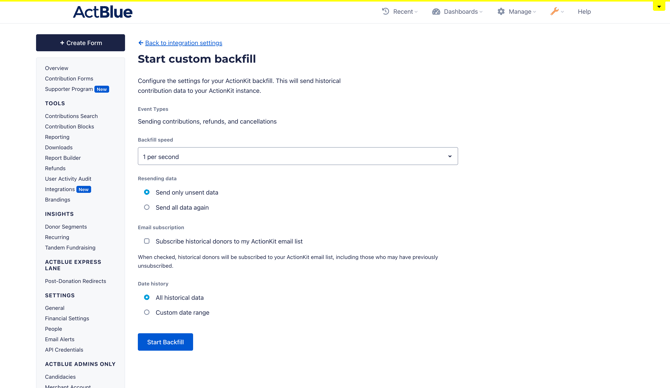
Backfill Options
-
Resending data: Choose whether to send only data that hasn't been sent to ActionKit yet, or resend all data (including data that was previously sent).
-
Email subscription: Check this box if you'd like historical donors to be subscribed to your ActionKit email list. This is unchecked by default.
-
Date range: Choose to send all historical data, or select a custom date range.
Once you've configured your options, click Start Backfill. You'll be redirected to your details page where you can monitor the backfill progress.
Troubleshooting
My integration shows "Connection Error"
This means there's a temporary issue delivering data to ActionKit. In most cases, this resolves on its own after a short time. If the error persists, try disconnecting and reconnecting with your correct ActionKit staff account credentials.
If you have additional questions about the ActionKit integration, contact us here!